Start – the start time of this time segment, increment at 30 minutes. (The end time
of this time segment is implicitly set as the start time of next time segment, or the
start time of the first time segment of the same weekday if it’s the last one.)
Example: If the user sets the start time of T1/MON as 9:00, T2/MON as 18:00,
T3-T16/MON as N/A (Not Available), then T1/MON is 9:00-18:00, T2/MON is
0:00-9:00, and 18:00-24:00.
Alarm – record mode (No, Video, Audio/Video) when certain alarm input is triggered.
“OFF” is for alarm detection OFF. Please note that the alarm is the alarm for the focus
camera (in Alarm Setup) if Individual is selected.
Motion – record mode (No, Video, or Audio/Video) when motion is detected for
certain camera. “OFF” is for motion detection OFF.
Normal – normal record mode, including No, V (Video only), or A/V (Audio/Video).
Note: In a time segment, if both Alarm and Motion are set to “OFF”, the audio/video will
be treated as Normal unless there’s Video Loss.
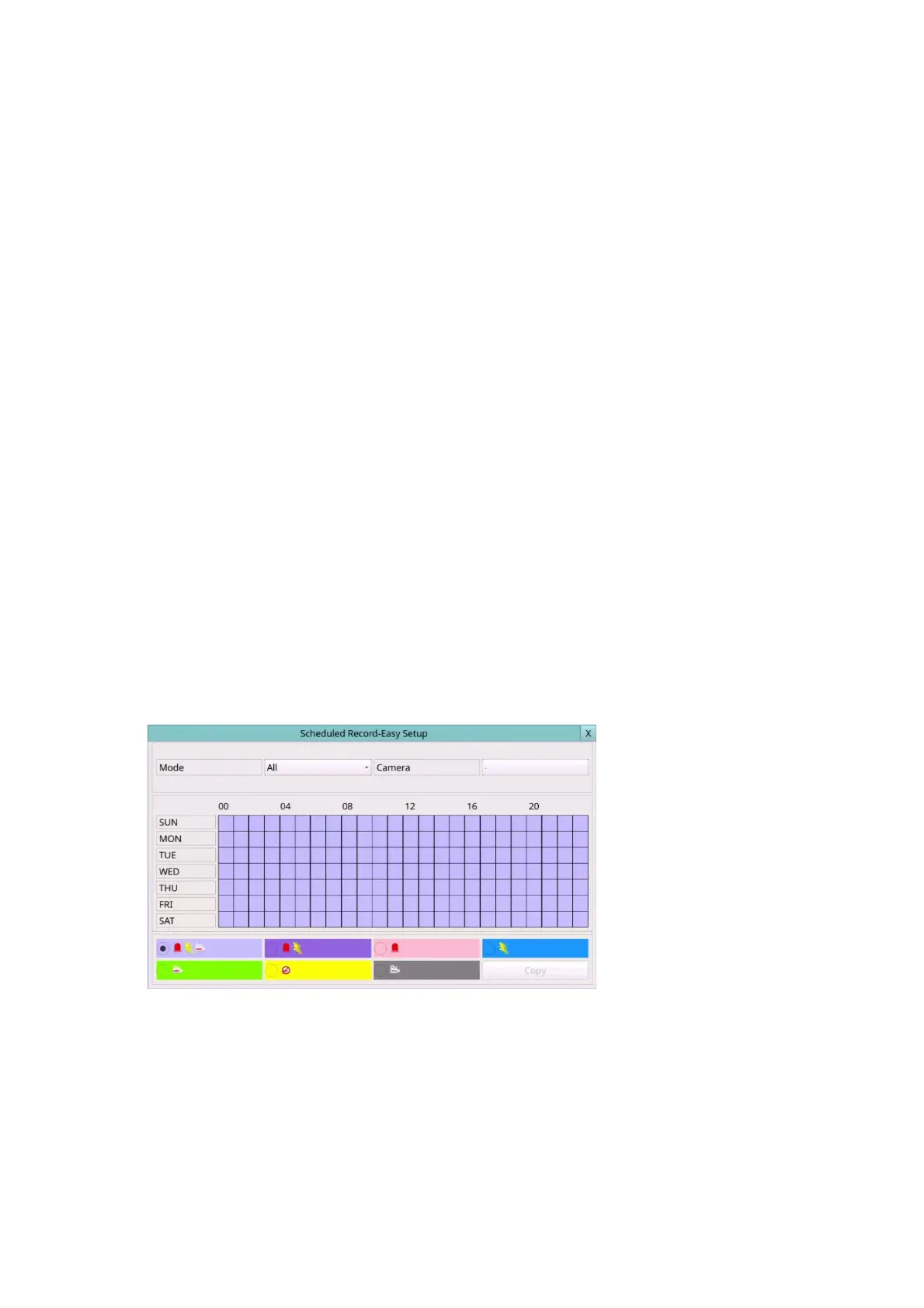
Scheduled Record – Easy Setup
The Scheduled Record – Easy Setup allows the administrator to use a simpler and easier
way to setup the scheduled record of the system. In Easy Setup, there are Six Selectable
Recording Modes: Alarm+Motion+Normal, Alarm+Motion, Alarm, Motion, Normal, and
No Record. Video & Audio are all recorded for the selectable Recording Modes except
“No Record”. After the Easy Setup, the time segments for each weekday in Scheduled
Record will be updated accordingly.
The operations are as below:
Mouse: Click in the respective item
Select the items to set.
X (Mouse: Left Click X or Right Click to leave)
Press this button to escape from this screen, and return to Scheduled Record Setup
display. The time segments for each weekday in Scheduled Record will be updated
accordingly. If the contents have been modified, a Save dialog will be shown to ask
the user to save the changes, press YES to exit and save, CANCER to exit without
saving.



 To Next Page