system software to disconnect with the device and then unplug the device from the
backup port.
Note 1: DO NOT format the DVD for better performance and compatibility.
Note 2: Before using a USB pen drive, please format it to FAT32 or exFAT file system
by MS-Windows.
Note 3: The backup device has to be connected by the system software before it
can be used to read/write. If it failed to connect, please unplug the device, and
then plug the device in the USB port again.
Note 4: Some backup devices may have compatibility problems. Please contact
your local dealer or installer for the supported devices.
Backup Speed – 1-9, with 1 the lowest speed, 9 the highest speed. Press the
Numeric to select the value.
Directory – the directory to store the archived files. Please follow the Text Input
method described in Section 4.1 to input the directory.
Cameras – the video/audio of the cameras to be archived. Mouse Left click to
select/deselect each of the selectable cameras. If the camera with GPS data is
selected, the GPS data will be saved with the camera video in the same file. The
user may save GPS data only (without saving camera video) by selecting GPS.
GPS File Format – for the backup of GPS data only. The supported formats are TXT
and KML. Mouse Left click to select the value.
End Time – (Year, Month, Date, Hour, Minute) for the recorded video/audio for
the backup without playback of Search By Time. The files will be backup from the
start time to the end time when the user press the COPY button (Mouse: Left click)
to start copying. Press ▲▼ buttons to modify each item.
Search Button (Mouse: )
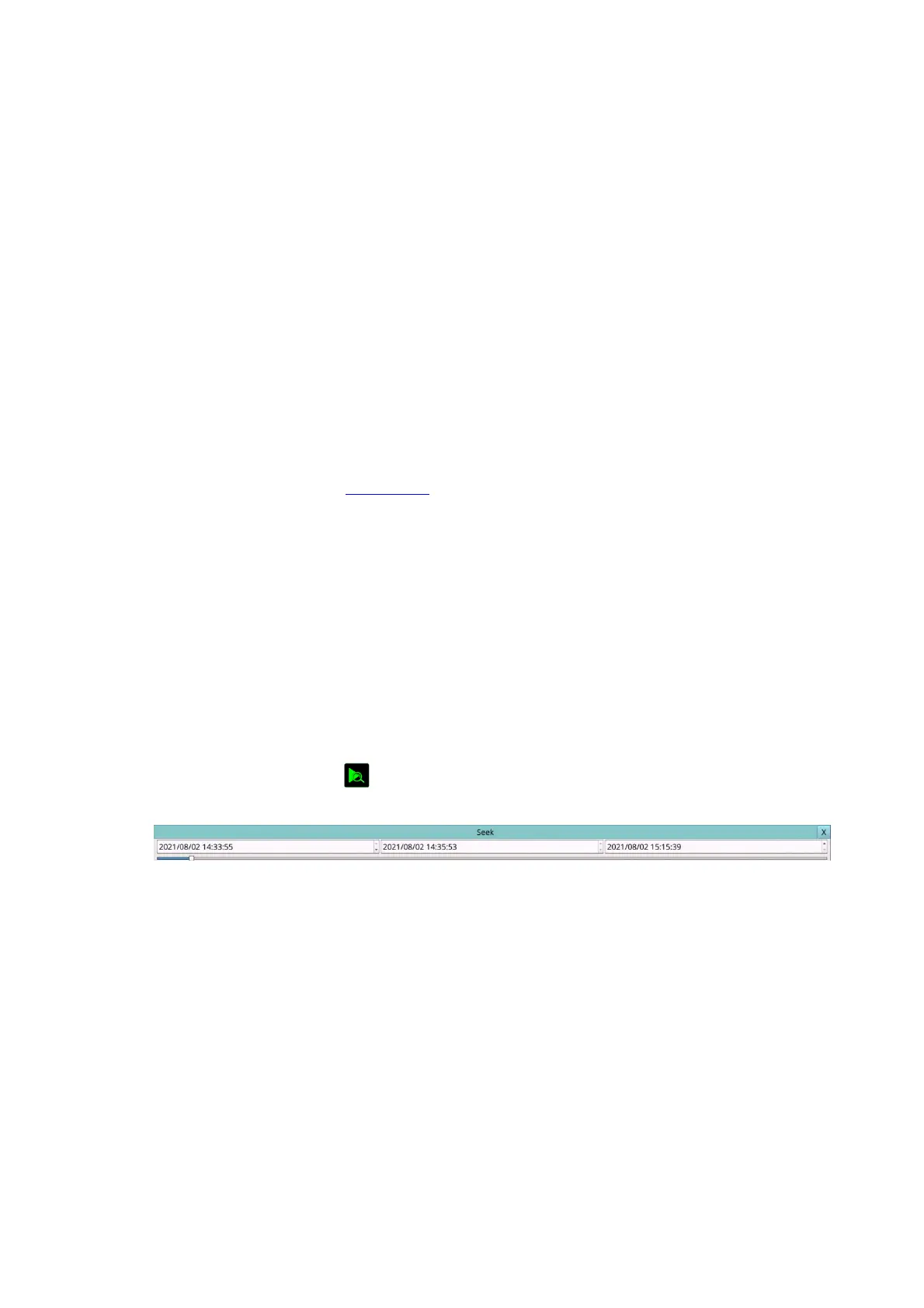
Press this button in playback to display the playback seek slider bar as shown below.
The left-most is the start time and its slider, the right-most is the end time and its slider,
and the middle is the current playback time and its slider. Following is a brief
description of the operations in the playback slider bar:
Mouse: Click in the respective item
Select the items to enter the corresponding display.
X (Mouse: Left Click X or Right Click to leave)
Press this button to not show the playback slider bar.
▲▼ (Mouse: Left click)
Press these buttons to change the time after click the time. After change the left-most
start time and the right-most end time, the whole playback slider bar will be updated
accordingly.
Mouse Left click and drag to slider the bar
Mouse Left click and pull to slider the bar to change the middle current playback time.



 To Next Page