- 84 -
The device name of the selected DVR is shown. Click on this icon, and the available
DVRs will all be shown. The user may type alphanumeric characters to get the
matched DVRs. Click on one of them to select a new DVR. The 1/4/9/16 split-window
video display, the camera status, and the alarm input/output will all switch to
correspond to the newly selected DVR. There’s “Multiple” in the device list, the user
can select it to display camera video from different DVRs in 4/9/16 split window
display.
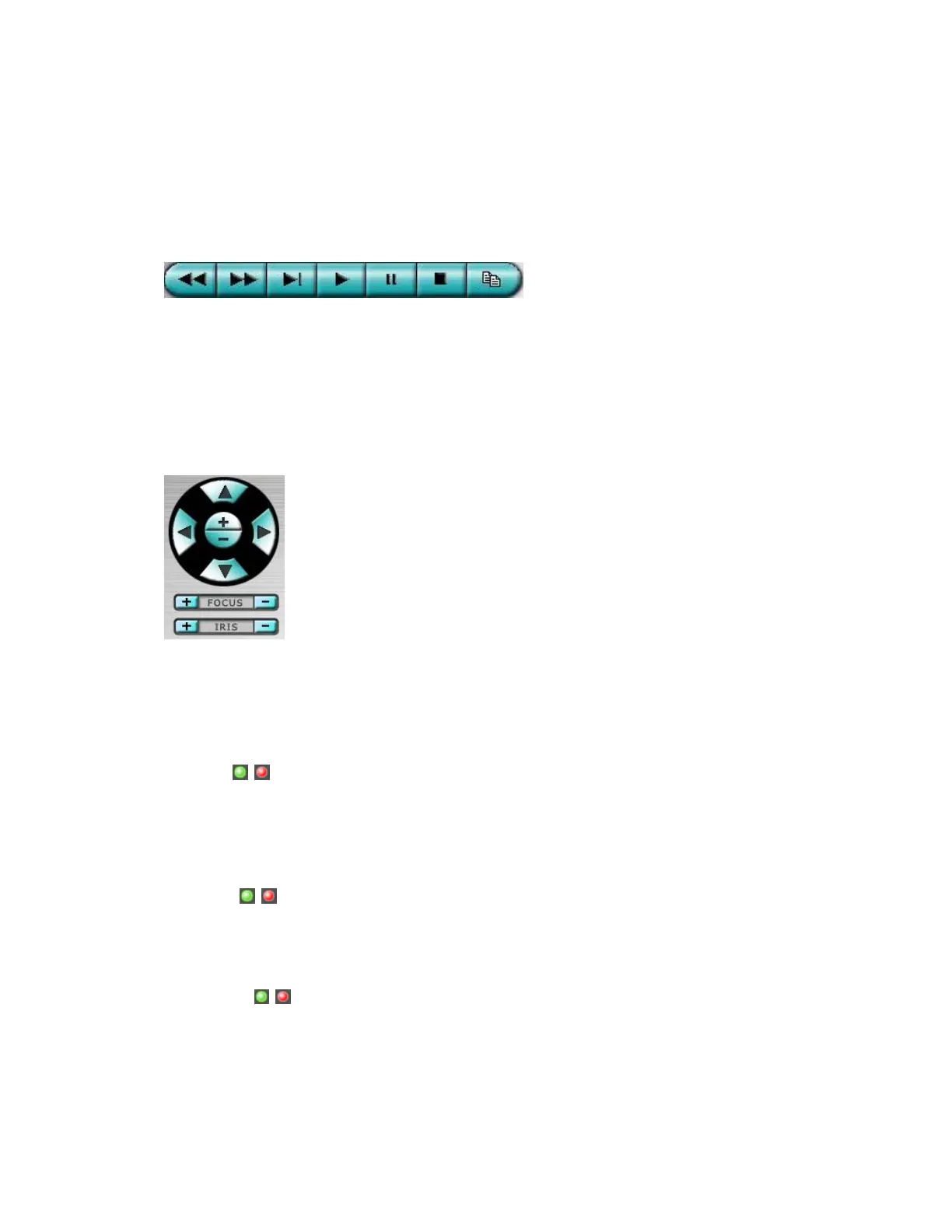
Playback panel for playback buttons, including Fast Backward, Fast Forward, Single
Step, Play, Pause, Stop, and Copy (from left to right). Please note that the Copy
function can be used to archive both live and playback streams. Please
check/uncheck the cameras to be archived when the Copy Dialog is shown, and then
click on OK or Apply button. If the user click on Apply button and select & highlight
one of the cameras, the current copying status for that camera will be shown in the
dialog.
PTZ control panel. If the camera in the focus window is a PTZ camera, these buttons
in the PTZ control panel can be used for PTZ control. The operations include Tilt
Up/Down, Pan Left/Right, Zoom In/Out, Focus Near, Focus Far, Iris – (darker), Iris +
(brighter).
Camera /
Status indicators for cameras 1-8/4 (GREEN for normal, RED for motion) for the
selected DVR. Click on any of these icons to select the corresponding camera of the
selected DVR to be displayed in the focus window.
Alarm In /
Status indicators for alarm inputs 1-8 (GREEN for normal, RED for alarm) for the
selected DVR.
Alarm Out /
Alarm outputs 1-2 (GREEN for normal state, RED for triggered state) for the selected
DVR. For Administrator, click on any of these icons to control the corresponding
alarm output from normal to triggered, or from triggered back to normal.



 To Next Page