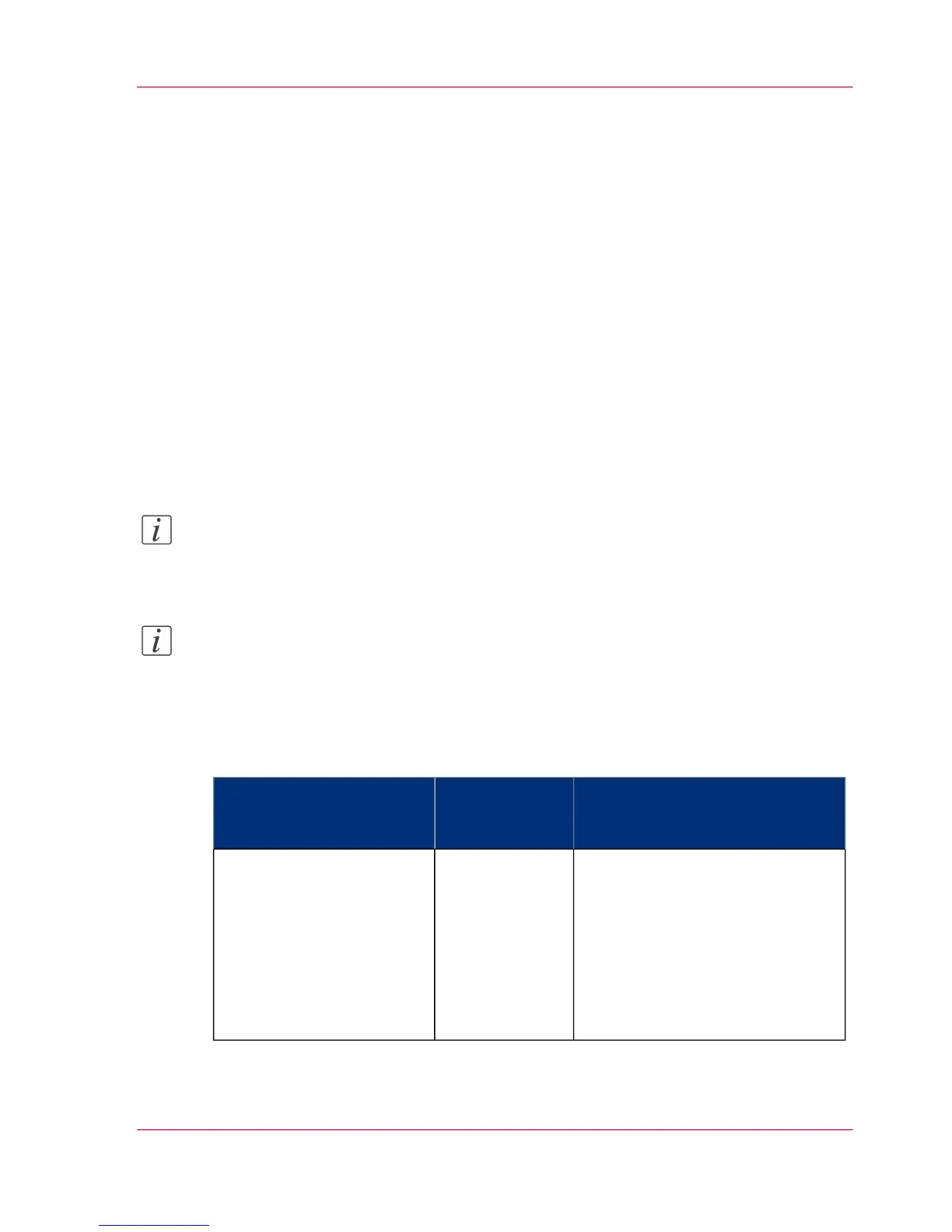
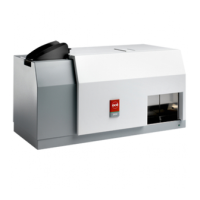
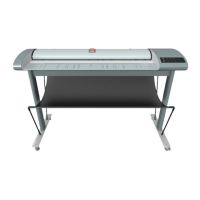
Océ TC4 Power Logic
®
controller setup
Introduction
Before you begin to use Océ Account Logic, you must do the following.
■
Activate Océ Account Logic by activating the licence in Océ License Logic.
■
Check the correct settings in the Océ TC4 Power Logic
®
controller application. When
you have activated Océ Account Logic the relevant settings in the Océ TC4 Power
Logic
®
controller application will be set to the correct value.
Before you begin
Before you begin you can check and if necessary modify the correct settings in the Océ
TC4 Power Logic
®
controller application on the Océ TC4 Power Logic
®
controller ap-
plication, log on as a machine administrator.
Note:
Refer to the on-line help of the Océ TC4 Power Logic
®
controller application for infor-
mation about the settings and the location of the settings.
Note:
After an upgrade of Oce Account Logic all the administrative settings are maintained.
You can check the settings in the 'Administration' window.
The correct settings
#
ExplanationDefinitionThe path to the setting in
the Océ TC4 Power Logic
®
controller application
The scanner locks when the scanner
panel timeout expires. The scanner
locks to prevent users from using
the scanner without entering ac-
count information. When you set
the timeout to a minimum value,
the scanner locks after a minimum
of time has passed.
Océ advises you
to set the panel
timeout to the
minimum value
(30 seconds).
Path: 'Preferences' - 'System
defaults' - 'Scanner' - 'Panel
time-out'
Chapter 7 - Accounting software: Océ Account Center 163
Océ TC4 Power Logic
®
controller setup


 To Next Page