Do an extended copy job ('Direct copy
mode' disabled)
Extended copy job
Before you begin
Make sure 'Direct copy mode' is disabled (See ‘Enable or disable 'Direct copy mode'’ on
page 111). Your copy job is not automatically sent to the printer. You can edit the print
settings before you send the copy job to the printer.
How to do an extended copy job
1.
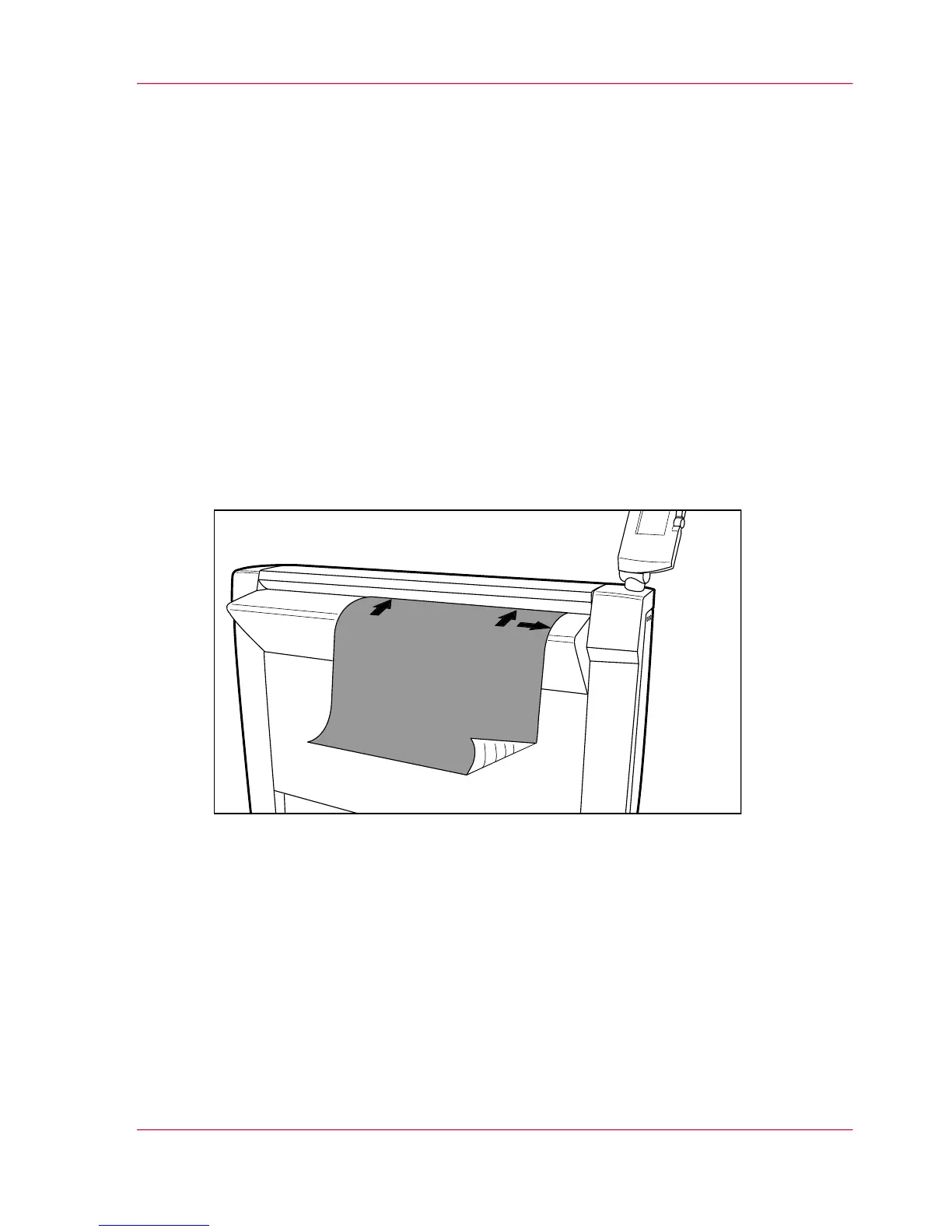
Place the original face down and right aligned.
The scanner takes the original.
[57] Place the original face down and right aligned.
2.
Select a Publisher Copy template or change the 'Destination' of an existing template to
Publisher Copy.
3.
Change the scan settings if necessary and press the green start key.
4.
When the document is scanned a 'New Job' window opens. In the 'Job Composition'
section you can select your copy job and edit the print settings (See ‘The 'Edit Document
Print Settings' window’ on page 125).
Chapter 5 - The Océ Publisher Copy option 123
Extended copy job


 To Next Page