Using the Océ TDS400 to Scan-to-file 93
How to retrieve scanned files
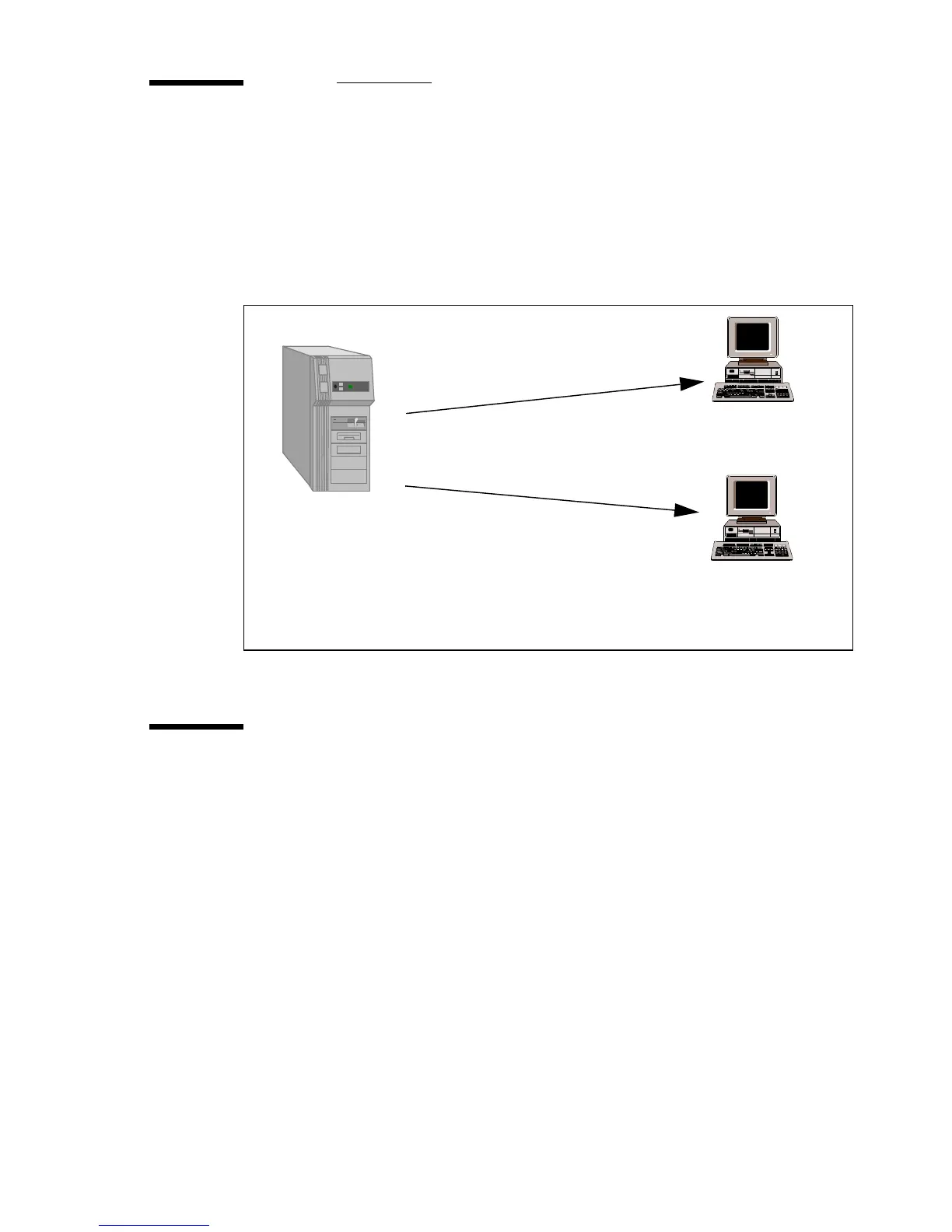
When you scan your files will be stored in the destination you set. This can be
on the local controller or on a remote system. You can retrieve your files from
the local host via File Transfer Protocol (FTP) (see Figure 28). Also if during
scanning to a remote destination, something goes wrong, you can retrieve your
files from the local host.
[28] How to retrieve scan files
Get files via FTP
1 Launch an FTP client.
2 Enter the ‘ftp’ command.
A DOS box now appears with the FTP prompt.
3 Enter the ‘Open’ command followed by either the registered name of the Océ
Power Logic® Controller or the IP address (for example: 194.2.66.146) to
connect to the Controller and press Enter: ‘open 194.2.66.146’.
Note: Insteadofperformingsteps2and3youcouldalsoenter“ftp
host_name” in the FTP client.
The connection with the Controller is now established and a window appears
asking you for a user name.
4 Enter your user name ‘anonymous’, and enter as your password also
‘anonymous’.
A connection is now set up for the default user ‘anonymous’.
Remote client
Remote client
Power Logic Controller
Windows XP®
G
e
t
f
i
l
e
s
v
i
a
F
T
P
G
e
t
f
i
l
e
s
v
i
a
F
T
P



 To Next Page