EasyManua.ls Logo

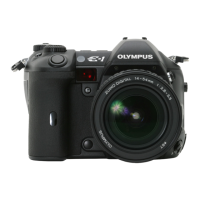
Olympus E-1 - User Manual

Olympus E-1
182 pages
Print Icon
To Next Page IconTo Next Page
Loading...
DIGITAL CAMERA
REFERENCE MANUAL
Thank you for purchasing an Olympus digital camera. Before you start to use
your new camera, please read these instructions carefully to enjoy optimum
performance and a longer service life. Keep this manual in a safe place for future
reference.
We recommend that you take test shots to get accustomed to your camera
before taking important photographs.
In the interest of continually improving products, Olympus reserves the right to
update or modify information contained in this manual.

Table of Contents

Other manuals for Olympus E-1

Questions and Answers

  • B
    Brett SanchezAug 19, 2025
    Why my Olympus Digital Camera does not turn on?
    • J
      Joseph WilliamsAug 20, 2025
      If your Olympus Digital Camera does not turn on or the function buttons are unresponsive, first, ensure the power switch is set to ON. If it's in sleep mode, press the shutter button halfway. Check the battery level and charge if low. If the battery is cold, warm it in your pocket. Also, the camera will not operate in STORAGE mode when connected to a PC, use OLYMPUS Studio software in CONTROL mode.
  • D
    Dana GlennAug 21, 2025
    What to do if my Olympus E-1 won't take pictures?
    • M
      Mark RamirezAug 21, 2025
      If your Olympus Digital Camera is not taking pictures when you press the shutter button, ensure the battery is charged. If the battery ran out of power during shooting, wait until charging is complete. If there's a problem with the card, refer to the "Error codes".
  • D
    Denise PetersonAug 23, 2025
    Why is my Olympus E-1 picture too dark?
    • D
      Daniel MccarthyAug 23, 2025
      If pictures taken with your Olympus Digital Camera appear too dark, it might be because the subject was small and backlit, so try setting the metering system to spot metering or use the flash. It could also be due to something bright in the center of the image, in which case you should adjust the exposure toward +. If you're in A (M) mode, decrease the aperture value, or switch to P mode. Similarly, if you're in S (M) mode, reduce the shutter speed or switch to P mode.
  • M
    Miss Brooke Jenkins MDAug 26, 2025
    Why are my Olympus Digital Camera pictures blurred?
    • V
      Vincent RodriguezAug 26, 2025
      If your Olympus Digital Camera is producing blurred pictures, it could be due to camera movement when pressing the shutter button. Hold the camera correctly and press the shutter button gently, especially when using a telephoto lens. If ISO is set to auto in a dark environment, use the flash or set a higher ISO sensitivity, or use a tripod. Ensure RELEASE PRIORITY S or RELEASE PRIORITY C is set to OFF, and if the focus mode is set to MF, take the picture when the AF correct mark lights up or switch to AF mode.
  • J
    Julie JenkinsAug 28, 2025
    How to fix too bright pictures on Olympus E-1 Digital Camera?
    • V
      Valerie MccarthyAug 28, 2025
      If the pictures from your Olympus Digital Camera appear too bright, it could be due to something dark in the center of the image; adjust the exposure toward –. Alternatively, the ISO setting may be too high; set ISO to auto or 100, and if there's no improvement, use an ND filter. If you're in A (M) mode, increase the aperture value, or set the exposure mode to the P mode. If you're in S (M) mode, increase the shutter speed or set the exposure mode to the P mode.
  • T
    Thomas BuchananAug 30, 2025
    Why do colors look unnatural on my Olympus Digital Camera indoors?
    • C
      Chad WhitakerAug 30, 2025
      If the colors of pictures taken indoors with your Olympus Digital Camera look unnatural, it may be due to the indoor lighting affecting the picture's colors. Try setting the appropriate white balance for the lighting. You can also try using the one-touch white balance for more natural-looking colors. If the white balance setting is wrong, set the appropriate white balance for the lighting again.
  • S
    Selena WilliamsSep 1, 2025
    Why is my Olympus E-1 Digital Camera picture out of focus?
    • J
      James BautistaSep 1, 2025
      If the picture from your Olympus Digital Camera is out of focus, it could be because the subject is too close; move back to the closest focusing distance for the lens. If subjects are difficult to focus on, use MF (manual focus) or focus lock. If the subject is dark, set AF ILLUMINATOR to ON in the menu. If there is condensation in the lens or viewfinder, turn off the camera’s power and wait until the camera is dry.
  • J
    Jennifer NunezSep 3, 2025
    How to fix unclear viewfinder display on Olympus Digital Camera?
    • R
      Rebecca HughesSep 3, 2025
      If the viewfinder display on your Olympus Digital Camera is not clear, adjust the diopter so that the AF frame is clearly visible. If stray light enters through the lens, use a sunshade. If stray light enters through the viewfinder, use the optional eyecup. If there is condensation in the lens or viewfinder, turn off the camera’s power and wait until the camera is dry. If the date/time is not set, set the date/time. If the camera was left for a long period with the battery removed, set the date/time again.
  • C
    cassandra42Sep 5, 2025
    What to do if computer doesn't recognize Olympus Digital Camera?
    • L
      Loretta ClarkSep 5, 2025
      If your Olympus Digital Camera is not recognized by the computer, ensure the camera's power is turned on. If you are using Windows 98/98 SE, reinstall the USB driver. Also, make sure the camera's PC MODE is set to STORAGE, not CONTROL.
  • J
    Jodi GravesSep 7, 2025
    Why is the monitor hard to see on my Olympus E-1 Digital Camera?
    • J
      John MaldonadoSep 7, 2025
      If the monitor on your Olympus Digital Camera is hard to see, adjust the brightness of the monitor using the menu. If the monitor is exposed to direct sunlight, block the sunlight with your hand. If the monitor cover is attached to the camera, remove it.

Summary

How to Use This Manual

Understanding Manual Conventions

Explains symbols and notes used for clarity and warnings in the manual.

Names of Parts

Camera Overview

Identifies and explains the various external components of the camera body.

Getting Started

Attaching the Strap

Provides step-by-step instructions for securely attaching the camera strap.

Loading the Battery

Details the procedure for charging and inserting the camera battery.

Attaching a Lens

Guides the user through the process of mounting and dismounting camera lenses.

Inserting a Card

Explains how to correctly insert and remove memory cards from the camera.

Power ON;OFF

Describes how to turn the camera's power on and off for operation.

Adjusting the Viewfinder

Instructions on adjusting the viewfinder for clear vision based on eyesight.

Shooting and Playback Basics

Shooting Function Setting

Covers basic settings required before starting to shoot photographs.

Shooting Procedure

Explains the fundamental process of taking a photograph with the camera.

Playback Procedure

Details how to view and manage recorded images on the camera's monitor.

Buttons and Menus

Operating Buttons and Dials

Provides guidance on using the camera's physical controls for settings.

Menu Navigation

Explains how to navigate and interact with the camera's menu system.

Focus

Auto Focus (AF)

Describes the automatic focusing system and how to use it.

Focus Modes

Explains the different focus modes available: S-AF, C-AF, and MF.

Exposure

Exposure Modes

Overviews the various exposure modes (P, A, S, M) for controlling image brightness.

Exposure Compensation

Details how to manually adjust exposure levels for optimal image brightness.

Metering Modes

Explains different methods for measuring scene brightness for exposure.

Image Quality and Color

Record Mode

Guides selection of image quality, resolution, and compression settings.

ISO Sensitivity

Explains how to adjust ISO settings for varying light conditions.

White Balance

Covers adjusting color balance to match different light sources accurately.

Flash

Using the Electronic Flash

Step-by-step guide for connecting and operating external flash units.

Flash Modes

Details the various flash modes like auto, red-eye reduction, and slow sync.

Playback

Single-Frame Playback

How to view individual recorded images on the camera's monitor.

Information Display

Displays detailed shooting information and histograms for images.

Erasing Pictures

Procedures for deleting unwanted images from the memory card.

Function;Setting Customizing

CUSTOM RESET SETTING

Allows saving and recalling custom camera setting configurations.

PC Mode

Configures camera behavior when connected to a computer.

Print Reservation

What is Print Reservation?

Explains DPOF standard for saving print settings with images.

Single-Frame Reservation

How to mark individual images for printing with specific settings.

Transferring Images to a Computer

How to Download Images

Guides on connecting the camera and transferring image files to a PC.

Connecting the Camera to Computer

Details the physical connection process using USB or IEEE1394 cables.

Downloading Image Files

Step-by-step instructions for transferring files on Windows systems.

Miscellaneous

Error Codes

Lists common error messages, their causes, and corrective actions.

Troubleshooting

Provides solutions for common operational problems and issues.

Maintenance

Instructions for cleaning and caring for the camera and its components.

Specifications

Technical details and features of the camera product.

Glossary of Terms

Definitions of technical terms used throughout the manual.

Olympus E-1 Specifications

General IconGeneral
Max Resolution2560 x 1920
Image Ratio w:h4:3
Sensor TypeCCD
Lens MountFour Thirds
Focal Length Multiplier2x
White Balance Presets6
Digital ZoomNo
Image StabilizationNo
RAW FormatYes
Shutter PriorityYes
Aperture PriorityYes
Manual Exposure ModeYes
Built-in FlashNo
Flash X Sync Speed1/180 sec
Viewfinder TypeOptical (pentaprism)
LCD Screen Size1.8"
Screen Dots134, 000
Shutter Speed60 - 1/4000 sec
Continuous Shooting3 fps
Storage TypeCompactFlash (Type I or II), Microdrive
USBUSB 1.1
Dimensions141 x 104 x 81 mm (5.55 x 4.09 x 3.19 in)
Camera TypeSLR
Effective Pixels5.0 MP
Sensor Size17.3 x 13.0 mm
Metering ModesCenter-weighted, Spot
Exposure Compensation±3 EV (1/3 EV steps)
External FlashYes
Drive ModeSingle, Continuous, Self-timer
Self-timerYes (12 sec, 2 sec)
BatteryLithium-Ion
Weight660 g (1.46 lb)
ISO Range100-800 (expandable to 1600, 3200)

Related product manuals