ONE TIME PROGRAM
PROGRAM 1
CHANNEL 10
TIME ON – – :– –
TO CORRECT PUSH CLEAR
TO END PUSH EXIT
6
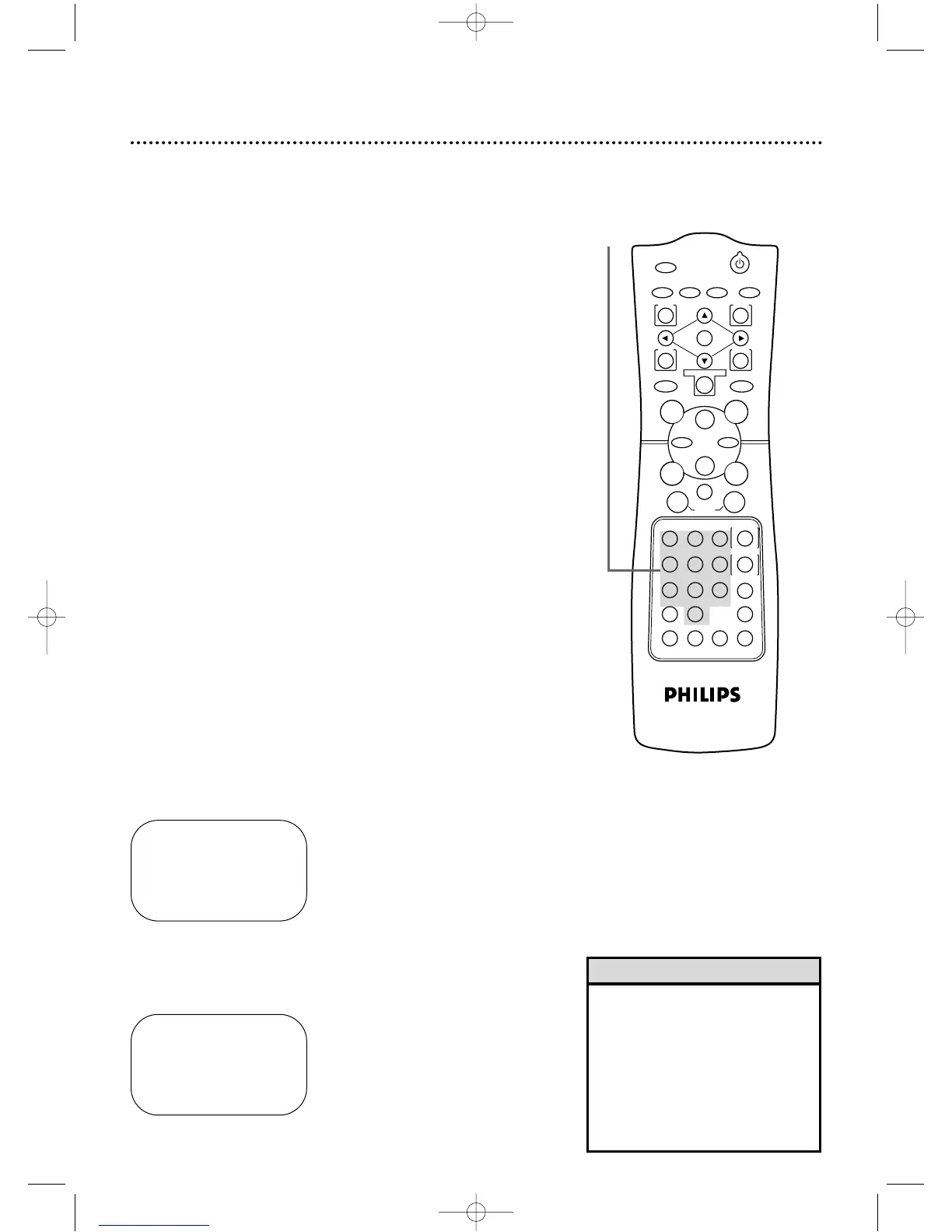
Press two Number buttons for the hour you want the
recording to begin. Press two Number buttons for the
minute you want the recording to begin.Press 1 for AM or 2
for PM. For example,for 9:30 PM,press 09,30,2.
ONE TIME PROGRAM
PROGRAM 1
CHANNEL 10
TIME ON 09:30 PM
TIME OFF – – :– –
TO CORRECT PUSH CLEAR
TO END PUSH EXIT
Timer Recording (cont’d) 37
4
Use the Number buttons (1-8) to select a slot in which to
store the timer recording.There are eight slots.Numbers for open
slots will flash on the screen.
NOTE:If you enter a number for a slot that has already been used to store a
timer recording,PREVIOUSLYSETPROGRAM will appear on the screen
briefly.Information about the program in that slot will appear on the screen.
If this happens,press the DISPLAY/STATUS/EXIT button,then select another
number.
5
Use the Number buttons to enter the TV channel you want
to record.
● Cable Users,enter channel numbers as a two-digit number for the
quickest results.For example,to select channel 6,press 0,6.If you
only press the Number 6 button,channel 6 will be selected after a
brief delay.There also may be a brief delay when you select channels
10,11,and 12.
If you want to select channels 100 and above,enter
channel numbers as a three-digit number.For example,to select
channel 117,press 1,1,7.
● Antenna Users,enter channel numbers as a two-digit number for
the quickest results.For example,to select channel 5,press 0,5.If
you only press the Number 5 button,channel 5 will be selected
after a brief delay.You may only select channels 2-69.
● If you are recording from line input,press 0,0 to select AV REAR.
● If you are using a Cable Box/DBS,select the Cable Box/DBS out-
put channel (03 or 04).Set the Cable Box/DBS to the channel you
want to record.Leave the Cable Box/DBS on for the timer
recording. Details are on page 10.
7
Follow the instructions in step 6 to enter the recording’s
stop time. (AM or PM will be set automatically.)
Instructions continue on page 38.
4-7
• Entries that do not match the
DVD/VCR’s clock or calendar will
cause a question mark to appear
on the screen.
• If you are recording from line input,
connect the audio and video cables
to the AUDIO IN and VIDEO IN
jacks on the back of the DVD/VCR.
(Please see illustration on page 40.)
Helpful Hints
DV910(H9100).QX33 01.8.9 10:26 AM Page 37


 To Next Page