23
An active internet connection must be available.
If you already have a valid Google account, you can use it to login.
We strongly recommend you to note down your account name and password for later use.
After successful setup of your account your device will start to look for updates. We suggest you wait
for ca. 15minutes (depends on your connection speed).
As soon as this process is nished your PIKO SmartControl
®
is ready to play!
Security notice: Android with internet connection
We suggest that you do not use your device for safety/security relevant actions on the internet, like
online banking.
If you still wish to do that it is your own responsibility to install anti virus software or similar protection
measures.
Please note: The safety of your information is your own responsibility!
Battery charging
You can easily charge your PIKO SmartControl
®
via the mini USB socket.
There are multiple options:
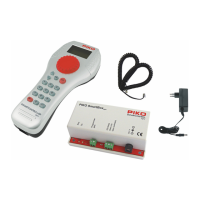
• use the included power supply with USB wire
• use the USB wire of the included charger and connect it with a USB socket on your computer
• use the USB socket of the PIKO SmartBox
®
As the USB socket is standardized, it is possible to connect the PIKO SmartControl
®
to any other USB
socket equipped device.
Notice:
If you charge your PIKO SmartControl
®
while it is turned off, you will see a battery graphic for charging
only.
If you want to power on your device in this state you need to push the ON/OFF-button for around 5
seconds, until the display shows the small Android-icon.
Otherwise you will just see the charging status.


 To Next Page