511026 Rev. 07-01-19
77
R
estoring the library configuration from a file
1. Navigate to the Configuration > System > Save/Restore Configuration screen.
2. Click Browse to navigate to and select the configuration file. The file has to be a zip file.
3. Select the file and press Upload File & Restore. Starts the uploading process and restores the
configuration file from the system running the RMI.
R
esetting the default settings
To reset the library configuration to the default settings, click Reset Default Settings. For the default
settings, see "Defaults and Restore Defaults Settings".
R
esetting the List of Known Drives and Modules
To reset the List of Known Drives and Modules, click Reset. Removes not present Modules and Drives
from the library stack
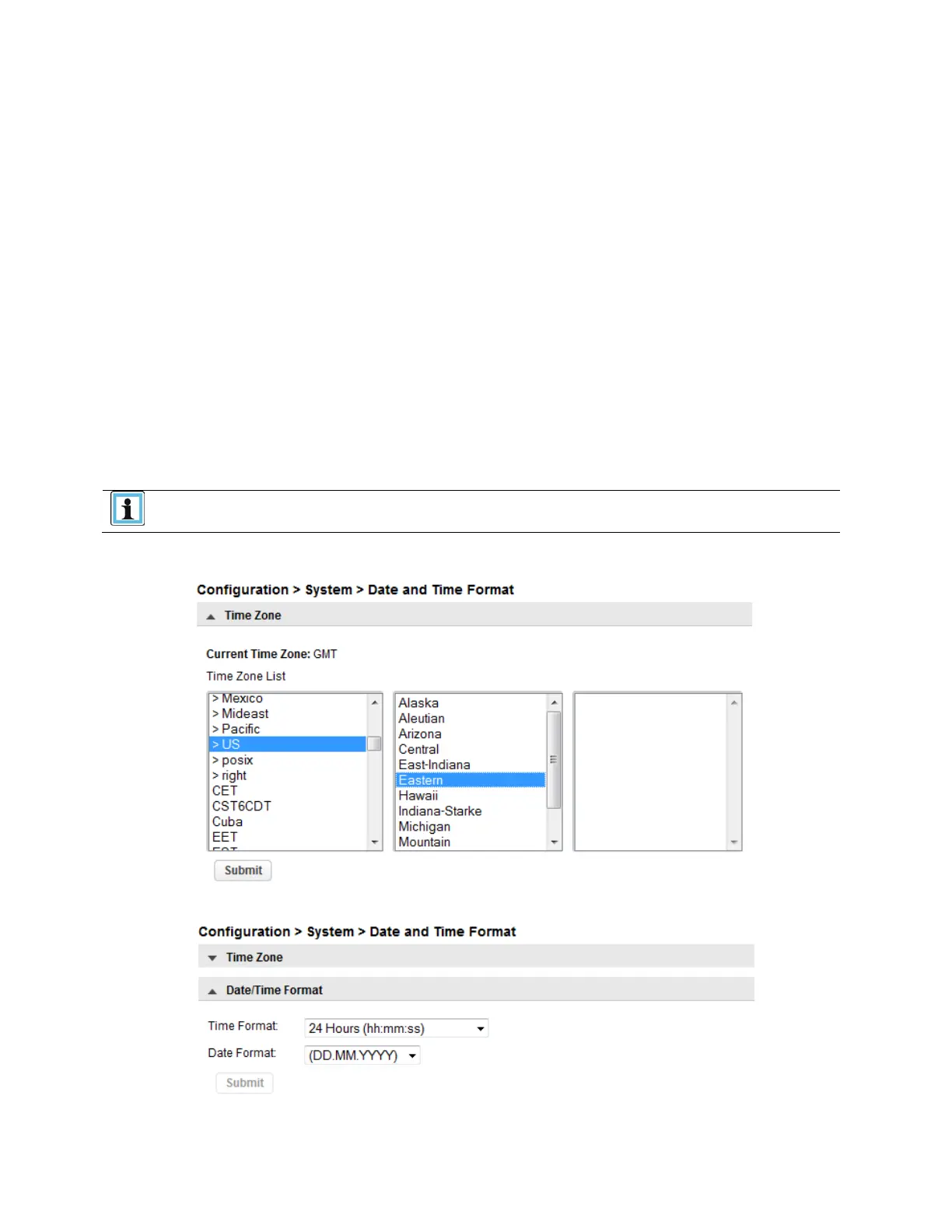
6.2.2 Configuring the Date and Time Format
To configure the date and time format parameters navigate to the Configuration>System > Date and
Time Format screen.
The library does not adjust its time for daylight savings time; the time must be
adjusted manually.
To set the Time Zone, select Time Zone. And select the desired zone.
T
o set the date and time format, select Date/Time Format.


 To Next Page