09/2016 Page 34 5IN2371 C
Manually Allocating & Configuring other Modules and Bus
Devices
If you didn’t yet run an Auto-Setting scan to allocate (enable) all the installed
non-communication modules (for example, expansion modules) or other bus
devices – or if you are adding new ones and don’t want to perform an Auto-Setting
scan of the entire system, instead you can allocate them manually. Also, if you
didn’t configure parameters during the Auto-Setting scan, you can do so now.
IMPORTANT: If no longer utilizing a previously allocated module/bus device,
you’ll need to manually cancel its allocation. After cancelling, if needed, you can
then re-write over it (to newly allocate) another module/bus device.
NOTE: After manually programming other modules and bus devices, you can
perform a Bus Test to ensure good communication between the bus devices and
the main panel (see Performing a Bus Test, page 31).
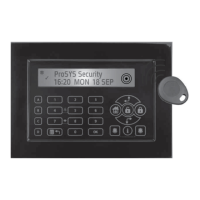
Wired Keypads
1. From the installer Programming menu, select 7> 1> 2, then scroll to
01)Keypad and press OK ( ).
2. Scroll to, and then edit the keypad’s physical ID number to match its DIP switch
settings (see Describing Installer-Set ID Numbers for Bus Devices, page 18).
3. Press to toggle to the correct keypad type (or select NONE to cancel its
allocation), and then press ; Assign to Partition displays.
4. Scroll to manually edit (type in) the partition number or press to toggle to
the correct partition number, and then press ; the Mask screen displays where
you enable operability of specific partition(s) with this keypad. By default, for
keypad 01 all partitions are enabled.
5. While scrolling through each block of partitions, designate the partition(s) to
allow operation via the keypad. Enter a partition number to select it (it will
display), or enter the number again to clear it (it will not display). Then
press ; Controls / 1) Emergency displays.
6. Scroll to Control parameters and press to enable/disable (Y/N) as needed:
1)Emergency – to operate the emergency quick keys at the keypad.
2)Multi View – to view from this keypad the status of all masked
partitions (select Y) or only the partitions (select N).
3) Exit beeps – (for a 2-Way wireless Slim keypad with bypass)— sounds
beeps during the exit time in stay arming.
4)Supervision – to enable (Y) or disable (N) supervision for a wireless keypad.
7. Press to go to the next keypad, and repeat this procedure from step 2.



 To Next Page