AX10 Palletizing Solution
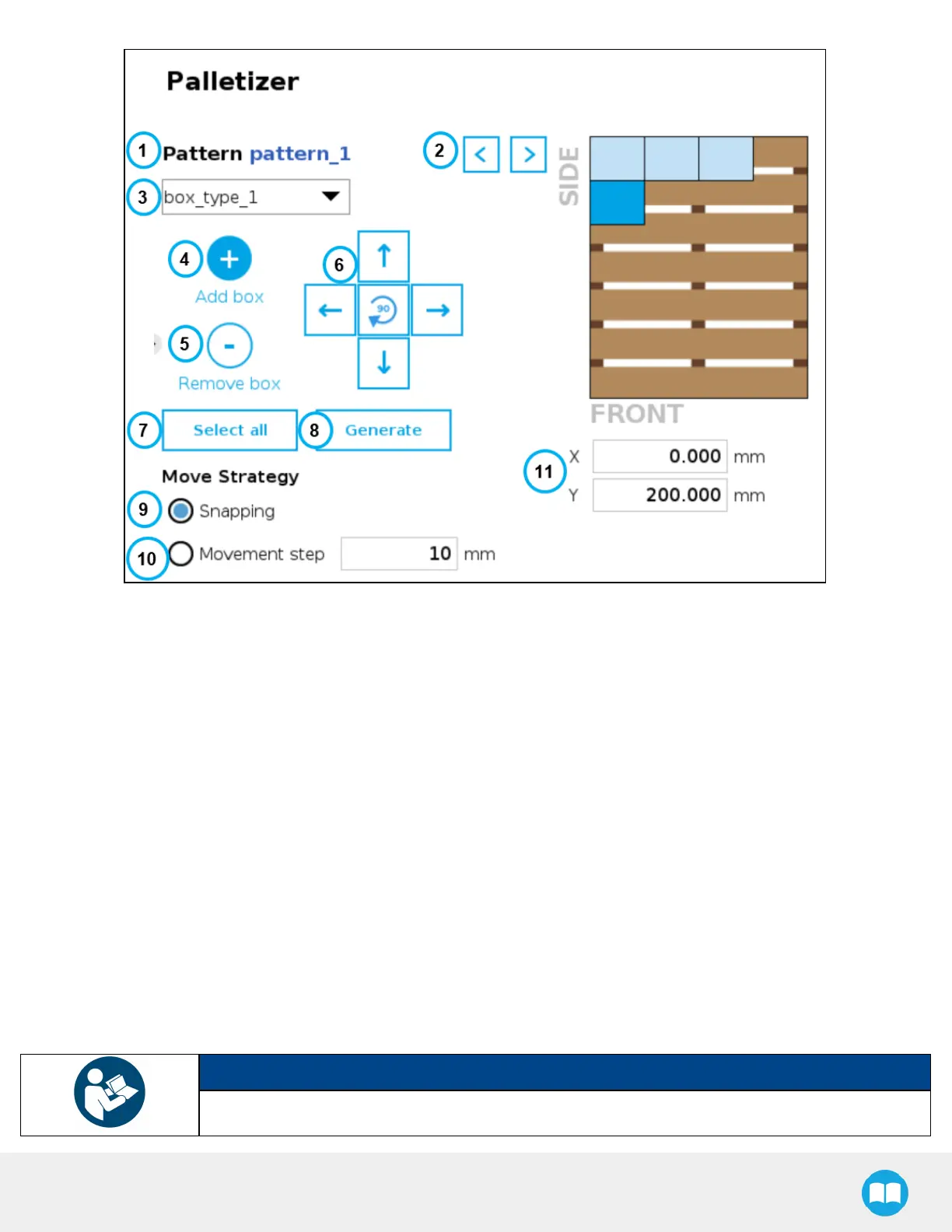
Fig. 5-24: Pattern Menu
1. Pattern name
This section displays the name of the layer pattern being edited.
2. Pattern toggle
Tap the left or right arrow to change the layer pattern being edited.
3. Box type dropdown menu (multi-pick feature)
If the multi-pick feature has been enabled in the Settings menu, and if more than one box type has been created in the
Box Type menu, the Pattern editing menu will allow the user to select the box type to palletize, and to toggle between
box types while building the layer pattern.
4. Add box
Tap the plus (+) button to add a box.
The first box will automatically be placed at the origin (0,0) of the layer (i.e., top left corner on the pallet).
The newly added box will feature a dark blue color, meaning it is the active box.
NOTICE
The user can select any box placed on the virtual pallet by tapping on it.



 To Next Page