AX10 Palletizing Solution
1. Pattern configuration
This shows a list of available layer patterns.
By default, two (2) empty layer patterns are available (i.e., pattern_1 and pattern_2), yet to be configured.
Tap the Edit button under the name of a layer pattern to bring up the Pattern editing menu.
2. Add Pattern
Tap the Add Pattern button to add a layer pattern to the list.
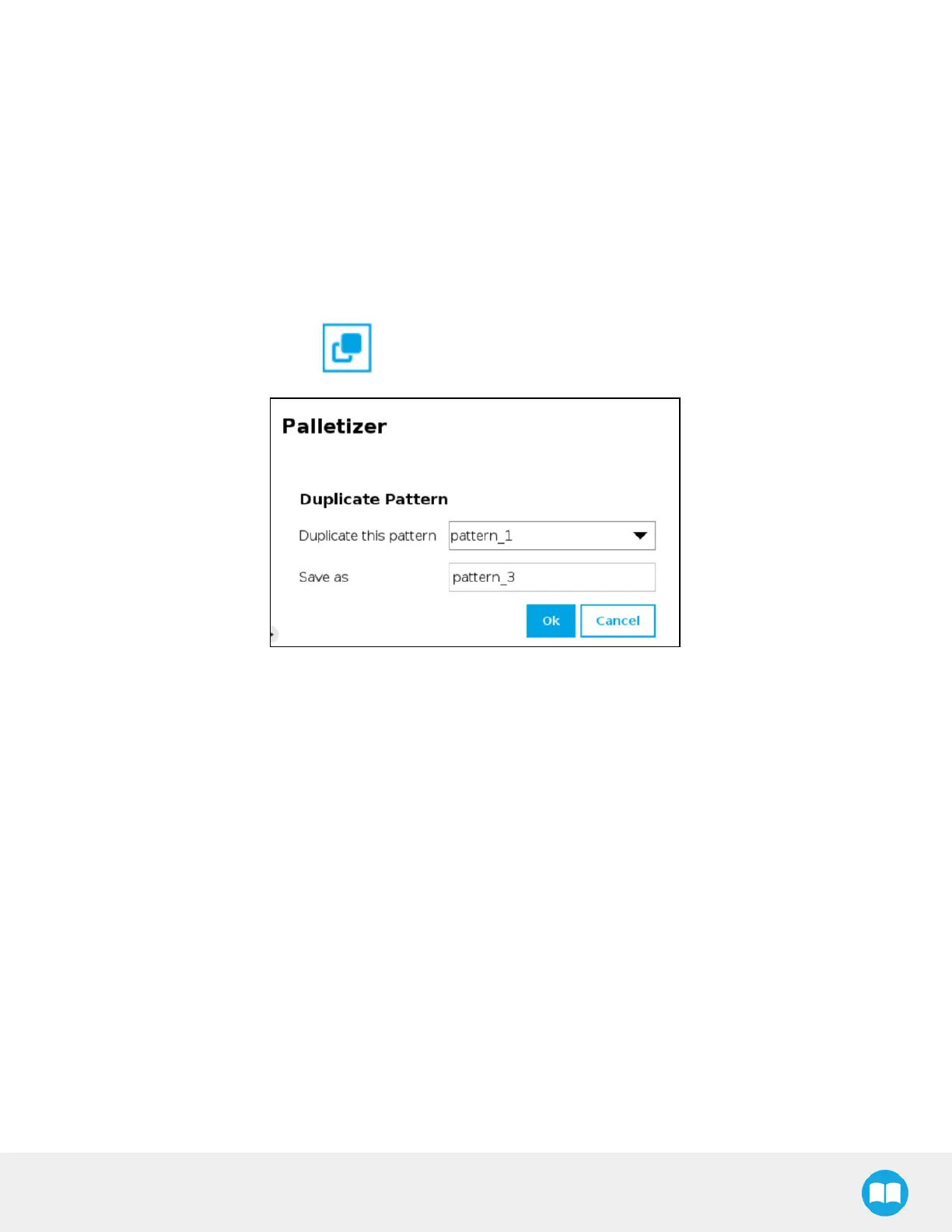
3. Duplicate Pattern
If applicable, tap the Duplicate icon to open the duplication menu.
Fig. 5-23: Duplicate Pattern Menu
Duplicate a pattern and tap the OK button, or tap Cancel to go back to the Pattern menu.
4. Number of layers
Fill in this field with an integer to set the number of layers that will make up the pallet.
5. Current layer sequence
This preview indicates the layer sequence of the pallet pattern:
l
A single layer pattern will display the actual name of the pattern.
l
A multi-layer pattern will display "Mixed."
6. Edit Layer Sequence
Tap the Edit Layer Sequence button to bring up the Layer Sequence menu.
98



 To Next Page