Robotiq Screwdriving Solution - Instruction Manual
l
e-Series
a. In the PolyScope interface, tap the New icon to create a program, or the Open icon to load an existing program.
b. Tap the Program button in the top ribbon.
c. Select the URCapsdropdown menu in the navigation pane on the left.
d. Tap the Pick Screw button to add the node to the program tree.
e. Select the node in the program tree to edit it.
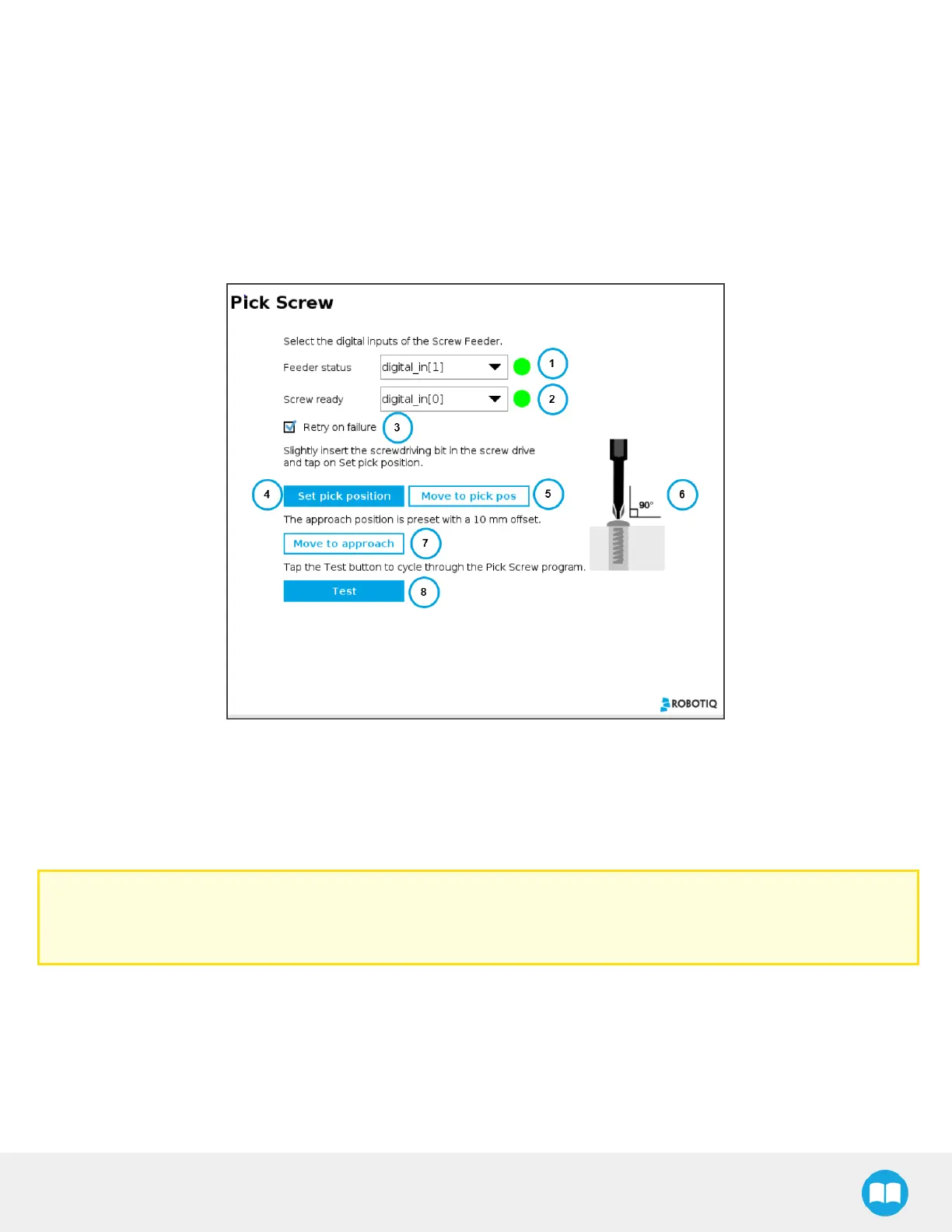
1. Feeder statusindicator
o
Displays Screw Feeder status
n
Green = Screw Feeder isworking properly.
n
Red = Screw Feeder isoff or isexperiencing an issue.
Caution
If needed, please refer to the Screw Feeder Signalssection to properly configure the corresponding digital inputs. Then,
if the signals have been named asrecommended, they should automatically be selected by the system.
2. Screwreadyindicator
o
Indicates if a screw is at the screw detection position in the Screw Feeder.
n
Green = The screw is in front of the screw detection sensor, ready to be picked.
n
Gray = The screw detection sensor of the Screw Feeder cannot detect a screw.
54



 To Next Page