Robustel R5020 User Guide
RT_UG_R5020_v.1.0.2 Mar. 17, 2023 29/167
Chapter 3 Initial Configuration
The router can be configured through your web browser that including IE 8.0 or above, Chrome and Firefox, etc. A
web browser is included as a standard application in the following operating systems: Linux, Mac OS, Windows
98/NT/2000/XP/Me/Vista/7/8, etc. There are various ways to connect the router, either through an external
repeater/hub or connect directly to your PC. When the router is directly connected to the Ethernet port of the
computer, if the router acts as a DHCP server, then the computer can get the IP directly from the router; the
computer can also set a static IP in the same network segment as the router, so that the computer and the router
form a small LAN. After the computer and the router have successfully established a connection, enter the default
login address of the device on the computer's browser to enter the router's WEB login interface.
3.1 Configure the PC
There are two methods to get IP address for the PC. One is to obtain an IP address automatically from “Local Area
Connection”, and another is to configure a static IP address manually within the same subnet of the router. Please
refer to the steps below.
Here take Windows 7 as example, and the configuration for windows system is similar.
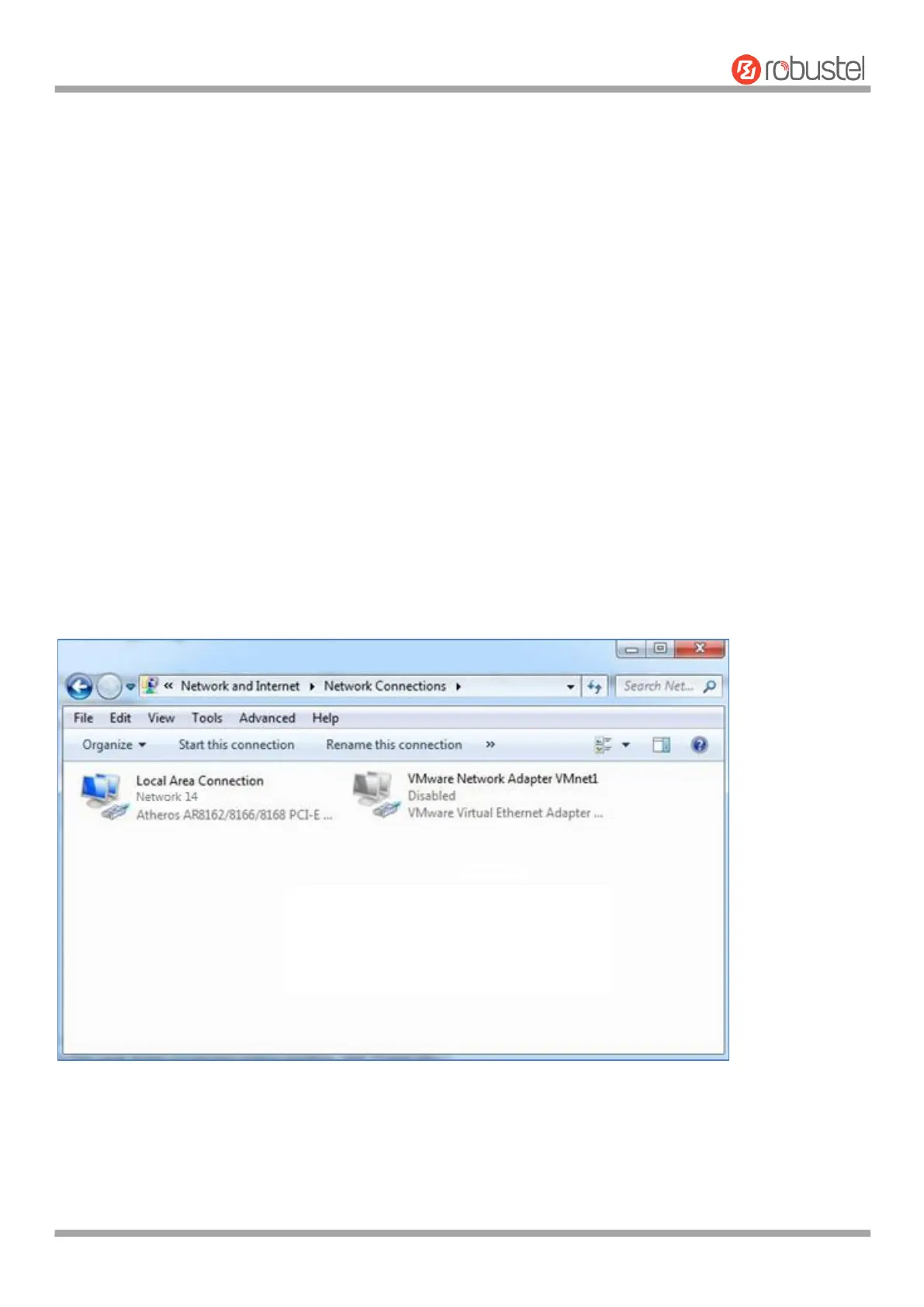
1. Click Start > Control panel, double-click Network and Sharing Center, and then double-click Local Area
Connection.








 To Next Page