Royal 240DX User’s Guide
24
Adjusting the Contrast on the Clerk Screen
You can adjust the contrast on the clerk screen to make it brighter or darker. This
makes it easier for you to see the display in different lighting.
To adjust the contrast
PROGRAM SYSTEM PARAMETER Contrast Setting
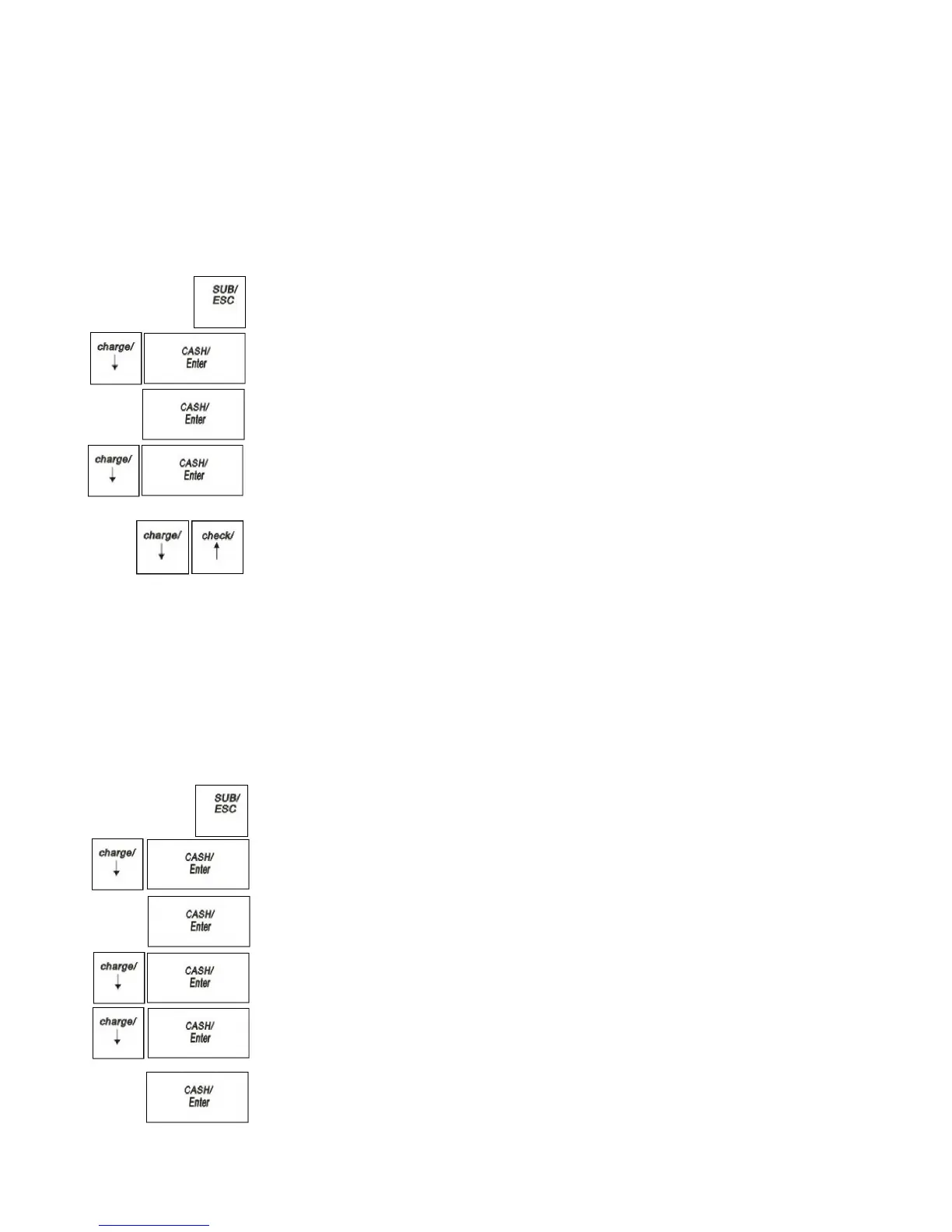
1 Press the SUB/ESC key.
2 Press Arrow Down key to select PROGRAM. Press CASH/Enter.
3 If you are prompted for a Manager Password, type the Password number and then
press the CASH/Enter key. If you did not program a Manager Password, go to
the next step.
4 Press Arrow Down key to select SYSTEM PARAMETER. Press
CASH/Enter key.
5 Press Arrow Down key to select Contrast Setting. Press the CASH/Enter
key.
6 Use the Arrow Down and Arrow Up keys to adjust the contrast.
7 When you are done, press the CASH/Enter key.
Adjusting the Backlight Time on the Clerk Screen
After a specified period of seconds of inactivity, the clerk display goes dark. The
cash register does not actually turn all the way off.
To light up the clerk display screen, press any keys.
To change the backlight time
PROGRAM SYSTEM PARAMETER System Configuration
1 Press the SUB/ESC key.
2 Press the Arrow Down key to select PROGRAM. Press the CASH/Enter
key.
3 If you are prompted for a Manager Password, type the Password number and then
press the CAH/Enter key. If you did not program a Manager Password, go to the
next step.
4 Press the Arrow Down key to select SYSTEM PARAMETER. Press the
CASH/Enter key.
5 Press the Arrow Down key to select System Configuration. Press the
CASH/Enter key.
6 Press the Arrow Down key to select Backlight Time. Press the
CASH/Enter key.
7 Make your selection. When you are done, press the CASH/Enter key.


 To Next Page