+
After Item& After Subtotal
-
After Item& After Subtotal
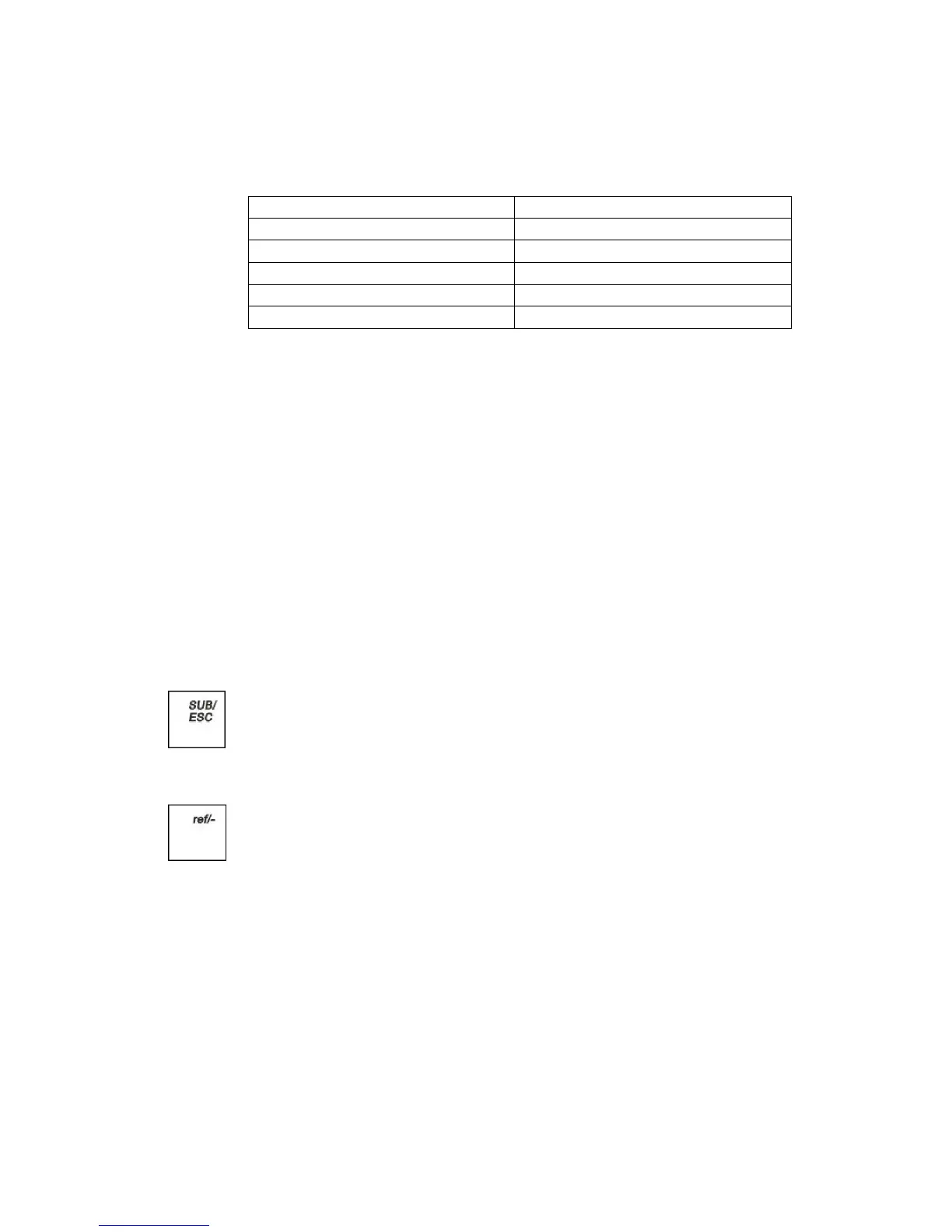
The -% key can add a percent additional charge to an individual item if you press it
immediately and select one from 1% /2%/ 3% after you ring up an item or adds a percent
additional charge to the sub-total amount of an entire sale if you press it after you press
the SUB/ESC key.
The -% key can also subtract a discount percentage amount from an individual item if
you press it immediately and select one from 1% /2%/ 3% after you ring up an item or
from the sub-total amount of an entire sale if you press it after you press the SUB/ESC
key.
When you press, the descriptor of 1% & 2% & 3% appear on the clerk screen, you can
use the Arrow Down key to select one and press CASH/Enter to confirm the
selection.
Refund Setting
You may want to deduct a default amount from an individual item or from a total, such
as refund from item or one transaction. The ref/- key subtracts a discount percentage
amount from an individual item if you press it immediately after you ring up an item or
from the sub-total amount of an entire sale if you press it after you press the SUB/ESC
key.
You can program a default refund amount for the ref/- key or you can enter the refund
amount manually each time you press the ref/- key. When you enter the
pre-programmed default amount use 2 decimal places. For example, enter a 5.00 as 500.
When you manually enter the refund during a sale, enter a whole number with 2 decimal
places. For example, enter 2.00 as 200, or enter 10.00 as 1000.
When you use the ref/-key, the descriptor of the refund appears on the display and
prints on the receipt.
Payment Setting
You can specify a foreign currency to accept as payment when you total sales and
program the exchange rate for when you accept this currency.


 To Next Page