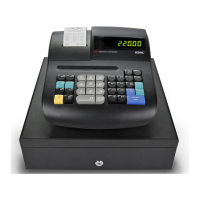
Royal 240DX User’s Guide
36
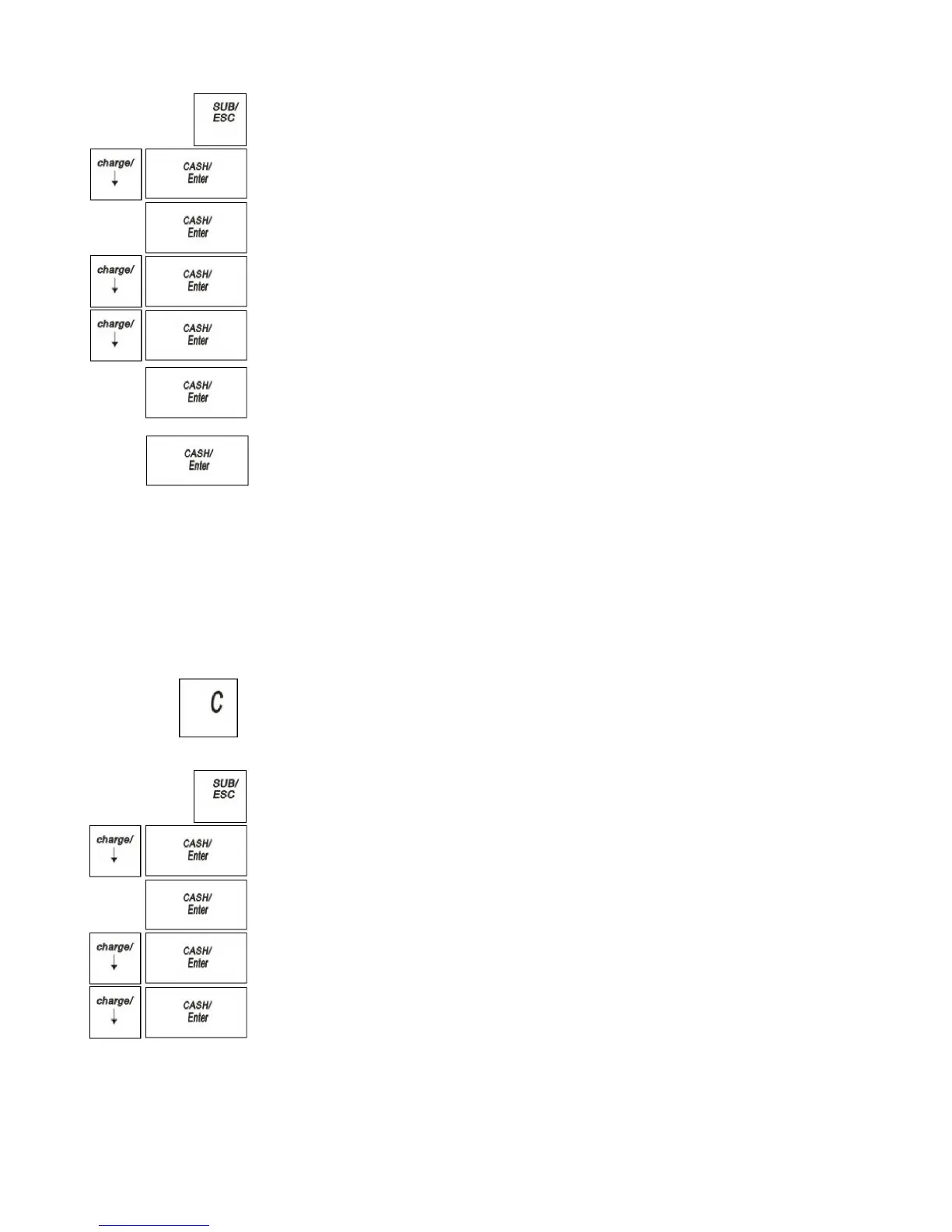
1 Press the SUB/ESC key.
2 Press the Arrow Down key to select PROGRAM SETTING. Press the
CASH/Enter key.
3 If you are prompted for a Manager Password, type the password number and then
press the CASH/Enter key. If you did not program a Manager Password, go to
the next step.
4 Press the Arrow Down key to select PLU SETTING. Press the CASH/Enter
key.
5 Press the Arrow Down key to select Add New PLU. Press the CASH/Enter
key.
6 Using the rounded Number keys, enter the PLU number. Press the
CASH/Enter key.
7 Follow the instructions on the display
8 To program the next PLU, press SUB/ESC to barcode input and press the
CASH/Enter key.
Programming PLUs with the Optional Barcode Reader
You can use the optional Royal model PS700 barcode reader to scan items and
automatically ring them up. Barcode readers save time and reduce errors. The
barcode reader must be held about ½ inch or closer above the symbol on the product
to read the UPC or other barcode properly.
Important
If you enter the wrong character, press the C key to clear the character.
Now you can continue.
To program PLUs using the barcode reader
PROGRAM SETTING PLU SETTING
1 Press the SUB/ESC key.
2 Press the Arrow Down key to select PROGRAM SETTING. Press the
CASH/Enter key.
3 If you are prompted for a Manager Password, type the password number and
then press the CASH/Enter key. If you did not program a Manager Password,
go to the next step.
4 Press the Arrow Down key to select PLU SETTING. Press the CASH/Enter
key.
5 Press the Arrow Down key to select Add New PLU. Press the CASH/Enter
key.


 To Next Page