33
Royal 240DX User’s Guide
Programming Department Names
A name or description can be assigned to each department key. This name appears on
the clerk screen and prints when ringing up sales.
For example, Clothing can print on the receipt in place of Dept 1, Shoes
can print on the receipt in place of Dept 2,Sportswearcanprint on the receipt
in place of Department 3, and so on.
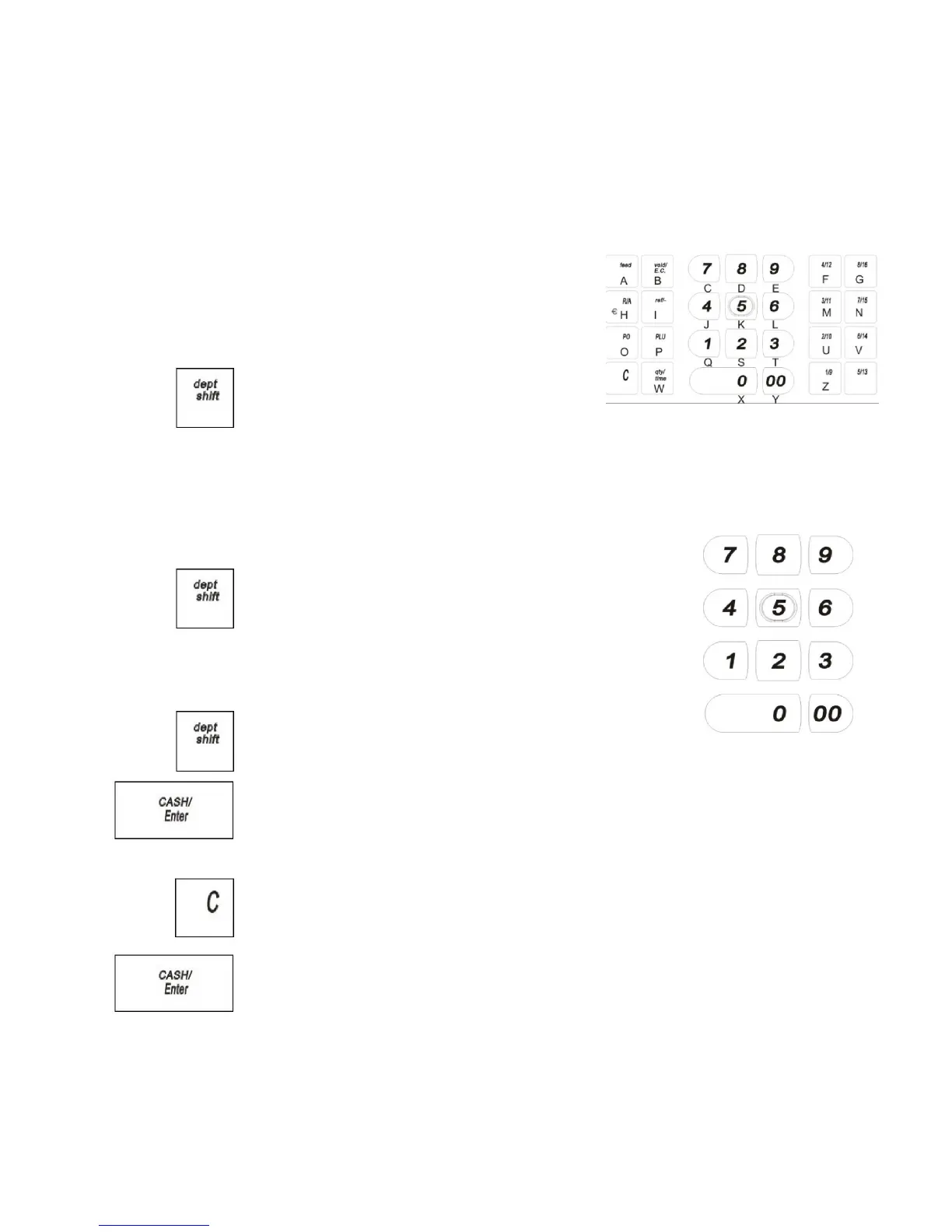
When you are programming the alpha descriptions
for Departments and PLUs use the Alpha
Keyboard.
Note
Only capital letters of the alphabet are on the
Alpha Keyboard. To use lower case letters,
press the dept shift key.
The alpha keys are clearly labeled with all the
letters needed to program these descriptions. When
you are programming
alpha descriptions, use the alpha keys to spell out the words you want.
To use the letters and characters, press the dept shift key
and then press the key with the letter you want.
Use the round number keys to enter any numbers you want.
You must switch the input form to Digit with dept shift key
You may need certain special symbols on the Alpha
Keyboard.
Some symbols and international characters are only available using the dept shift
key. When you press the dept shift key and switch the input form to sign, use the
arrow keys to move through the symbols to highlight the symbol you want. Press the
CASH/Enter key to select the highlighted symbol. Press the dept shift key again
to exit this from screen.
Important
If you enter the wrong character, press the C key to clear the character.
Now you can continue.
When you are finish programming the department description, press the
CASH/Enter key to save.
The information is saved in the cash register and you can program the next item.


 To Next Page