Royal 240DX User’s Guide
76
Never touch or remove the SD memory card while it is accessed,
otherwise the data stored in it may be damaged.
Formatting the SD memory card erases all the data in it.
CAUTION:
Never turn the power off, while the SD memory card is accessed.
Data Saving
The sales data, EJ data or programming data can be saved to the SD card.
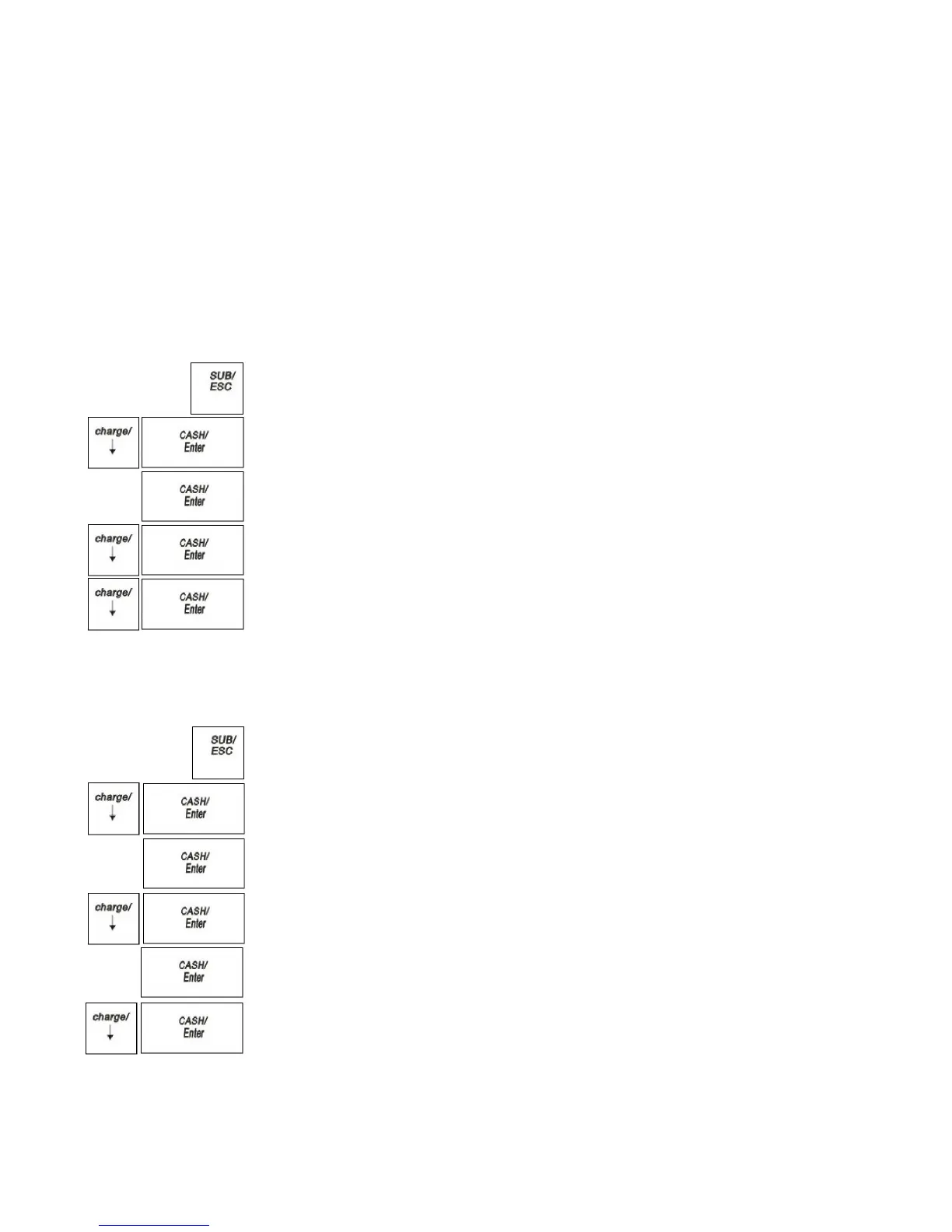
To save the programming data to the SD card
PROGRAM SETTING SYSTEM PARAMETER Data backup
1 Press the SUB/ESC key.
2 Press the Arrow Down key to select PROGRAM SETTING. Press the
CASH/Enter key.
3 If you are prompted for a Manager Password, type the password number and then
press the CASH/Enter key. If you did not program a Manager Password, go to
the next step.
4 Press the Arrow Down key to select SYSTEM PARAMETER. Press the
CASH/Enter key.
5 Press the Arrow Down key to select Data backup. Press the CASH/Enter
key.
The ECR is writing data to SD card, after writing over it will prompt.
To save the Sales Reports to the SD card
X REPORT (For example Daily Full report)
1 Press the SUB/ESC key.
2 Press the Arrow Down key to select X REPORT. Press the CASH/Enter
key.
3 If you are prompted for a Manager Password, type the password number and then
press the CASH/Enter key. If you did not program a Manager Password, go to
the next step.
4 Press the Arrow Down key to select Daily report. Press the CASH/Enter
key.
5 Select Full Report. Press the CASH/Enter key.
6 Press the Arrow Down key to select Save to SD card. Press the
CASH/Enter key.
The ECR is writing the daily full report to SD card, after writing over it will
prompt “Written completed”.


 To Next Page