Royal 240DX User’s Guide
32
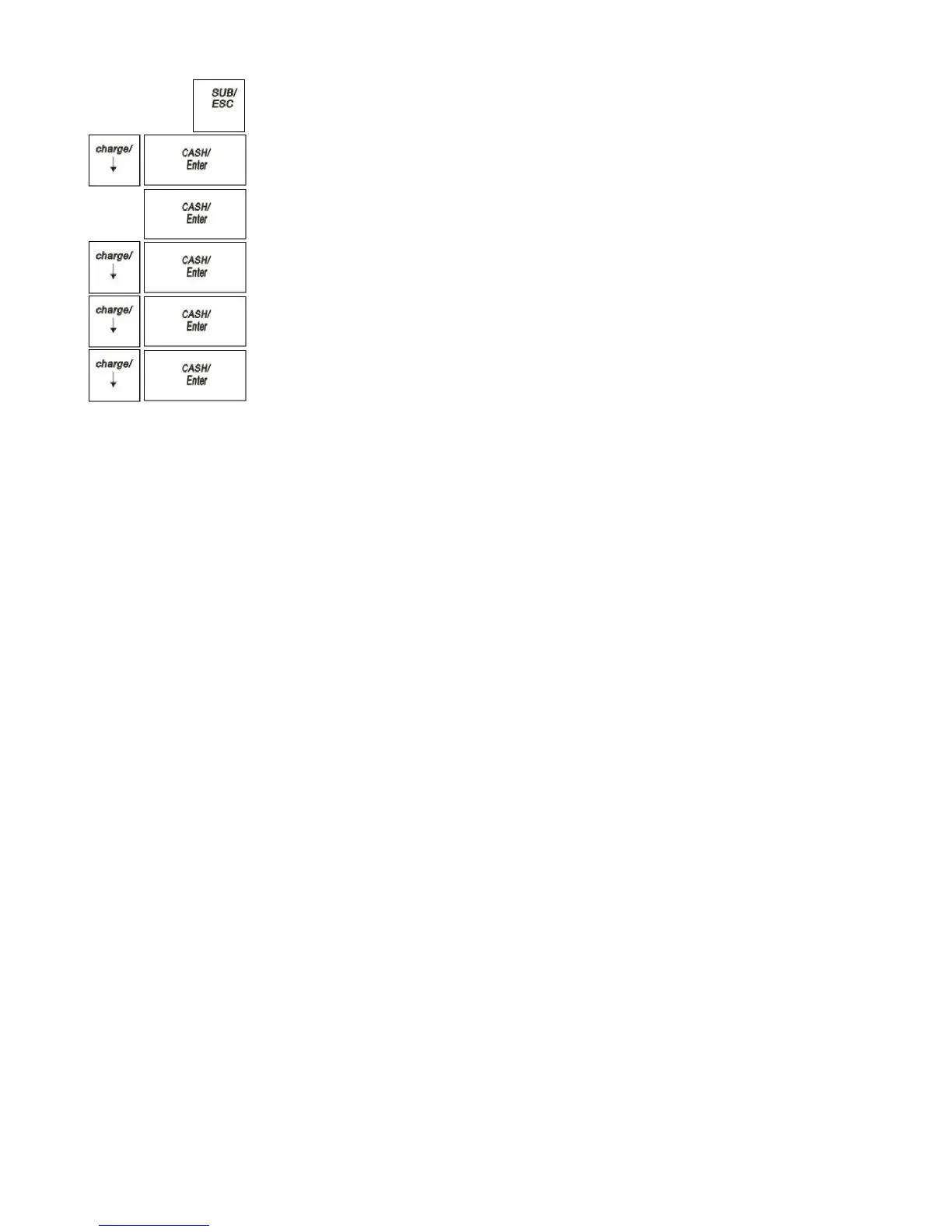
1 Press the press the SUB/ESC key.
2 Press the Arrow Down key to select PROGRAM SETTING. Press the
CASH/Enter key.
3 If you are prompted for a Manager Password, type the Password number and
then press the CASH/Enter key. If you did not program a Manager Password,
go to the next step.
4 Press the Arrow Down key to select SYSTEM PARAMETER. Press the
CASH/Enter key.
5 Press the Arrow Down key to select System Configuration. Press the
CASH/Enter key.
6 Press the Arrow Down key to select Machine No.. Press the CASH/Enter key.
7 Follow the instructions on the display
Programming Department
Departments are a category of merchandise. For example, Department 1 can be
House Wares, Department 2 can be Food, and Department 3 can be Women’s
Clothing, and so on. This helps you track what you are selling.
Each department can be programmed as taxable or non-taxable, so that if an item
needs to be taxed, the proper tax amount is added automatically when you ring up an
item in a taxable department.
You can have as many as 200 departments on your cash register. If you have many
departments, you may want to make a list so other people who use the cash register
can correctly use the department keys.
Programming departments includes up to 3 steps. Not all steps listed below
may apply to your specific needs.
1 Programming Department Names
2 Programming Department Preset Price
3 Programming Tax Status
For specific information about each of the items above, see the next sections.
After you are done, you can check your results. See Running the
Department Confirmation Report on page 63.


 To Next Page