63
Royal 240DX User’s Guide
PLU parameters
Clerk parameters
Tax parameters
System Configuration
Receipt parameters
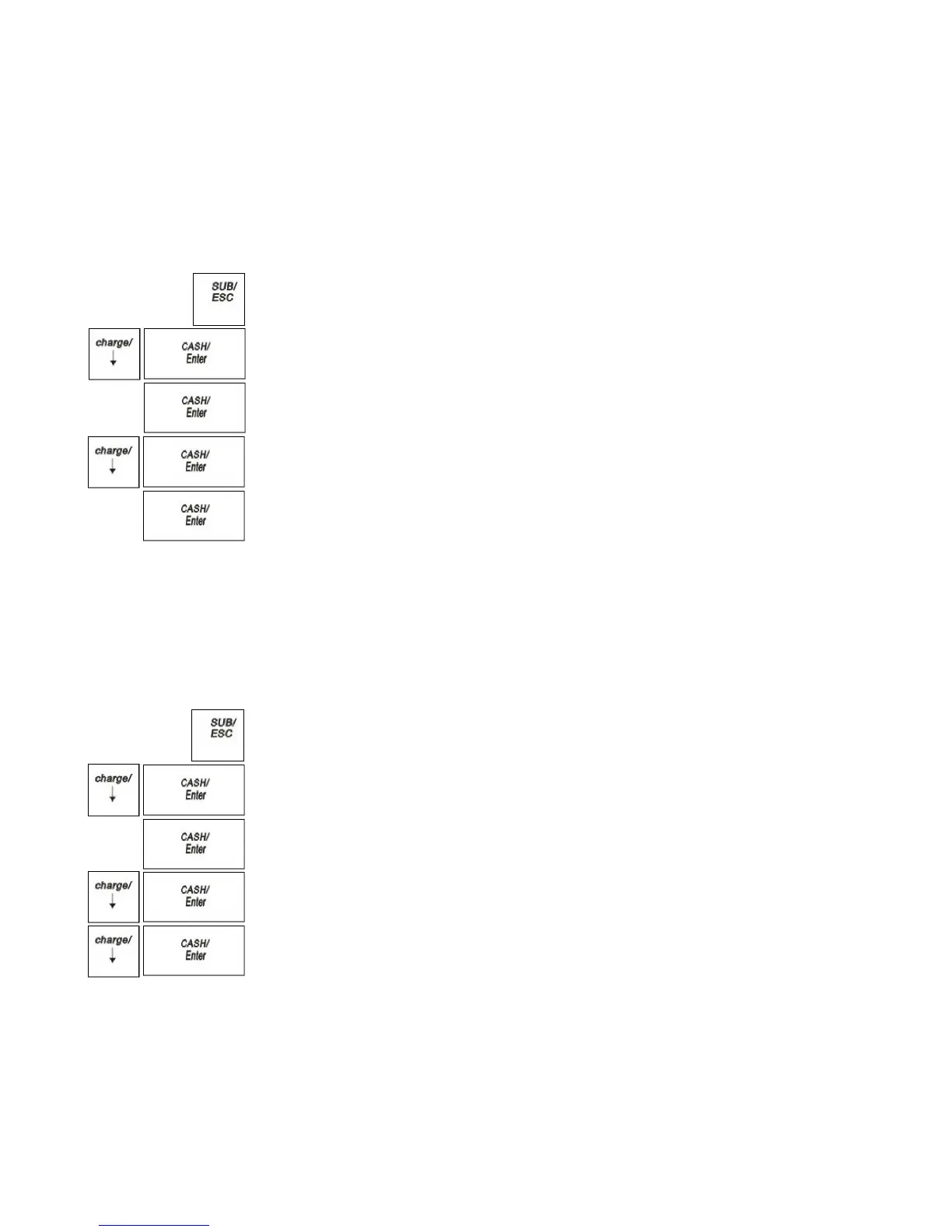
To run a program confirmation report
X Report Parameters Print
1
Press the SUB/ESC key
2
Press the Arrow Down key to select X Report. Press the CASH/Enter key.
3
If you are prompted for a Manager Password, type the password number and then
press CASH/Enter key. If you did not program a Manager Password, go to the
next step.
4
Press the Arrow Down key to select Parameters Print. Press the CASH/Enter
key.
5
Press the CASH/Enter key. The all parameters report prints.
6
Press the Arrow Down key to select Single. Press the CASH/Enter key.
7
Select the parameter you want, Press the CASH/Enter key. The all parameters
report prints.
Running the Department Confirmation Report
You can print a report that shows the active information for all programmed
departments.
To run a department confirmation report
X Report Parameters Print single Dept
1 Press the SUB/ESC key
2 Press the Arrow Down key to select X Report. Press the CASH/Enter key.
3 If you are prompted for a Manager Password, type the password number and then
press CASH/Enter key. If you did not program a Manager Password, go to the
next step.
4 Press the Arrow Down key to select Parameters Print. Press the CASH/Enter
key.
5 Press the Arrow Down key to select single. Press the CASH/Enter key.
6 Select Dept, Press the CASH/Enter key. The all programmed departments
parameters prints.


 To Next Page