Chapter 3 Connecting computers and other devices
smarttech.com/kb/171744 41
Cable type Maximum length Recommendation
USB Type-C 6' 6" (2 m) for
SuperSpeed 5Gbps
cables
USB-IF certified USB 3.2 Gen 1 Type-C cable,
SuperSpeed (5 Gbps) support
To use a USB Type-C cable for video, you need:
l
A full-featured cable that supports SuperSpeed
5Gbps (or faster) data rates.
l
A computer that supports Display Port Alternate
Mode via USB Type-C
Note
The USB Type-C connector on the display can supply
up to 15 W of power to connected devices.
Using cables that exceed these maximum lengths may produce unexpected results, intermittent loss of
picture, or degraded picture quality and USB connectivity.
Sharing USB Type-B receptacles
The HDMI, VGA, and Display Port connectors on the side connector panel (back of the display) all share
a single USB Type-B receptacle on this panel. This means the touch system can be used with only one
device connected to these video inputs.
USB Type-B receptacle Video connectors
Touch
l
HDMI 1
l
HDMI 2
l
VGA
l
Display Port
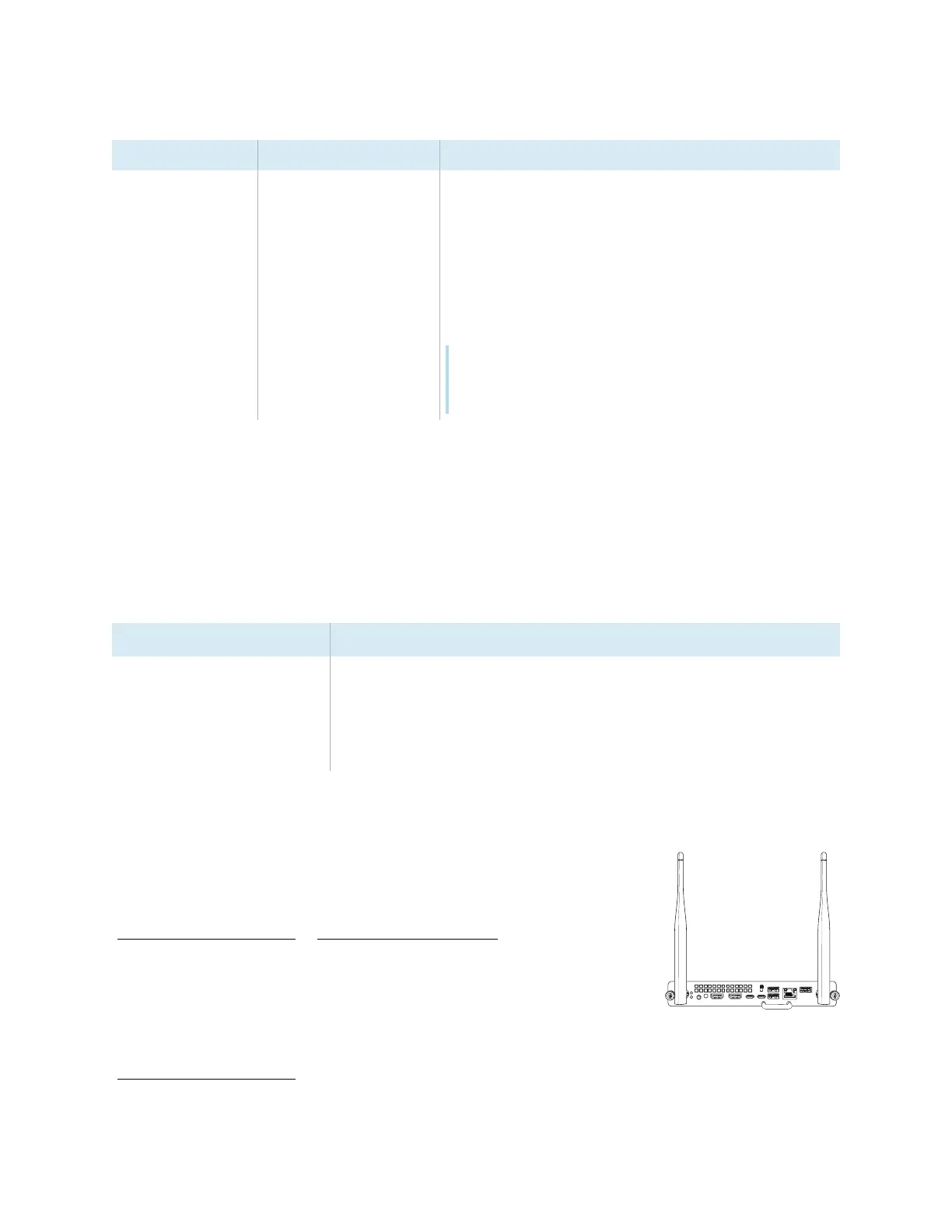
Connecting a SMART OPS PC module
If your organization has purchased a SMART OPS PC module, you or your
organization’s installers can install the OPS PC module in the display’s
accessory slot following the OPS PC module’s installation instructions
(smarttech.com/kb/171775 or smarttech.com/kb/171544). You can then view
the OPS PC module’s input on the display.
For more information about SMART OPS PC modules, see the
SMART OPS PC modules user guide
(smarttech.com/kb/171747).















 To Next Page