User Manual |
101
Laser Engraving and Cutting - 03 How to Laser Engrave and Cut
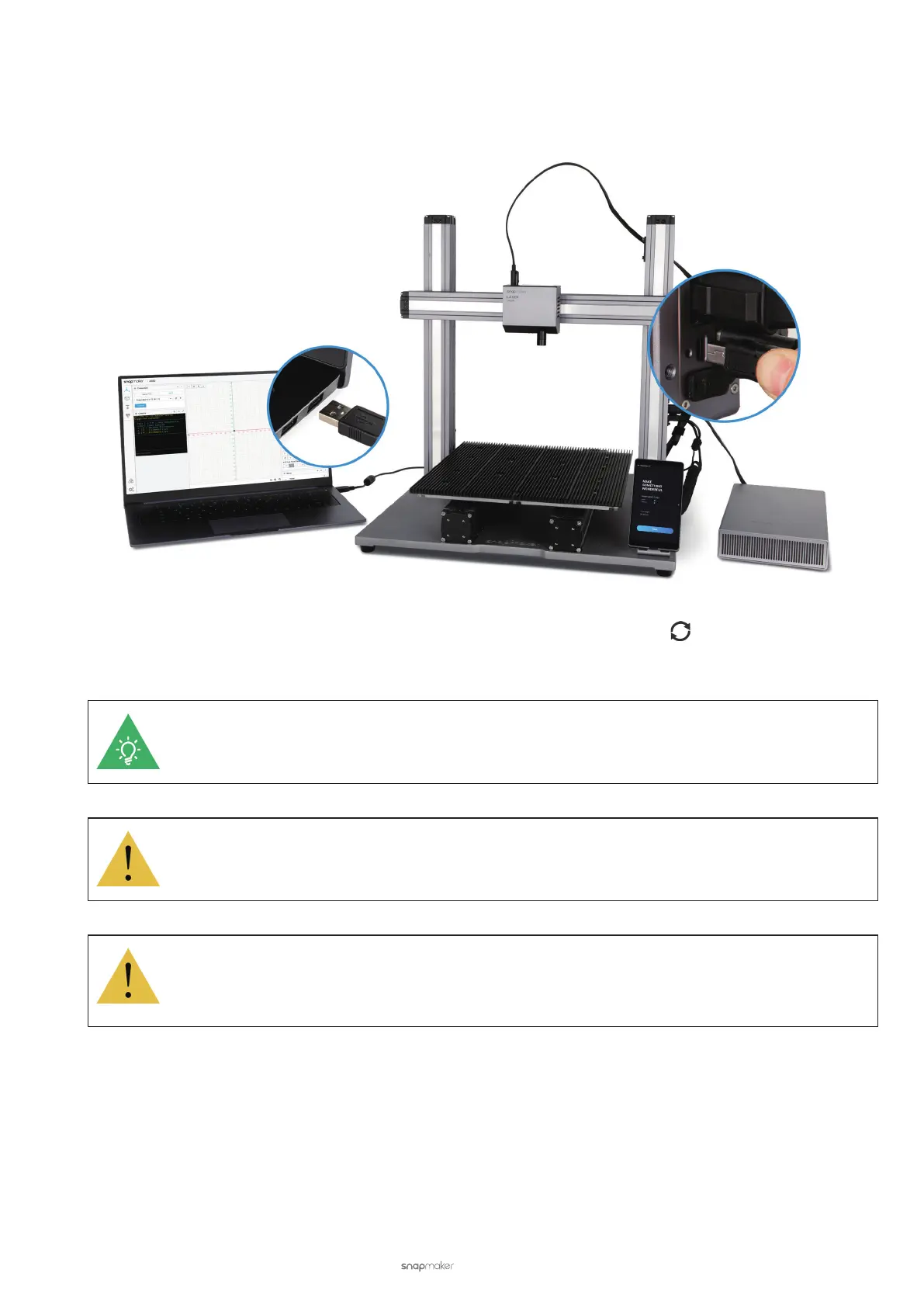
Connect via USB Cable
(1) Insert one end of the provided USB cable into the computer, and the other end into the Controller of the laser
engraving and cutting machine.
(2) In Luban, click Workspace. On the Connection panel, click Serial Port > Refresh > Select your machine from
the drop-down list > Connect.
If you can’t nd the port, unplug the USB cable and try again. You may need to download and install
the driver from https://snapmaker.com/product/snapmaker-2/downloads.
Keep the cable connected until the laser engraving and cutting job completes.
If the machine becomes disconnected with Luban when the Laser Power is already turned on,
the laser will not automatically turn off. You must go to Control > Laser Power > Laser Status to
manually turn it off.
3.6 Prepare the G-code File
G-code is the most widely used computer numerical control (CNC) programming language. It is used mainly in
computer-aided manufacturing to control automated machine tools.
G-code instructions are provided to a machine controller that tells the motors where to move, how fast to move, and
what paths to follow.



 To Next Page