User Manual |
115
Laser Engraving and Cutting - 03 How to Laser Engrave and Cut
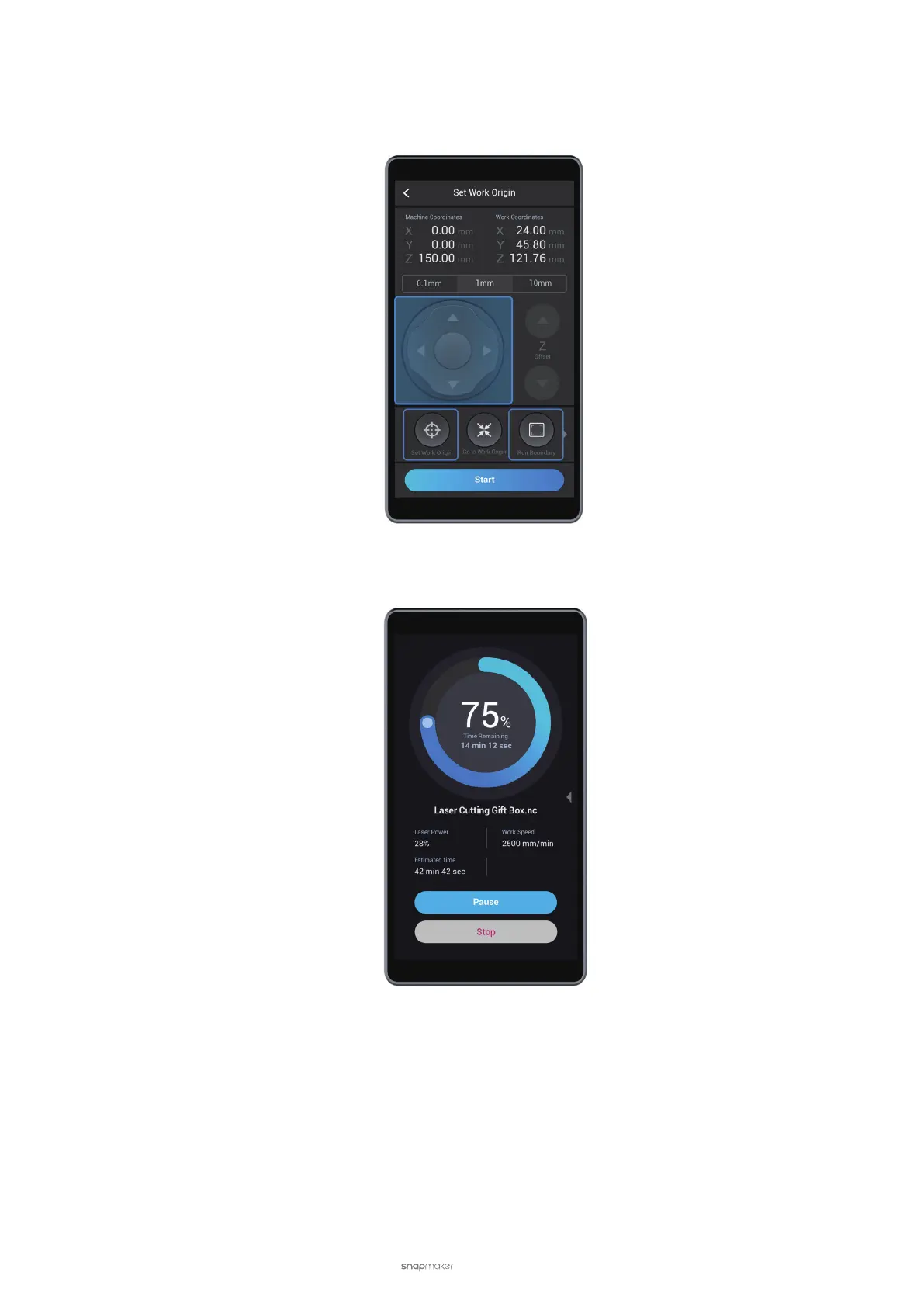
(7) Tap X-, X+, Y-, or Y+ to move the laser dot to where the work origin will be, and then tap Set Work Origin. Next,
tap Run Boundary to check if the work origin is proper. If not, reset the Work Origin and run boundary again.
After you set a proper work origin, tap Start.
(8) Laser engraving and cutting starts.
• Use Manual Mode in Luban
(1) Connect your machine to Luban.
(2) Load G-code to Workspace.
• If you generate G-code in Luban, click Load G-code to Workspace to load the generated G-code to
Workspace.
• If you want to use a G-code le stored in your computer, click Open G-code. Select a G-code le (NC le)
from your computer and click Open.
(3) Unselect Auto Mode.



 To Next Page