User Manual |
157
CNC Carving - 04 How to CNC Carve
Start Carving on Luban via USB Cable
(1) In the CNC G-code Generator, load the generated G-code le to Workspace by clicking Load G-code to
Workspace.
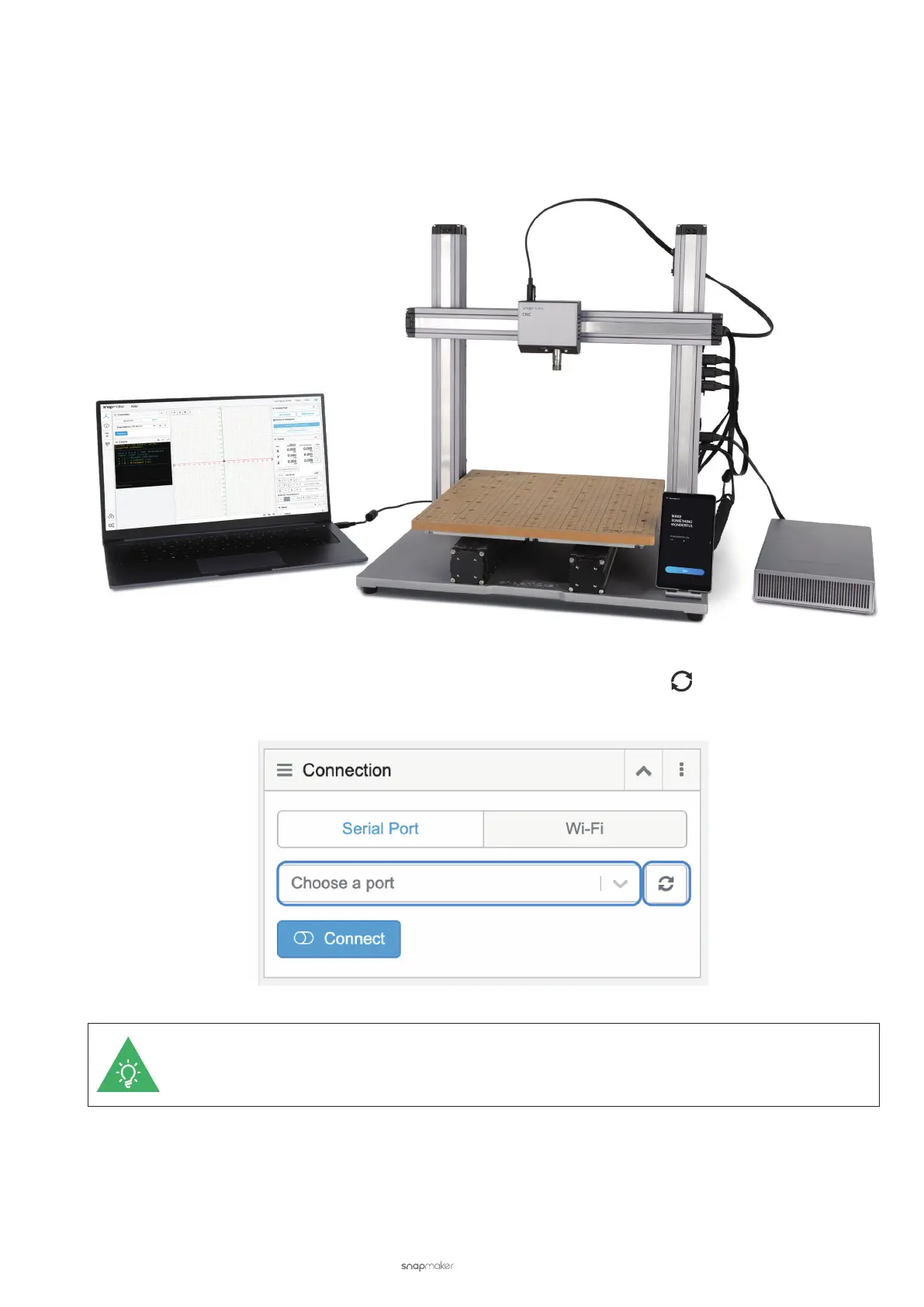
(2) Insert one end of the USB cable into the computer, and the other end into the Controller of the CNC carver.
(3) On Luban, click Workspace. In the Connection panel, click Serial Port > Refresh
> Select the port of your
CNC carver in the drop-down list > Connect Luban to your CNC carver.
If you can’t nd the port, unplug the USB cable and try again. For initial use, you need to download
and install the driver from snapmaker.com/product/snapmaker-2/downloads.
(4) After connection, Luban will prompt you to select your machine model and toolhead. Select and click Choose
to save the settings.



 To Next Page