User Manual |
39
3D Printing - 03 How to 3D Print
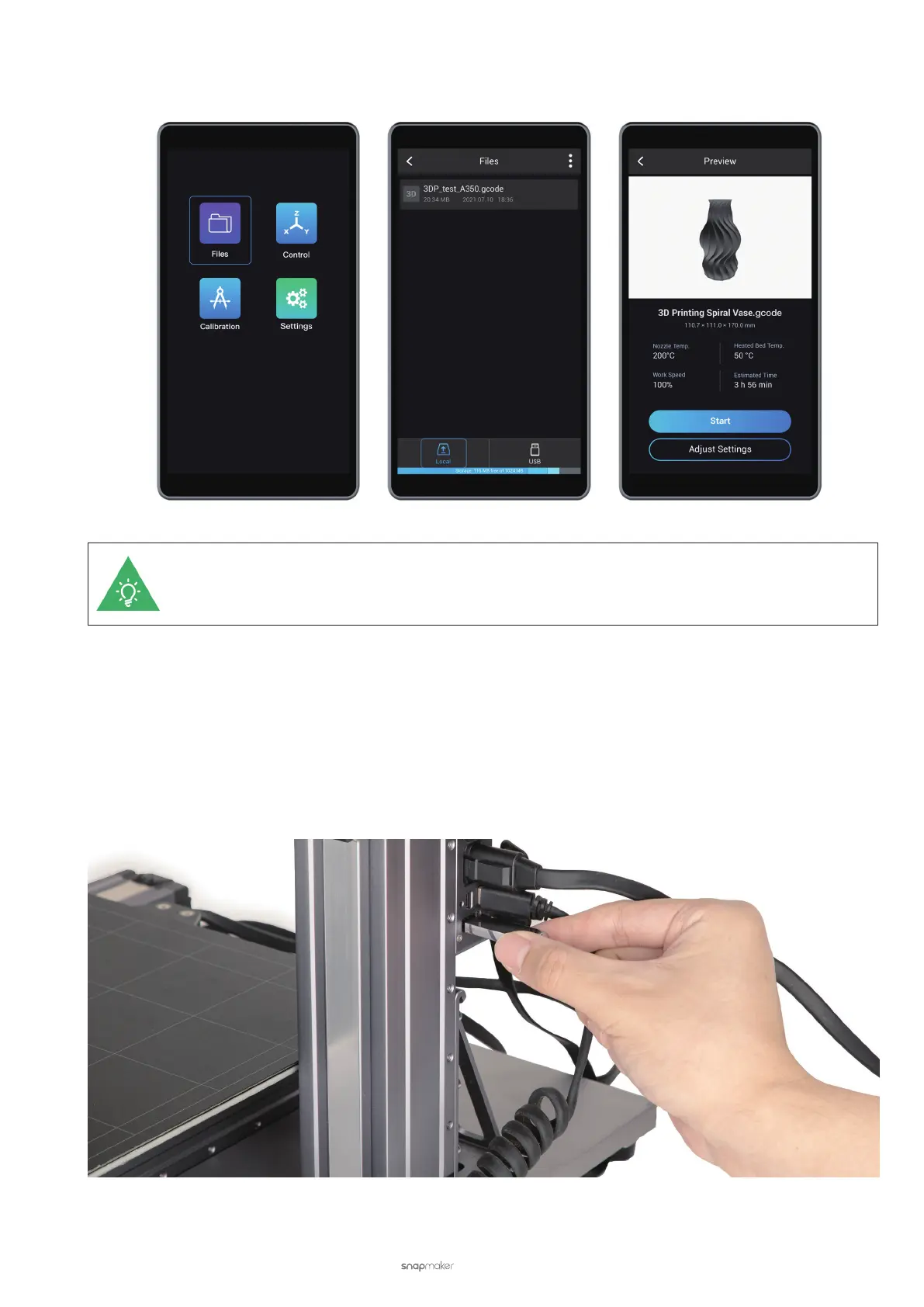
(5) On the Touchscreen, nd the G-code le by tapping Files > Local. Preview the le, check the printing settings,
and tap Start to start printing.
Should the first layer fail to stick to the Print Sheet, Stop printing and see 6.1 First Layer Does Not
Stick.
During printing, you can readjust settings by swiping left on the printing screen.
Start Printing on the Touchscreen via USB Flash Drive
(1) In the 3D Printing G-code Generator, click Export G-code to File (in .gcode format) and save it to the USB ash
drive.
(2) Insert the USB ash drive into the Controller of the 3D printer.
(3) On the Touchscreen, nd the G-code le by tapping Files > USB. Preview the le, check the printing settings,
and tap Start to start printing.



 To Next Page