User Manual |
40
3D Printing - 03 How to 3D Print
Should the first layer fail to stick to the Print Sheet, Stop printing and see 6.1 First Layer Does Not
Stick.
During printing, you can readjust settings by swiping left on the printing screen.
Start Printing on Luban via Workspace
(1) In the 3D Printing G-code Generator, load the generated G-code le to Workspace by clicking Load G-code to
Workspace.
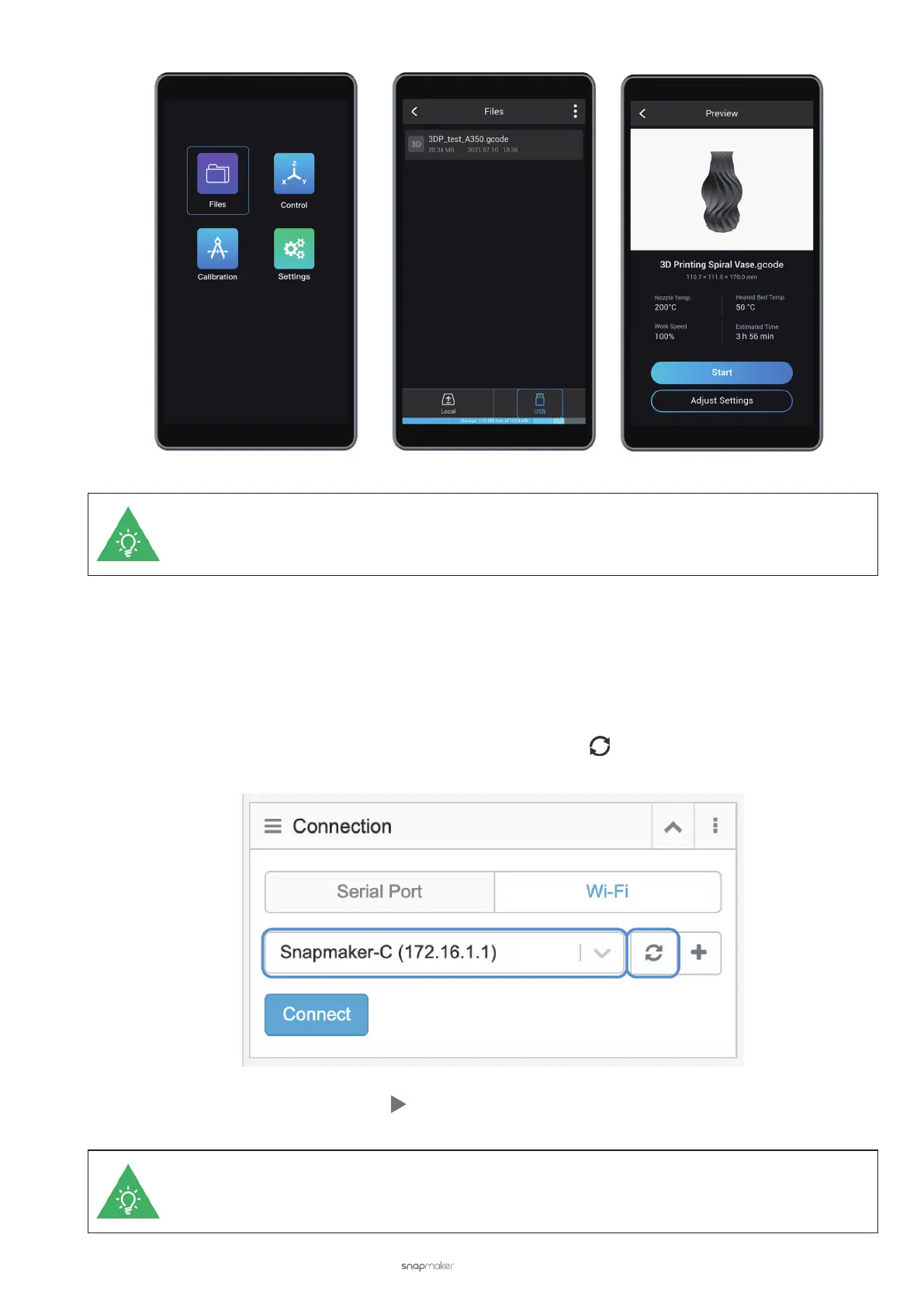
(2) In the Workspace, go to the Connection panel. Click Wi-Fi > Refresh
> Select your 3D printer in the
drop-down list > Connect Luban to your 3D printer.
(3) After connection, click the Run button in Workspace to start printing.
Should Wi-Fi be disconnected during printing, the Touchscreen will prompt you to keep or stop
printing. To keep printing, ignore the prompt; to stop printing, tap Confirm.



 To Next Page