Digital Video Recorder
13
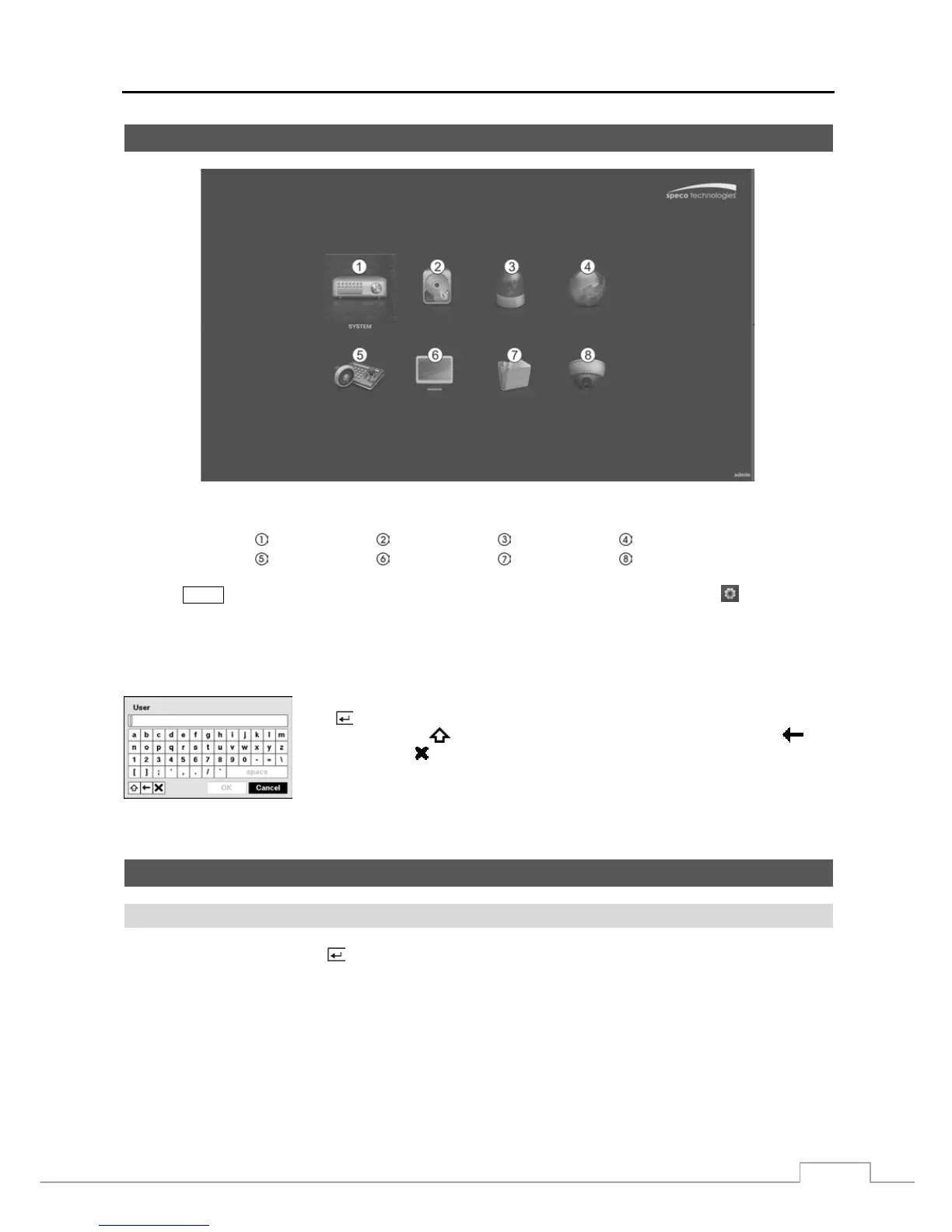
Setup Screen
Figure 7 : Setup screen.
System Record Event Network
Device Display Status Camera
Press the
MENU button or move the mouse pointer on the right edge of the screen and then select (Setup) in the
Live Monitoring menu to enter the setup screen.
While setting up the DVR, there will be many opportunities to enter names and titles. When making these entries, a
Virtual Keyboard will appear.
Use the arrow keys to highlight the character you want in the name or title and press
the
button. That character appears in the title bar and the cursor moves to the next
position. Pressing
toggles between the upper and lower case keyboards,
backspaces, and
deletes entered characters.
Special characters can be created using ^ and a capital letter; e.g., ^J for NL (New Line),
^M for CR (Carriage Return). Special characters are commonly used by text input devices
and will be useful when performing Text-In Searches.
System Setup
General
Highlight General and press the button, and the General screen appears.



 To Next Page