Operation Instruction
36
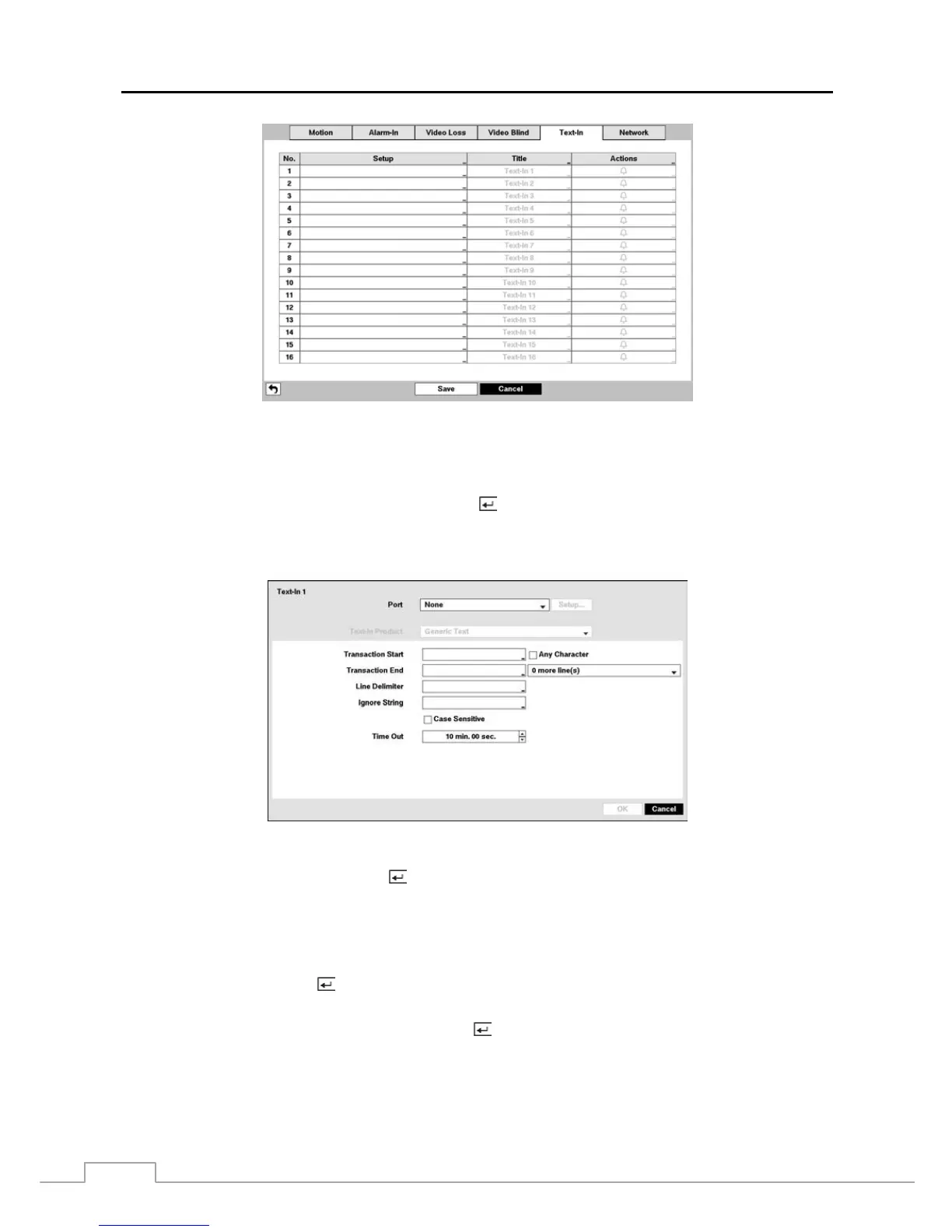
Figure 23 : Event – Text-In setup screen.
The DVR can be set to react to text input from devices such as ATMs (Automated Teller Machines) and POS (Point
of Sale; i.e., cash registers). This screen allows you to configure the DVR for each text-in device.
Highlight the box under the Setup heading, and press the button. Selecting the Setup heading changes all the
parameters excluding Port settings of all the text input channels.
NOTE: The system performance might be affected when a large quantity of text inputs are detected from several
channels at the same time.
Figure 24 : Text-In Device screen.
Highlight the box beside Port, and press the
button. Select from None, RS232, RS485, USB-Serial (1~8) and LAN
(1~16).
NOTE: If you have set the Port as None, you will not be able to make any changes to the screen.
When using the USB to serial text-in device, do NOT remove the USB cable from the port while the system
is running.
Highlight Setup…, and press the
button. Use the ATM or POS manufacturer’s recommended settings when configuring
the RS232, RS485, USB-Serial or LAN ports.
Highlight the box beside Text-In Product, and press the
button. Select your device from the list.
NOTE: The following description is for a Generic Text Device. The screen changes for different types of text
input devices, and there will be different parameter boxes for you to enter information.



 To Next Page