Operation Instruction
56
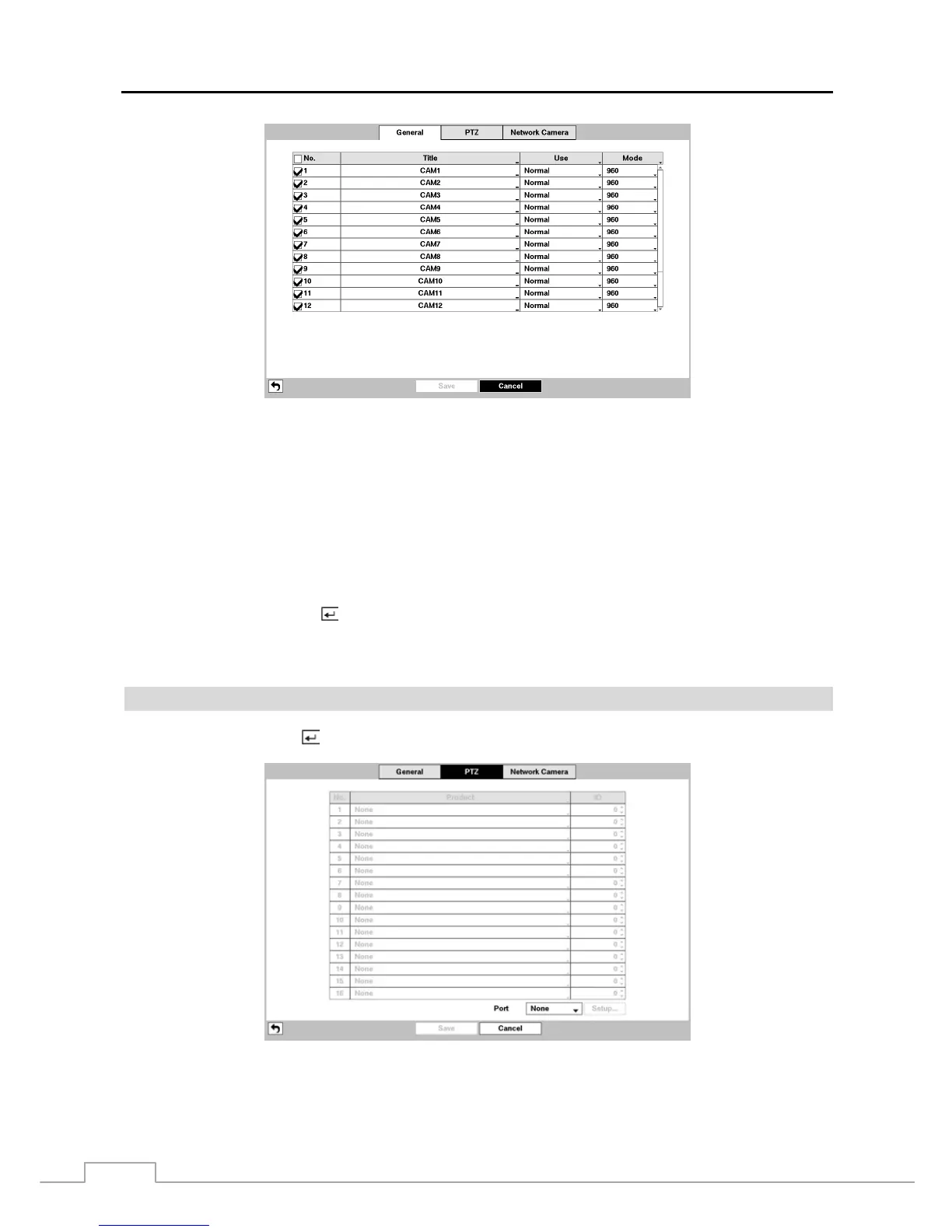
Figure 41 : Camera – General setup screen.
You can turn the camera number On or Off, and you can change the Title of each camera using the virtual keyboard.
You can also determine which cameras will display on the monitors by selecting Normal, Covert 1 or Covert 2 from
a drop-down list in the Use column.
NOTE: When selecting the Covert 1, the DVR displays the camera title and status icons on the covert video. When
selecting the Covert 2, the DVR displays only camera title on the covert video.
A user who does not have Covert Camera View authority cannot view video from cameras set to Covert
1 or Covert 2 in both the live monitoring and playback modes.
You can select the width resolution supported by the camera between 720 and 960 by highlighting the box under the
Mode heading and pressing the button.
NOTE: The system restarts automatically after changing the resolution settings.
When selecting the 960 Mode, the total recording speed and playback speed will decrease.
PTZ
Highlight PTZ and press the button, and the PTZ setup screen appears. (Local Cameras Only)
Figure 42 : Camera – PTZ setup screen.
NOTE: You will only be able to set up PTZ devices if the PTZ port is set to RS232 or RS485.



 To Next Page