Digital Video Recorder
51
Remote Control
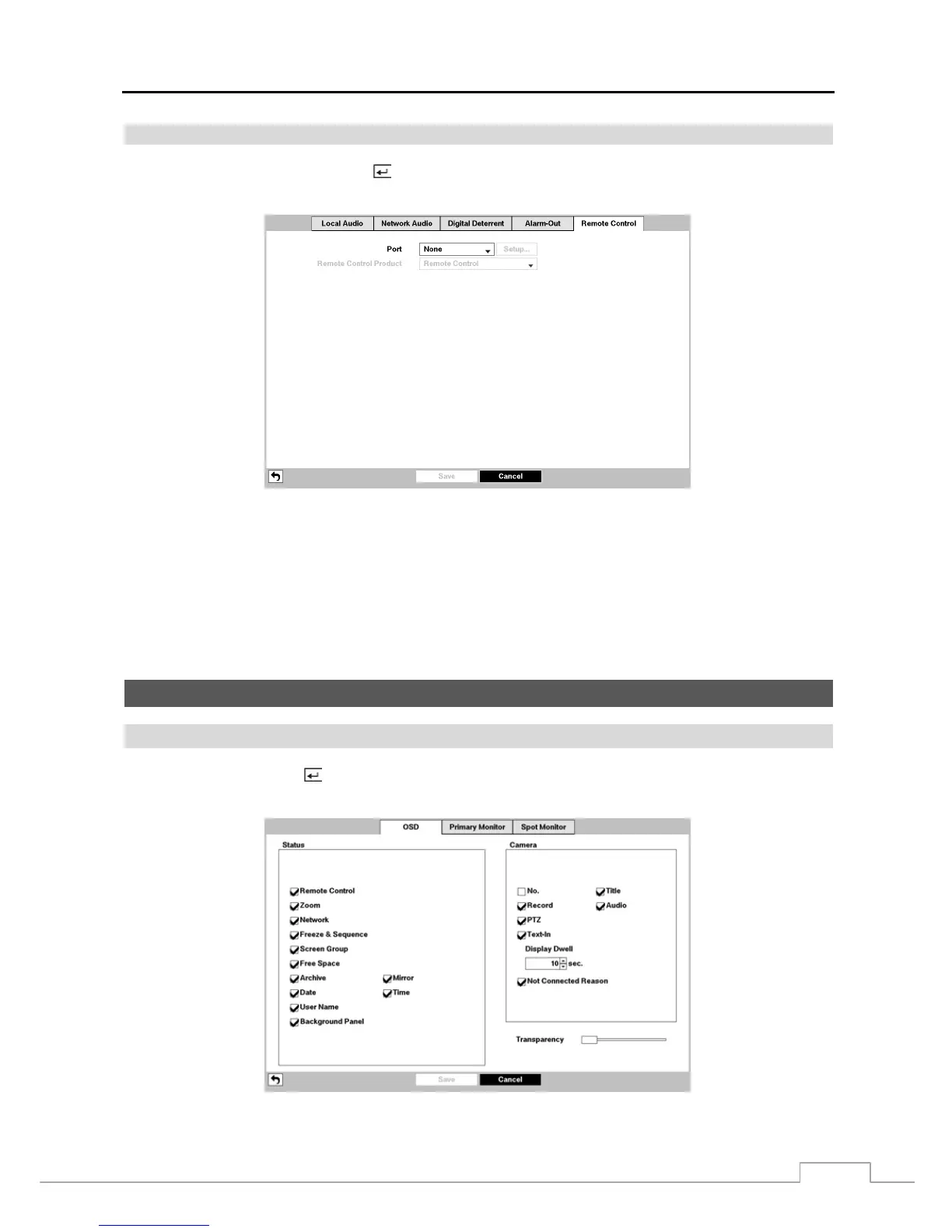
Highlight Remote Control and press the
button. The Remote Control setup screen allows you to select a port and
make correct settings for a remote keyboard.
Figure 35 : Device – Remote Control setup screen.
Highlight the box beside Port and select from None, RS232 and RS485. If the RS232 port and RS485 port are in use
for PTZ control, networking or text input, the remote keyboard cannot be configured.
Highlight Setup… and select the correct Baud Rate, Parity, Data Bits and Stop Bits for the device you are connecting
to the DVR.
Highlight the box beside Remote Control Product and select the device from the list.
Display Setup
OSD
Highlight OSD and press the
button. The OSD screen allows you to select what information will be displayed on
the monitor.
Figure 36 : Display – OSD setup screen.



 To Next Page