Digital Video Recorder
53
NOTE: Any cameras that are Off, have lost video or are set to Covert (unless the user has authority to view covert
cameras) will be excluded from the Cameo sequence.
You can define the screen layout in a variety of formats and set the DVR to sequence through the different screen layouts
(pages) so that all the cameras will be displayed. You can also set up the DVR to display one camera or a group of
cameras all the time while cycling through the remaining cameras in a “cameo” window. This can be done with one
camera displayed full screen while displaying the cameo window as a PIP (picture in picture), or displaying the cameras
in a grid pattern with the bottom right window as the cameo.
NOTE: Sequence cannot be used in the 5x4 display mode of the 16-channel and 4x3 mode of the 8-channel DVR.
You can adjust the display dwell time by highlighting the box beside Interval and pressing the button. You can
select dwell intervals ranging from 3 seconds to 2 minutes.
Highlight Event Monitoring On and press the button. Pressing the button toggles between On and Off. When it
is On, the DVR will display the camera associated with the event when an event occurs.
Highlight Fit To Screen and press the button. Pressing the button toggles between On and Off. When it is On,
the DVR will resize video to fit the primary monitor screen.
Highlight the box beside Set Resolution Automatically and press the button. Pressing the button toggles between
On and Off. When it is On, the resolution will automatically be set to the maximum resolution supported on the monitor
when the DVR reboots.
Highlight the box beside Resolution and press the button. You can select from 1920x1080p, 1920x1080i,
1280x1024 and 1024x768.
NOTE: Changing the resolution-related settings will NOT be applied until you have highlighted Save and pressed
the
button. A screen will appear confirming that you will need to restart the system to applying the
resolution you set.
Highlight the box beside Timing Criteria and press the button. You can select from “Standard”, “HDMI Monitor
Optimized” and “VGA Monitor Optimized.”
Monitor Resolution displays the resolution information of monitors current connected to the DVR. Highlighting Refresh
pressing the
button refreshes the resolution information.
Spot Monitor
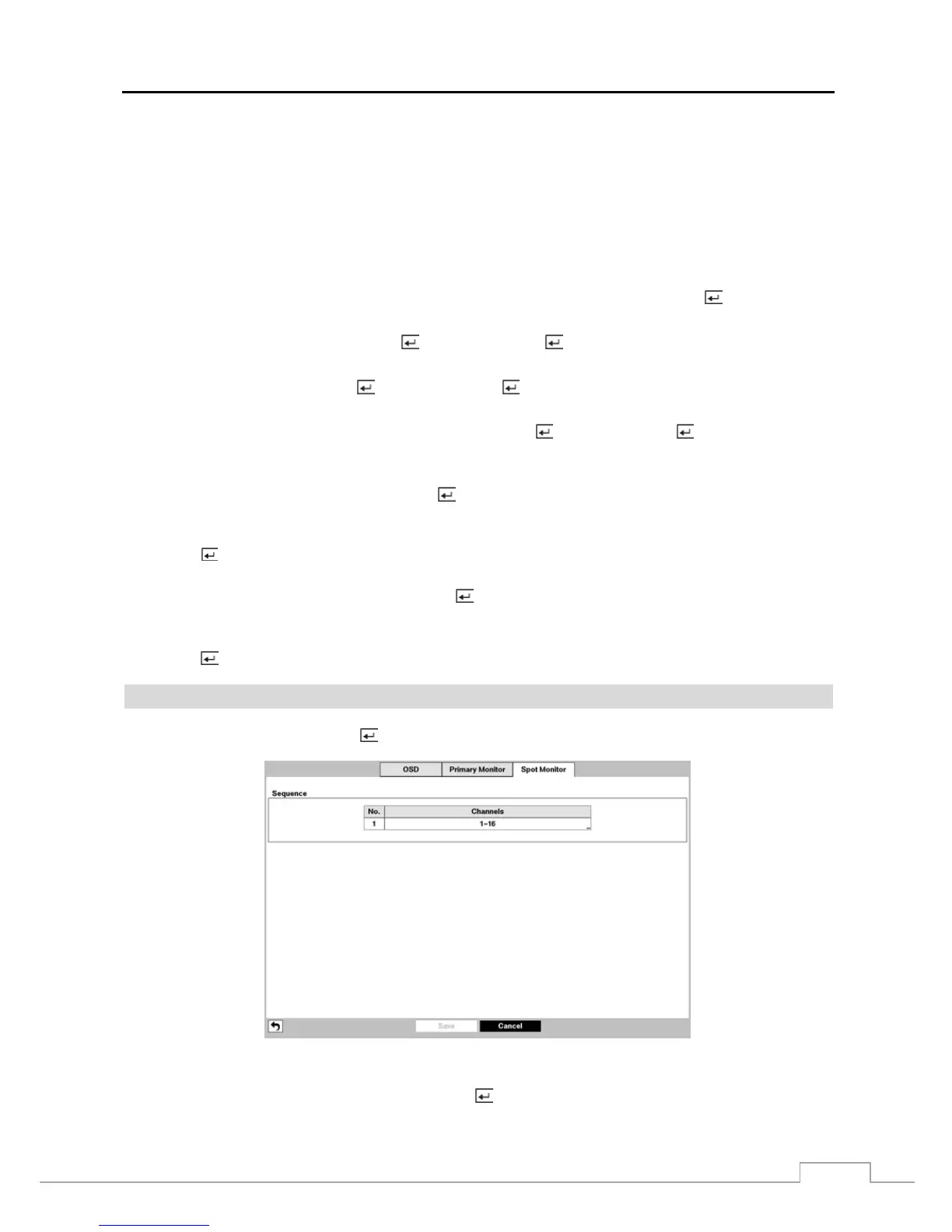
Highlight Spot Monitor and press the
button, and the Spot Monitor setup screen appears.
Figure 38 : Display – Spot Monitor setup screen.
Highlight the box in the Channels column and press the
button.



 To Next Page