Operation Instruction
28
CAUTION: When more than one disk is installed in the unit, the DVR records video on the disks
sequentially based on time. And these sequentially recorded videos have the advantage
that you can search recorded video easily even though a disk is removed from the unit.
However, video recorded in the same time range might be saved on different disks by
channel and by the type of recording mode. Once the Limit Time-Lapse Recording is set
to On, the DVR will maintain this recording limitation even after disabling the function.
If you want the DVR to record video on the disks sequentially based on time again, you
must format all disks that are currently used for recording.
Highlighting Use Panic Recording and pressing the
button toggles between On and Off.
Highlight the Panic Recording – Duration box and set the duration of panic recording. Panic recording will stop
automatically after the preset duration as long as
(Panic) in the Live Monitoring menu is not selected to stop the panic
recording. You can set the dwell from 5 minutes to 1 hour. Select No Limit if you want to stop panic recording manually.
Highlighting the Panic Recording – ips and pressing the button allows you to set the images per second for Panic
recording. You can select from 1.00 to 30.00 ips (25.00 ips PAL).
Highlighting the Panic Recording – Quality and pressing the button allows you to set the recorded image quality
for Panic recording. You can select from: Very High, High, Standard and Basic.
Highlighting the Panic Recording – Resolution and pressing the button allows you to set the recorded image
resolution for Panic recording. You can select from: Very High (4CIF/960H), High (2CIF/H960H) and Standard
(CIF/Q960H).
Schedule
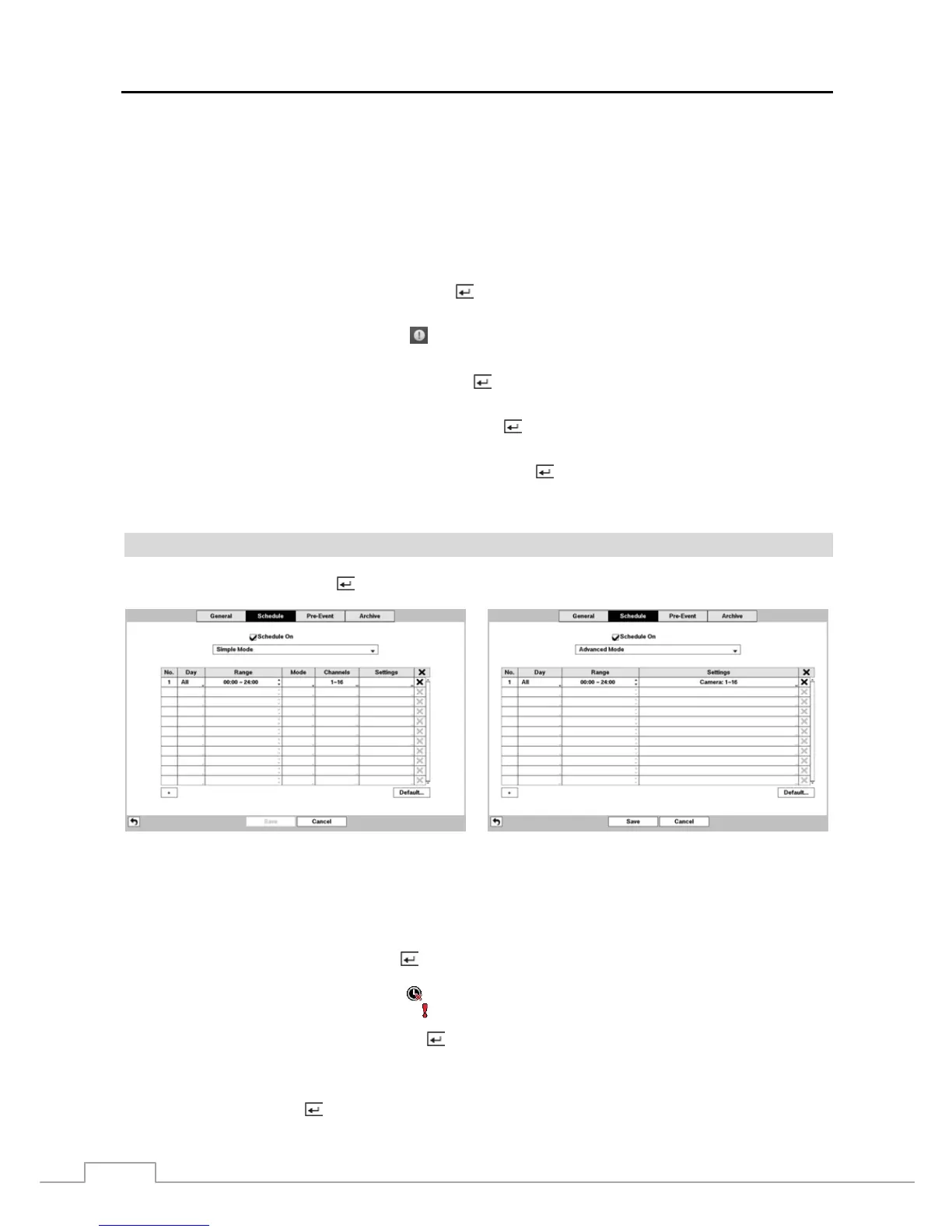
Highlight Schedule and press the
button, and the Schedule setup screen appears.
< Simple Mode >
< Advanced Mode >
Figure 15 : Record – Schedule setup screen.
You can program the DVR to record only during certain times based on time, day of the week, and holidays. The smallest
time segment you can use is 15 minutes.
Highlighting Schedule On and pressing the button toggles between On and Off. In the Schedule On mode, the
DVR records video based on the schedule established in the Schedule screen. When turning Schedule recording Off,
you will be asked to confirm your decision, and
displays at the top-left corner of each camera screen. Panic recording
will function even when Schedule is turned off.
displays during panic recording.
Highlight the Schedule Mode box and press the button. You can select between Simple Mode and Advanced
Mode. Selecting Advanced Mode allows you to set up individual recording schedule for each event.
NOTE: Changing the schedule mode will reset all event and action statuses.
Highlight the + and press the
button to add a schedule item.



 To Next Page