Operation Instruction
44
Notification
Highlight Notification and press the
button. The Notification setup screen displays.
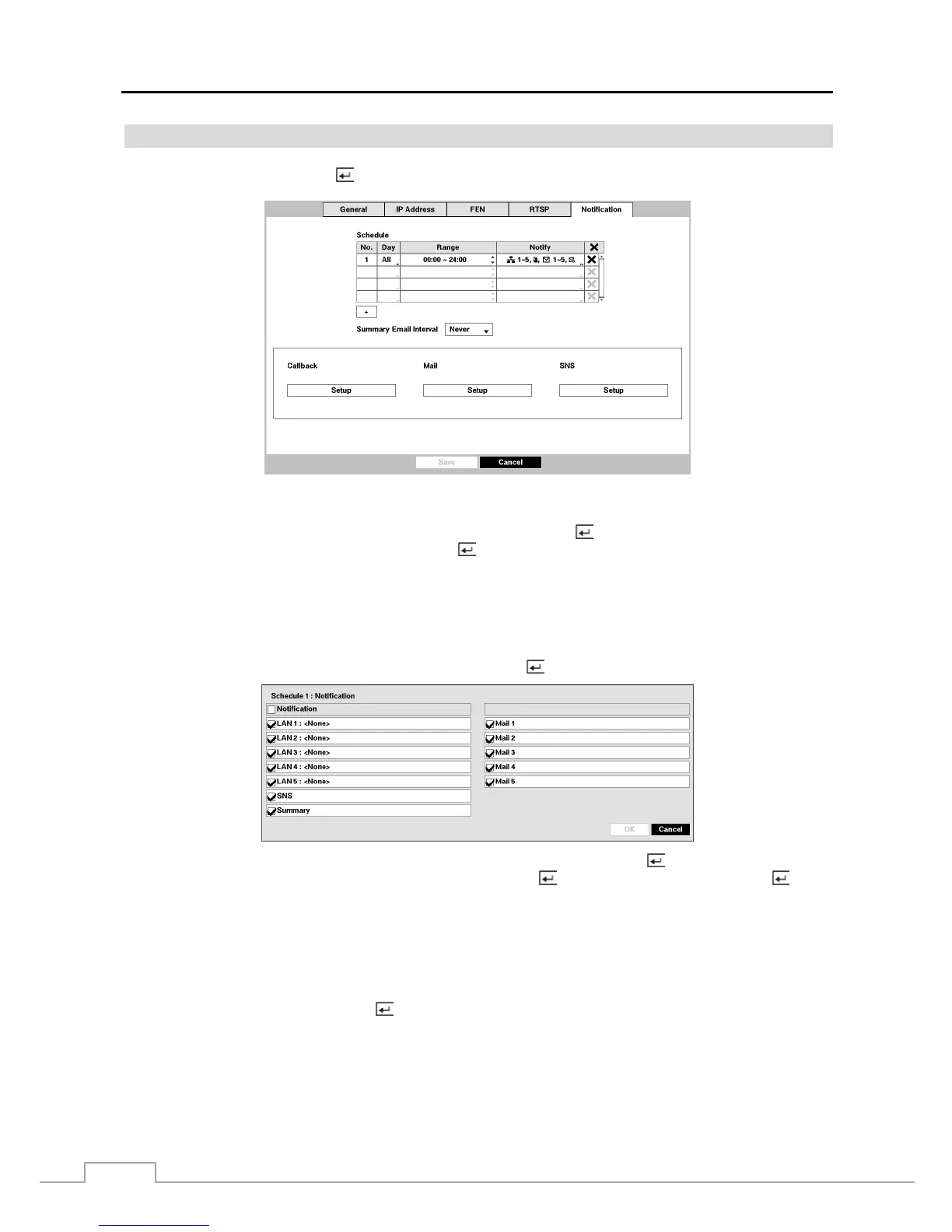
Figure 30 : Network – Notification setup screen.
You can add and edit notification schedules. Highlight the + and press the
button to add a schedule. Highlighting
the boxes under the Column heading and pressing the
button allows you to edit the information in those boxes.
The Day box allows you to select the days that the notification schedule will be active. The choices are: Sun, Mon,
Tue, Wed, Thu, Fri, Sat, M~F, Hol and All.
The Range box allows you to set the time that the notification schedule will be active in 15-minute increments from
00:00 to 24:00.
Highlight the desired box under the Notify heading, and press the
button. The Schedule Notify menu appears.
You can toggle the entire list On and Off by highlighting Notification and pressing the
button. You can toggle the
individual items On and Off by highlighting that item and pressing the
button. Highlight OK and press the
button
to accept your changes.
NOTE: For the Notify action, the notify item you select should be enabled in the Notification setup screen and the
DVR should be registered in the Speco Central (Remote Administration System).
Highlight the box beside Summary Email Interval and select the interval that you want the DVR to send a summary
email. The DVR will send an email containing a summary of events detected during the preset interval.
Highlight Callback – Setup and press the button, and the Callback screen appears. The DVR can be set up to contact
a computer running Speco Central (Remote Administration System) when an event occurs.



 To Next Page