Digital Video Recorder
67
Panic Recording
Selecting
(Panic) in the Live Monitoring menu or Search menu starts panic recording of all cameras. Selecting
again stops panic recording. If you set the Panic Recording Duration in the Panic Record setup screen, panic recording
will stop automatically according to the preset duration as long as
is not selected.
NOTE: When the DVR is not in the Recycle mode and all available storage space has been used, panic recording
will not operate.
Recording Audio
If the DVR was set up to record audio, it will record audio from up to four inputs when video is recording.
NOTE: Make certain you comply with all local and federal laws and regulations when recording audio.
Playing Recorded Video
If a user who has Search authority logs into the system, the user can view recorded image. Once video has been recorded,
you can view it by pressing the (Play/Pause) button on the Record Table Search screen.
The DVR supports the Triplex function: monitoring, recording and playing back at the same time. Pressing the
PLAY/STOP
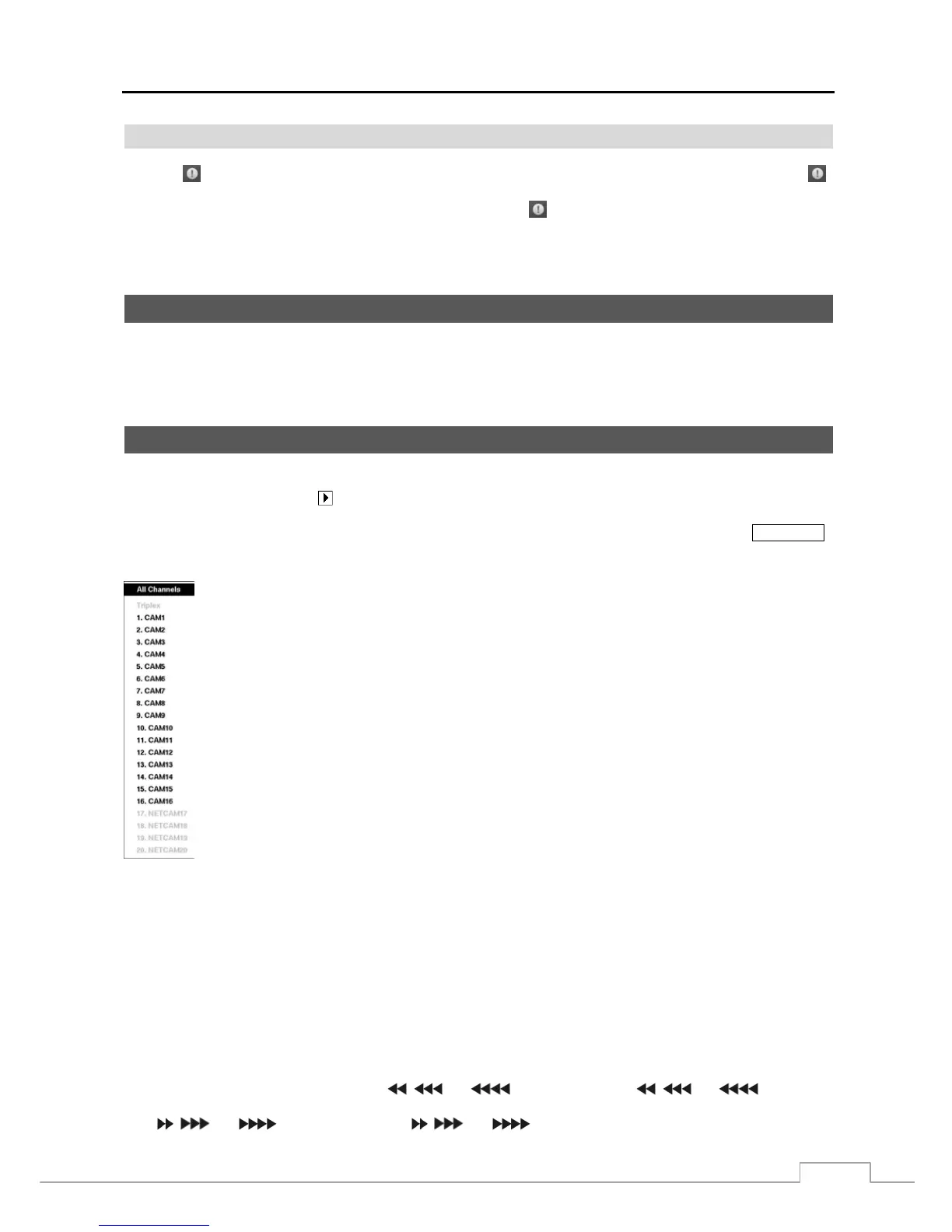
button when in one of the multi-view formats enters the Triplex mode and displays the Select Playback Camera menu.
Selecting All Channels plays back video of all cameras. The DVR maintains the same display format
as it does in the live mode except for the PIP format. You can also change the screen layout in the
same way as you do in the live mode.
Selecting the camera number under Triplex enters the Triplex mode and plays back video of the selected
camera. When in the single-screen display format, the camera currently displayed on the screen will
be selected and when in the PIP display format, the camera displayed on the PIP screen will be selected
for the search channel. During the Triplex mode, the DVR maintains the same display format as it does
in the live mode. A red outline surrounding the video and the camera title indicates the search channel.
While in the Triplex Mode, the DVR continues recording cameras as they were set up in the recording
schedule. Also, live monitoring will continue except for the camera that has been selected for playback.
NOTE: While in the triplex mode, the playback speed might decrease when monitoring live video
of network devices.
Figure 47 : Select Playback Camera menu.
When playing video for the first time, the DVR will display the most recent image. When playing video subsequent
times, the DVR will start playing video from the last recalled image. Recorded audio will be played when the DVR
displays a camera with recorded audio in full screen mode.
NOTE: Only the administrator and users with Covert Camera View authority can view video from covert cameras.
The covert cameras in the playback mode are determined by the current camera settings.
Camera Buttons (1 to 16): Pressing the individual camera buttons will cause the selected camera to display full screen.
Arrow Buttons: In the playback mode, pressing the Left arrow button plays video backward at high speed. Pressing the
button again toggles the playback speed from
, and . The screen displays , and respectively.
Pressing the Right arrow button plays video forward at high speed. Pressing the button again toggles the playback speed
from , and . The screen displays , and
respectively.



 To Next Page