Operation Instruction
64
Setup
Selecting (Setup) in the Live Monitoring menu enters the Main Setup screen. Refer to Chapter 3 ─ Configuration
for detailed descriptions of system setup.
Active Cameo Mode
You can enter the Active Cameo mode by selecting Edit Group from the Live Monitoring – Display menu or pressing
the
button on the front panel in any multi-view format. The yellow outline surrounding the video indicates the active
cameo, and pressing the arrow buttons moves the active cameo. Pressing the
button exits the Active Cameo mode.
Selecting Exit Group Edit in the cameo menu displayed when pressing the
MENU button also exits the Active Cameo
mode. The active cameo mode will remains in effect for 15 seconds if there is no further operation.
In active cameo mode, press the button for the camera you want to display in the active cameo. After setting the camera
number to active cameo, the DVR moves the active cameo to the next cameo. When the camera number exists on the
current screen, the active cameo is changed with the existing camera number. When the camera number does not exist
on the current screen, the active cameo is replaced by the camera number. You can change the screen layout in this way.
Zoom Mode
You can enlarge an area of the video by selecting Zoom from the Live Monitoring – Camera menu. For a few seconds
after selecting Zoom, a rectangle displays on the screen. A rectangle shows the area that will be enlarged. You can
move the rectangle around using the arrow buttons. Pressing the button or turning the Jog Dial counterclockwise
in the Zoom mode toggles the zoom size between 2x, 3x and 4x. Exit the Zoom mode by selecting (Exit) in the Zoom
menu displayed when pressing the
MENU button. While in the Zoom mode, the icon displays if Zoom is selected
in the Display setup screen (OSD tab).
PTZ Mode
If a user who has PTZ Control authority logs into the system, the user can control PTZ cameras. The DVR will control
cameras with Pan, Tilt and Zoom capabilities. Press the PTZ button to display the PTZ camera menu and enter the PTZ
mode, and press the button again to exit the PTZ mode.
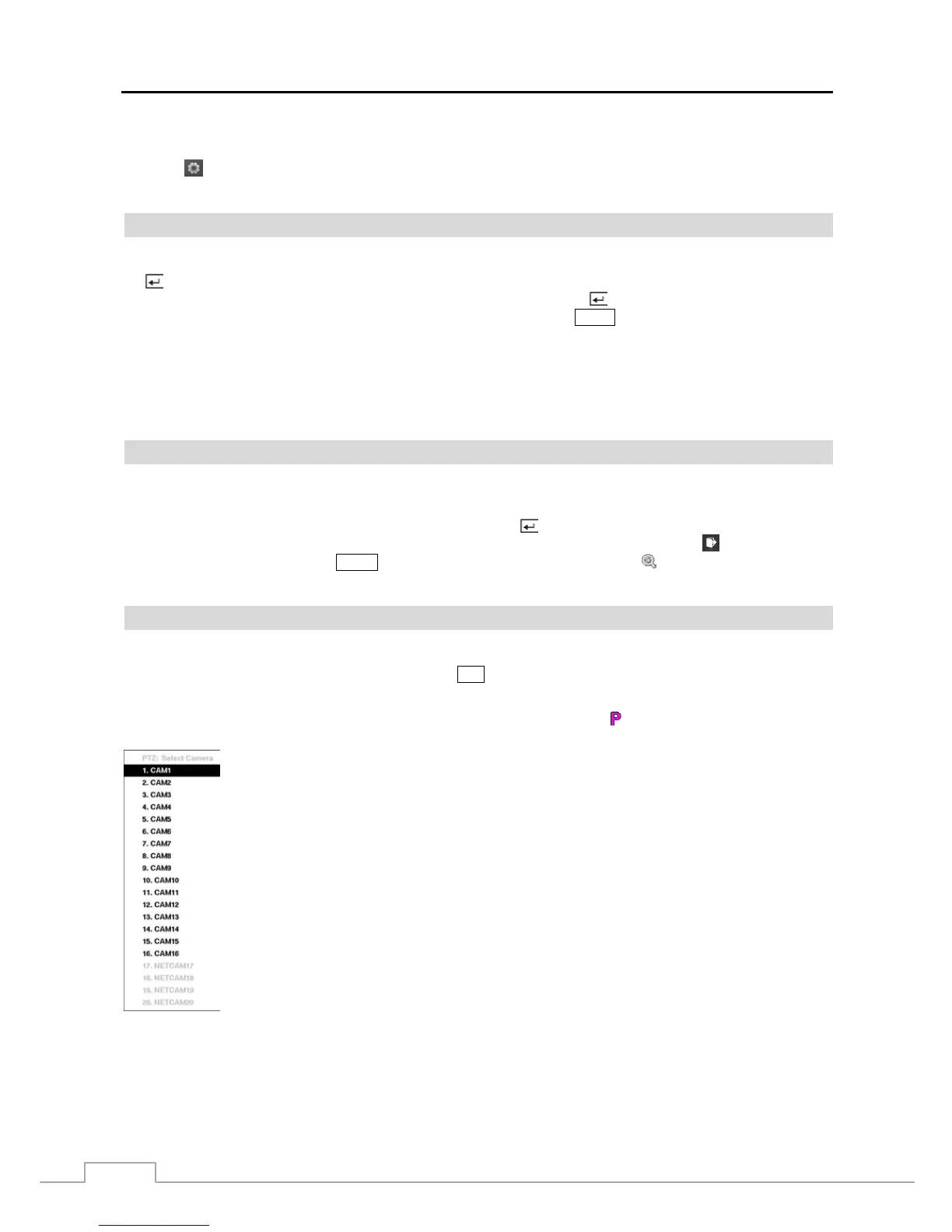
Select the PTZ camera you wish to control by selecting it from the menu. The icon
displays on the PTZ camera screen.
To use the front panel buttons, press the Left and Right arrow buttons to pan left and right. Press the
Up and Down arrow buttons to tilt the camera up and down. Press the camera button 1 to zoom in,
and press the button 4 to zoom out. You can use the button 2 and button 5 to focus the image.
You can establish preset positions for PTZ cameras. Press the button 6 to establish Presets.
You can quickly move PTZ cameras to Preset positions. Press the button 3 to view an established
camera Preset position.
Figure 45 : PTZ Select Camera menu.



 To Next Page