Operation Instruction
42
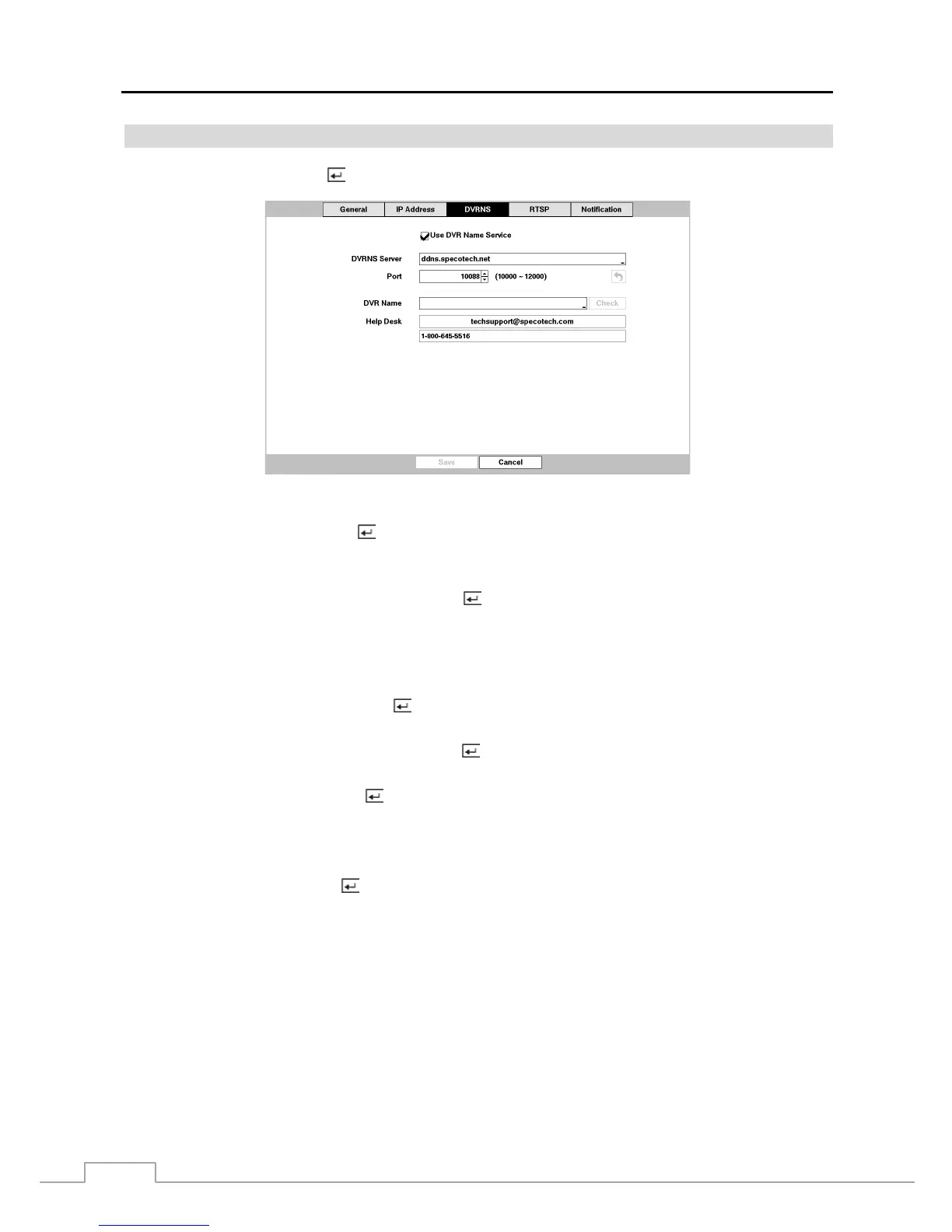
DVRNS
Highlight DVRNS and press the
button, and the DVRNS setup screen displays.
Figure 28 : Network – DVRNS setup screen.
Highlight Use DVRNS and press the
button to toggle between On and Off.
NOTE: DVRNS is the technology that automatically sets up your DVR to work seamlessly for remote viewing
via your network internet connection. For DVRNS to work, naming your DVR will be required.
Highlight the box beside DVRNS Server and press the button. A virtual keyboard appears allowing you to enter
the IP address or domain name of the DVRNS server.
NOTE: You will need to get the IP Address or domain name of the DVRNS Server from your network administrator.
You can use the domain name instead of IP address if you already set up the DNS Server when setting
up the LAN.
Highlight the box beside Port and press the button. Set the port number of the DVRNS server using the Up and
Down arrow buttons to increase or decrease the numbers.
Highlight the box beside DVRNS Name and press the button. A virtual keyboard appears allowing you to enter
the DVR name to be registered on the DVRNS server.
Highlight the Check box and press the button to check whether or not the name you entered can be used.
NOTE: The DVRNS Name you entered should be checked by selecting Check, otherwise the DVRNS changes
will not be saved.
When entering no name or a name already registered on the DVRNS server, an error message displays.
Highlighting Save and pressing the button registers the DVR on the DVRNS server. Proper DVRNS settings will
display the help desk information of the DVRNS server in the box beside Help Desk.



 To Next Page