Digital Video Recorder
23
CAUTION: Write down the new password and save it in a secure place. If the password is forgotten,
the unit must be reset using the Factory Reset Button and all data settings will be lost.
Highlighting a User Name and pressing the
button allows you to add or change the password assigned to that user.
You can also change the group to which the user is assigned.
The column can be used to delete a User Name or an entire Group. If the is grayed out, that Group or User cannot
be deleted. Highlight the
and press the
button. You will be asked to confirm that you want to delete the User or
Group. To delete the User currently logged into the DVR on a local system or a PC running Speco Central, log the
user out of the system first and then delete the user.
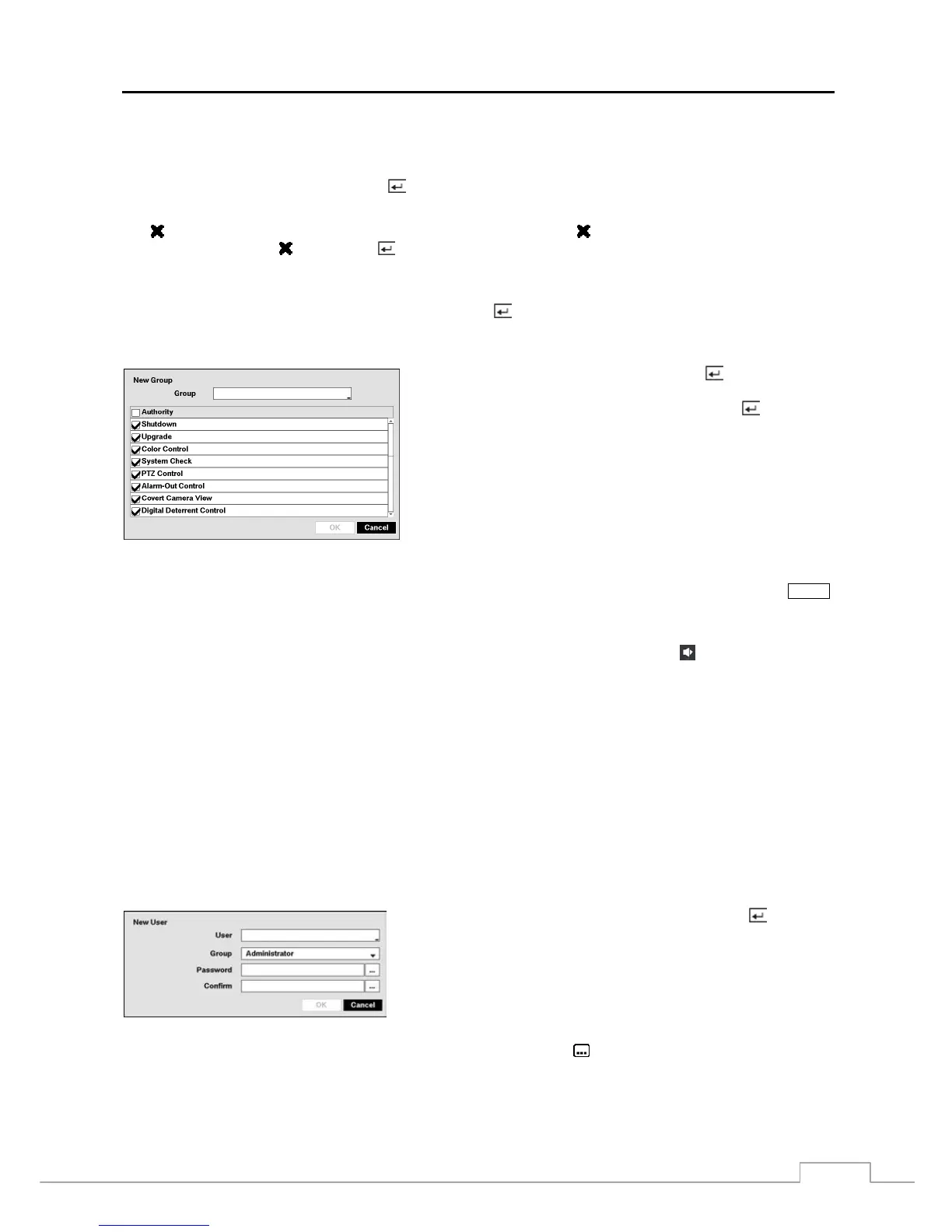
To add a Group, highlight the + Group… box and press the
button. A virtual keyboard appears allowing you to
enter the Group name. You can use up to 15 characters including spaces in the group name. Enter the name and assign
authority levels to the group.
Highlighting the Authority box and pressing the
button will toggle
between all authority levels being turned On and Off. Highlighting
the individual authority level boxes and pressing the
button will
toggle between that authority level being turned On and Off. The
authority levels that can be turned On and Off are:
Shutdown – The user can shut the system down on a local system.
Upgrade – The user can upgrade the software on a local system or a PC
running Speco Central.
Color Control – The user can control brightness, contrast, hue and saturation
for cameras on a local system or a PC running Speco Central.
System Check – The user can view the remote system status or check
the remote system status as a batch process on a PC running Speco Central.
PTZ Control – The user can control the PTZ camera on a local system or a PC running Speco Central.
Alarm-Out Control – The user can reset the DVR’s outputs including the internal buzzer during an alarm by pressing the
ALARM
button on a local system or alarm-out control button on a PC running Speco Central.
Covert Camera View – The user can view video from cameras set as Covert while in the Live Monitoring or Search mode on
a local system or a PC running Speco Central.
Digital Deterrent Control – The user can trigger the Digital Deterrent sound manually by selecting
(Digital Deterrent) in the
Live Monitoring menu and Search menu on a local system.
Search – The user can access the Search mode on a local system or a PC running Speco Central.
Clip-Copy – The user can copy video clips on a local system or a PC running Speco Central.
Setup – The user without Setup authority cannot establish any system settings excluding system shutdown and logout on a local
system or a PC running Speco Central.
System Time Change – The user can change the system date and time on a local system or a PC running Speco Central.
Data Clear – The user can clear all video data or format disks on a local system or a PC running Speco Central.
PTZ Setup – The user can establish all PTZ settings on a local system or a PC running Speco Central.
Alarm-Out Setup – The user can establish all Alarm-Out settings on a local system or a PC running Speco Central.
Covert Camera Setup – The user can establish all Covert Camera settings on a local system or a PC running Speco Central.
Record Setup – The user can establish all Record settings on a local system or a PC running Speco Central.
Digital Deterrent Setup – The user can establish all Digital Deterrent settings on a local system.
Setup Import – The user can import saved DVR settings from a local system or a PC running Speco Central.
Setup Export – The user can export the current DVR settings to a local system or a PC running Speco Central.
VNC Setup – The user can establish all VNC settings on a local system or a PC running Speco Central.
To add a User, highlight the + User… box and press the
button. A
virtual keyboard appears allowing you to enter the User Name. Enter the
name and assign the User to a Group and password. You can use camera
buttons 1 to 9 on the front panel to assign the password. The password
can be up to 8 digits. You will be asked to confirm the password.
NOTE: In addition to using the front panel buttons or the infrared remote control, you can use the virtual keyboard
to assign the password. To display the virtual keyboard click the
button using the mouse (not supplied).
Highlighting the box beside Auto Login allows you to select a User to be automatically logged in when the DVR is
powered up. It can also be set to never automatically login a user.



 To Next Page