PTZ
DVR User Manual
31
of the image.
Move the cursor of the mouse to the camera image and then slide the scroll wheel of the mouse forward to zoom in the image, slide the scroll
wheel of the mouse backward to zoom out the image.
OSD Settings
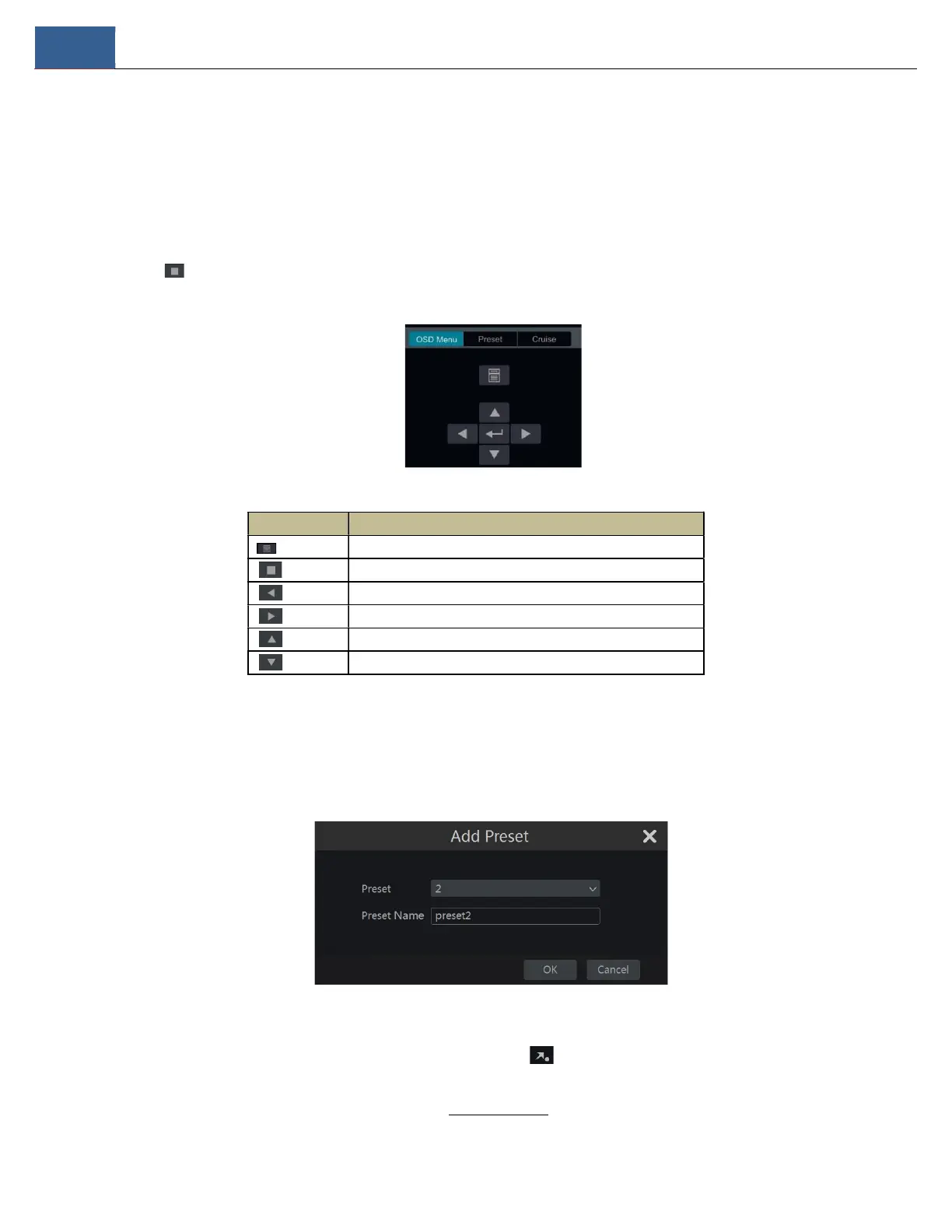
Go to PTZ protocol settings interface and then set the protocol before you bring up the OSD. Click “OSD Menu” to go to camera OSD setting
interface. Click to start OSD settings. The meanings of the buttons are shown in the table below.
Button Meaning
Click to call main menu or enter the sub menu or confirm the settings.
Click to call main menu or enter the sub menu or confirm the settings.
Click to change the menu mode or decrease the menu value.
Click to change the menu mode or increase the menu value.
Click to go to the previous menu.
Clickto go to the next menu.
Preset Setting
Click “Preset” to go to preset operation tab and then click “Add” button to pop up a window as shown below. Select the preset and then enter the
preset name in the window; finally, click “OK” button to save the settings. You can add up to 255 presets for each dome.
Adjust the dome’s direction and then click “Save Position” to save the current preset position (you can also click another preset in the preset list
and then save the preset position after adjusting the dome’s direction); click in the preset list to call the preset; click “Delete” button to
delete the selected preset.
You can also go to preset settings interface for preset settings, see 6.2 Preset Setting for details.


 To Next Page