Spectralink IP-DECT Server 6500 Installation and Configuration Guide
14215700 Version 3.0
April, 2014 95
6 When the update is finished, click Reboot to execute the changes.
7 If you have blocked new calls during a firmware update, enable new calls again by clicking
Administration (Administration Page of Spectralink IP-DECT Server 6500), then Wireless
Server and then clicking Allow.
Spectralink IP-DECT Base Station
Changing System User Name and Password
From the Administration Page it is possible to change the user name and password for the system.
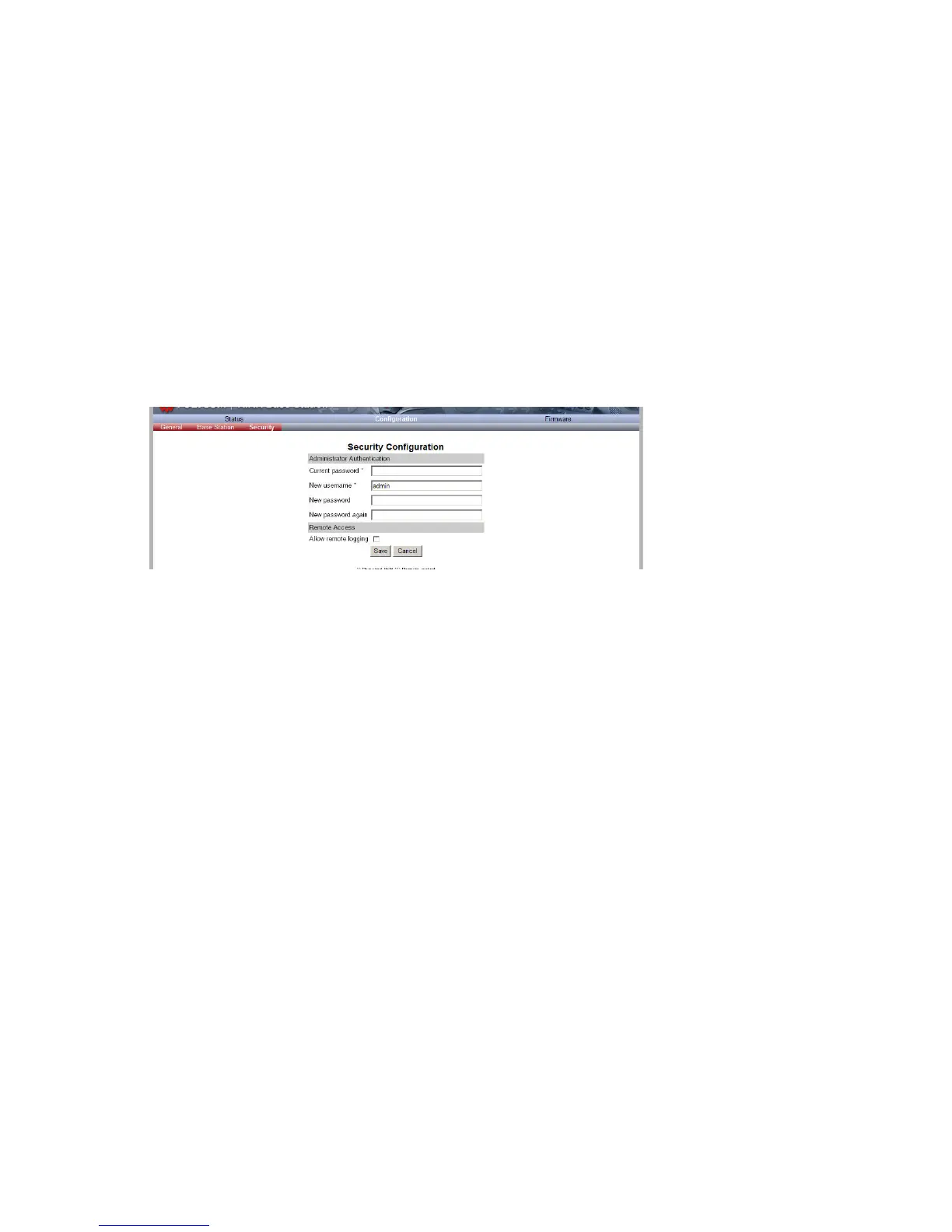
1 Click Configuration, and then click Security.
Figure 93 Adm. Page Base Station: Configuration/Security page
2 In the Current password field, type the current password.
3 In the New user name field, type a user name.
4 In the New password field, type a new password
5 In the New password again field, type the new password again to confirm it.
6 Click Save to change the password.
Reading System Information
Under Status it is possible to get general information about hardware version, firmware and
message logging. This information is useful in case of problem solving.
General Status Information
This page provides general system information such as hardware, firmware and OS Status
information.
1 Click Status, and then click General.


 To Next Page