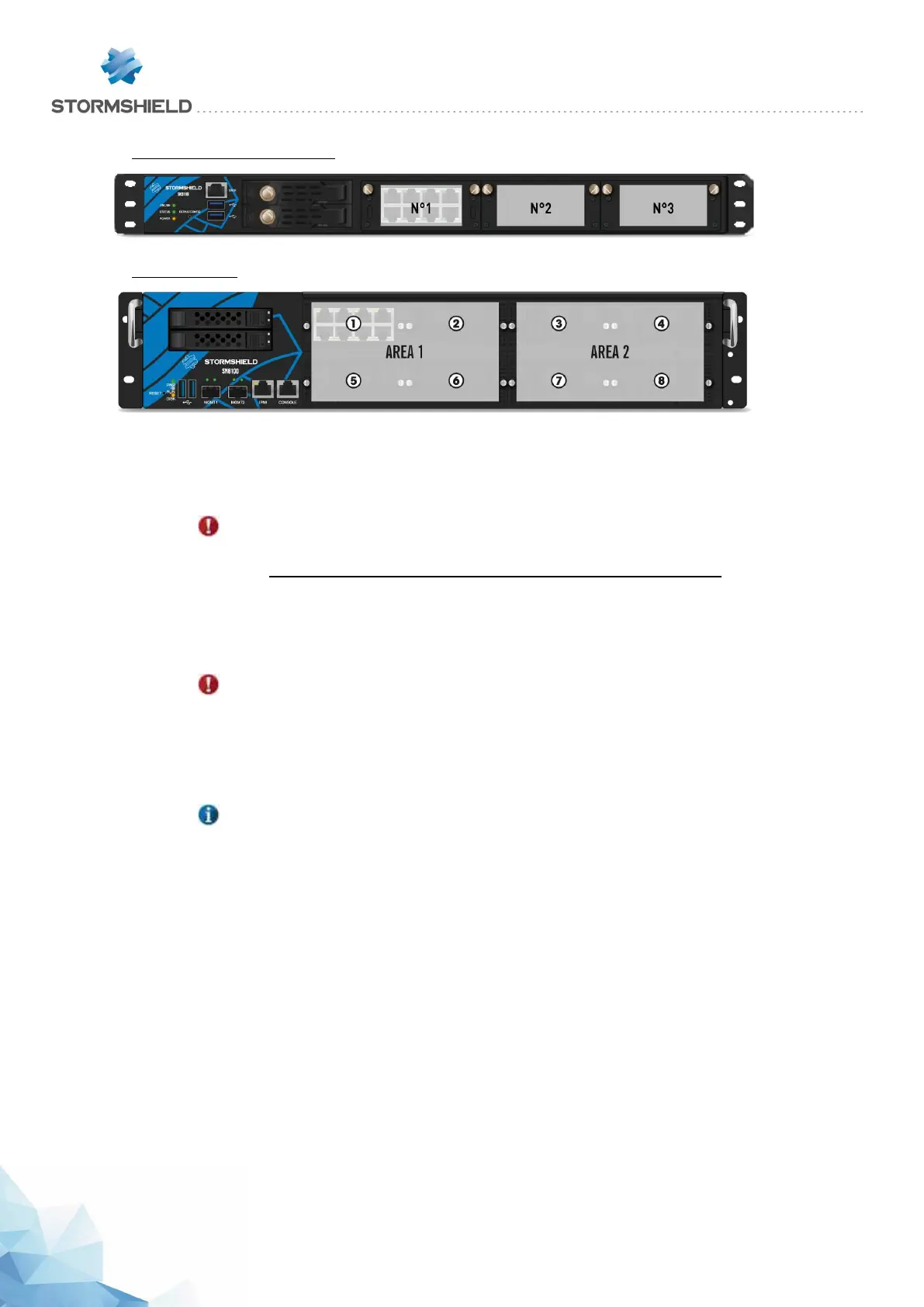
SN2100 and SN3100Models:
SN6100 model:
Procedure for inserting or removing extension modules
No specific licenses are required for adding extension modules.
IMPORTANT
Extension modules must only be removed or inserted on appliances that have fully shut
down and which are necessarily unplugged from any electrical power supply.
On SN6100 models, spreading out network modules between both areas is recommended in
order to enhance your product's performance. This makes it possible to balance the loads of both
CPUs. The first set of modules and the 2 network ports located on the front of the appliance are
managed as a priority by the first CPU and the second set by the second CPU.
IMPORTANT
The theoretical bandwidth available for each network slot is:
- SN710 Model: 30Gbps, full-duplex
- SN2100 and SN3100 models: 30Gbps, full-duplex on slot 1
- SN2100 and SN3100 models: 60Gbps, full-duplex on slots 2 and 3
- SN910 models and higher: 60Gbps, full-duplex
REMINDER
In cases where modules are added subsequently in row 1, the interfaces of the modules in
row 2 will be automatically re-ordered.
Inserting an extension module on SN710, SN910, SN2100, SN3100 or SN6100 models
l Using the Power button on the front panel (rear panel for SN6100 appliances), or from the
administration interface, proceed to shut down the Firewall,
l Once it has fully shut down, ensure that you unplug it from any electrical power supply,
l Remove the filler panel by unscrewing the 2 knurled screws and extract it by pulling on both
screws,
l Present the module to be inserted, push it all the way in (push harder towards the end), then
screw in the 2 knurled screws,
l Reconnect the Firewall to the power supply,
l Using the Power button on the front panel, start the Firewall.
SNS - PRODUCT PRESENTATION AND INSTALLATION 2019
NETWORK CONNECTORS
Page 42/66 sns-en-SNrange_installation_guide-2019 - 09/2019



 To Next Page