98
step 2 Open the App, enter the account and password on the login screen. Tap Login to enter the
home screen.
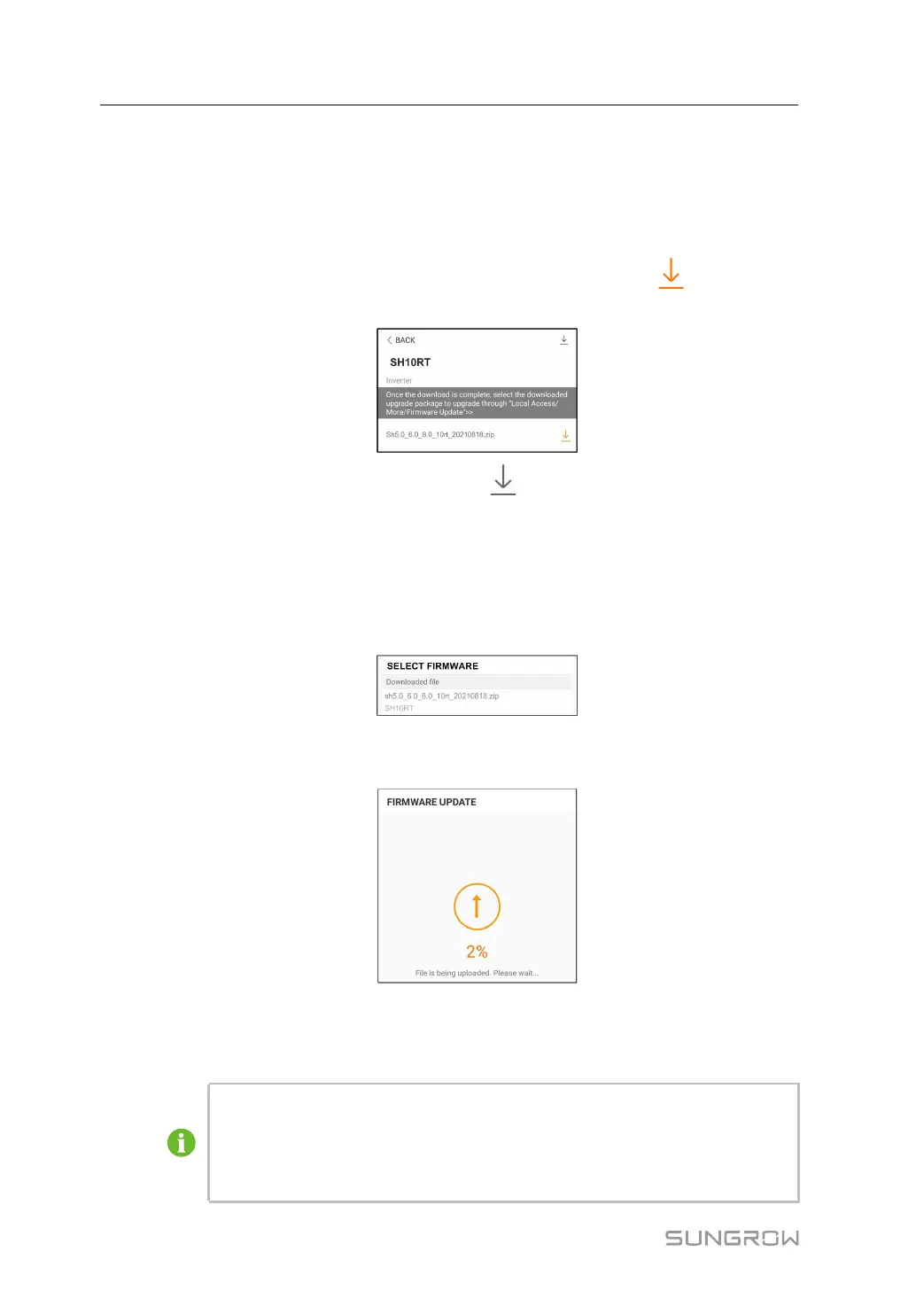
step 3 Tap More→Firmware Download to enter corresponding screen on which you can view the
device list.
step 4 Select the device model before downloading the firmware. Tap the device name in the de-
vice list to enter the firmware upgrade package detail interface, and tap
behind the firm-
ware upgrade package to download it.
step 5 Return to the Firmware Download screen, tap in the upper right corner of the screen to
view the downloaded firmware upgrade package.
step 6 Login the App via local access mode. Refer to "8.4 Login".
step 7 Tap More on the App home screen and then tap Firmware Update.
step 8 Tap the upgrade package file, a prompt box will pop up asking you to upgrade the firmware
with the file, tap CONFIRM to perform the firmware upgrade.
step 9 Wait for the file to be uploaded. When the upgrade is finished, the interface will inform you of
the upgrade completion. Tap Complete to end the upgrade.
- - End
8.10.12 Grounding Detection
Contact SUNGROW to obtain the advanced account and corresponding password
before setting the earth detection parameters.
Unauthorized personnel are not allowed to log in with this account. Otherwise,
SUNGROW shall not be held liable for any damages caused.
8 iSolarCloud App User Manual



 To Next Page