68
7.3 App Preparation
step 1 Install the iSolarCloud App with latest version. Refer to "8.2 Installing the App".
step 2 Register an account. Refer to "8.3 Account Registration". If you have got the account and
password from the distributor/installer or SUNGROW, skip this step.
step 3 Download the firmware package to the mobile device in advance. Refer to “Firmware Upa-
date”. This is to avoid download failure due to poor on-site network signal.
- - End
7.4 Creating a Plant
Screenshots of creating a plant are for reference only. For details, refer to the actual screen.
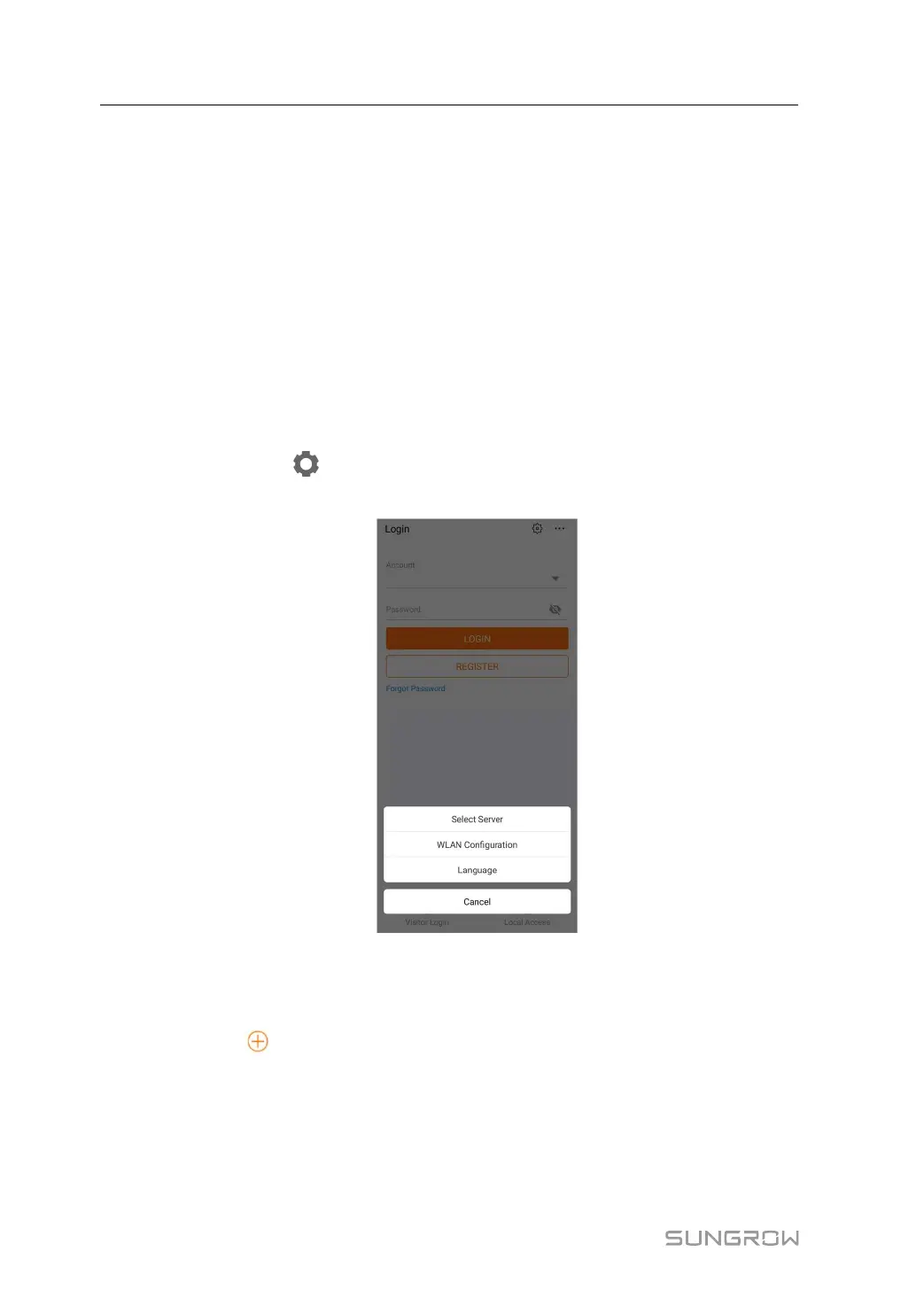
step 1 Open the App, tap
at the upper right corner and tap Select Server. Choose the same
server as when registering.
figure 7-1 Selecting the Server
step 2 Enter the account and password on the login screen and tap Login to enter the App home
screen.
step 3 Tap the icon
at the upper right corner to enter the creating screen.
7 Commissioning User Manual



 To Next Page