81
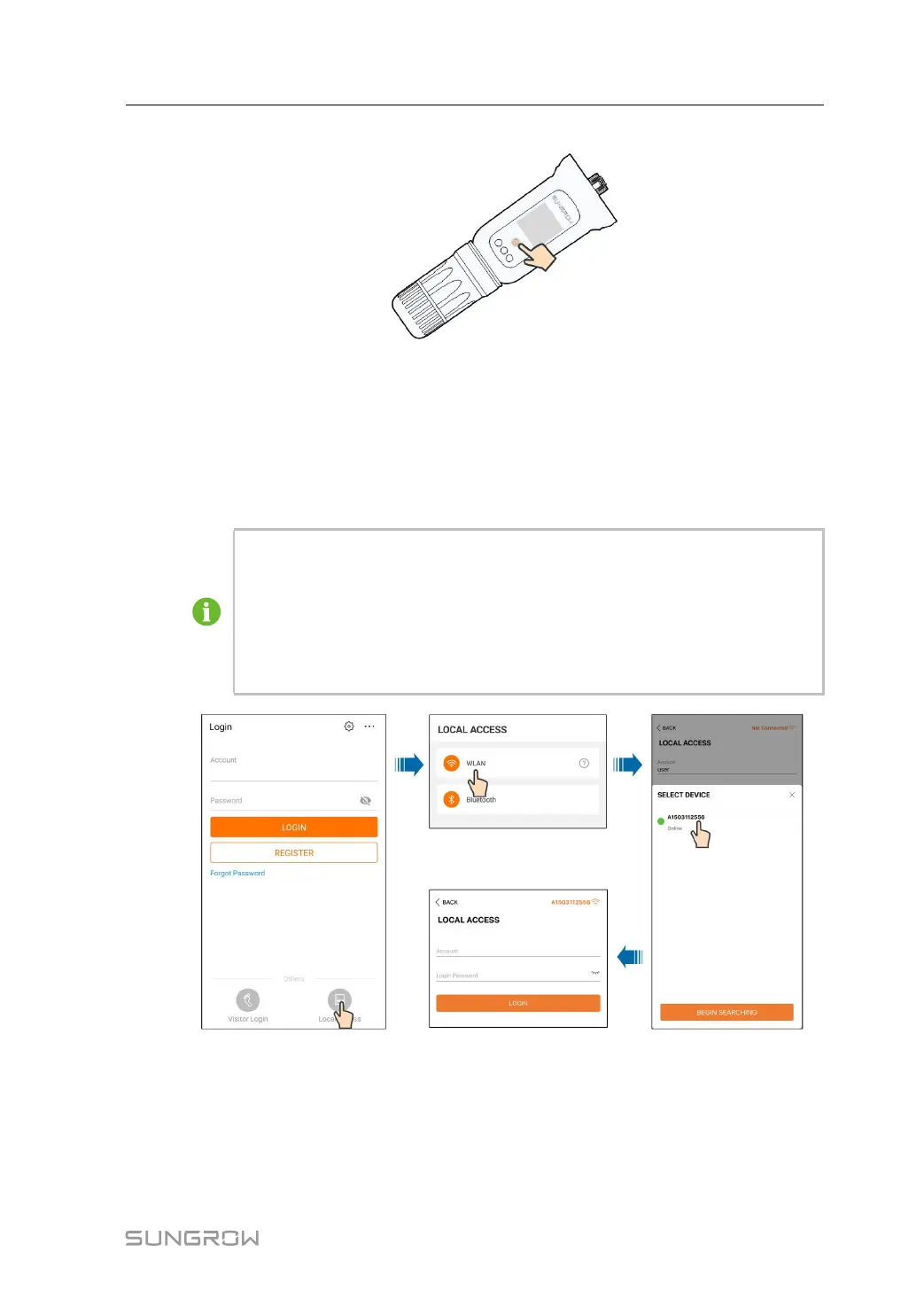
figure 8-1 Enabling the WLAN Hotspot
step 2 Connect the mobile phone to the WLAN network named as "SG-xxxxxxxxxxx" (xxxxxxxxxxx
is the serial number indicated on the side of the communication module).
step 3 Open the App to enter the login screen. Tap Local Access to enter the next screen.
step 4 Select WLAN and select the device (SN), then enter the password and tap LOGIN.
• If the WiFi signal, serial number or inverter related data information cannot be
found, unplug and reinsert the Winet-S or press the multi-function button of the
Winet-S three times.
• The default account is "user" and the initial password is "pw1111" which should
be changed for the consideration of account security. Tap "More" at the lower
right corner on home page and choose "Change Password".
figure 8-2 WLAN Local Access
step 5 If the inverter is not initialized, navigate to the quick setting screen to initialize the protection
parameters. For details, please refer to "Initial Settings".
User Manual 8 iSolarCloud App



 To Next Page