Chapter 6 Page 91
13. All of the statuses selected by your Association/MLS for display
on the eKEY are listed in the left box. To select a status, tap the
status you want to include in
your search and tap the
Add
button.
To remove a status you have selected, tap the status in the box on
the right and tap the
Remove
button. To start over with your status
selection tap the
Clear
button at the bottom of the screen.
To return
to the Custom Search screen without selecting specific statuses for
your search, tap the
Cancel
button.
Tap
OK
when you have finished
selecting statuses.
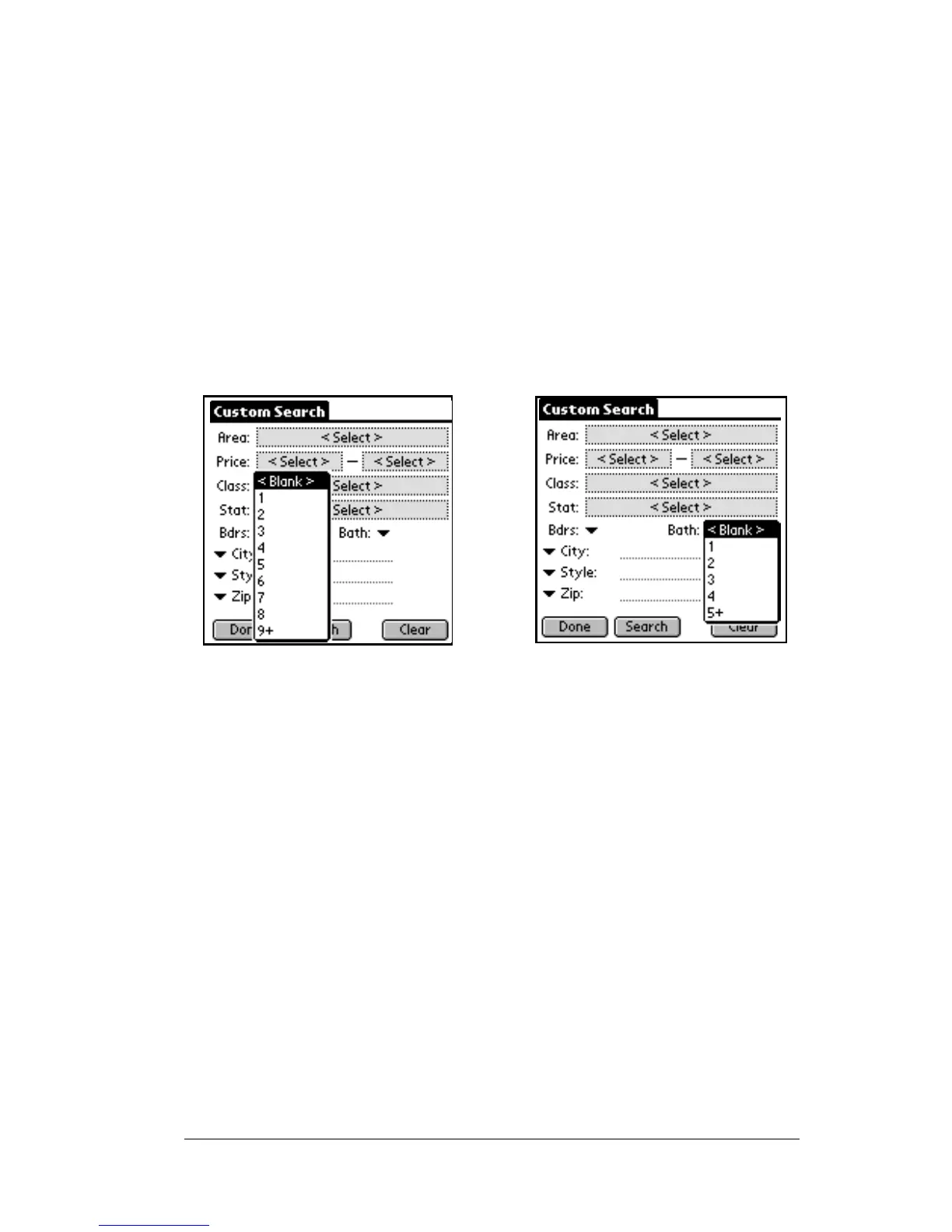
14. You can select the minimum number of bedrooms and bathrooms
for your search. Click the down arrows in the
Bdrs
and
Bath
fields
to select options from the drop down menus.
15. Select the fields and the search criteria for up to three additional
fields.
Additional searchable fields
Your Association/MLS defines the additional searchable fields in the
Custom Search
screen. Some examples of common searchable fields are
city and zip code.
16. To display the additional searchable fields for your Association,
tap the down arrow to the left of one of the three optional fields at
the bottom of the
Custom Search
screen.


 To Next Page