Addressable Fire Panel IRIS - Installation and Programming Manual 25
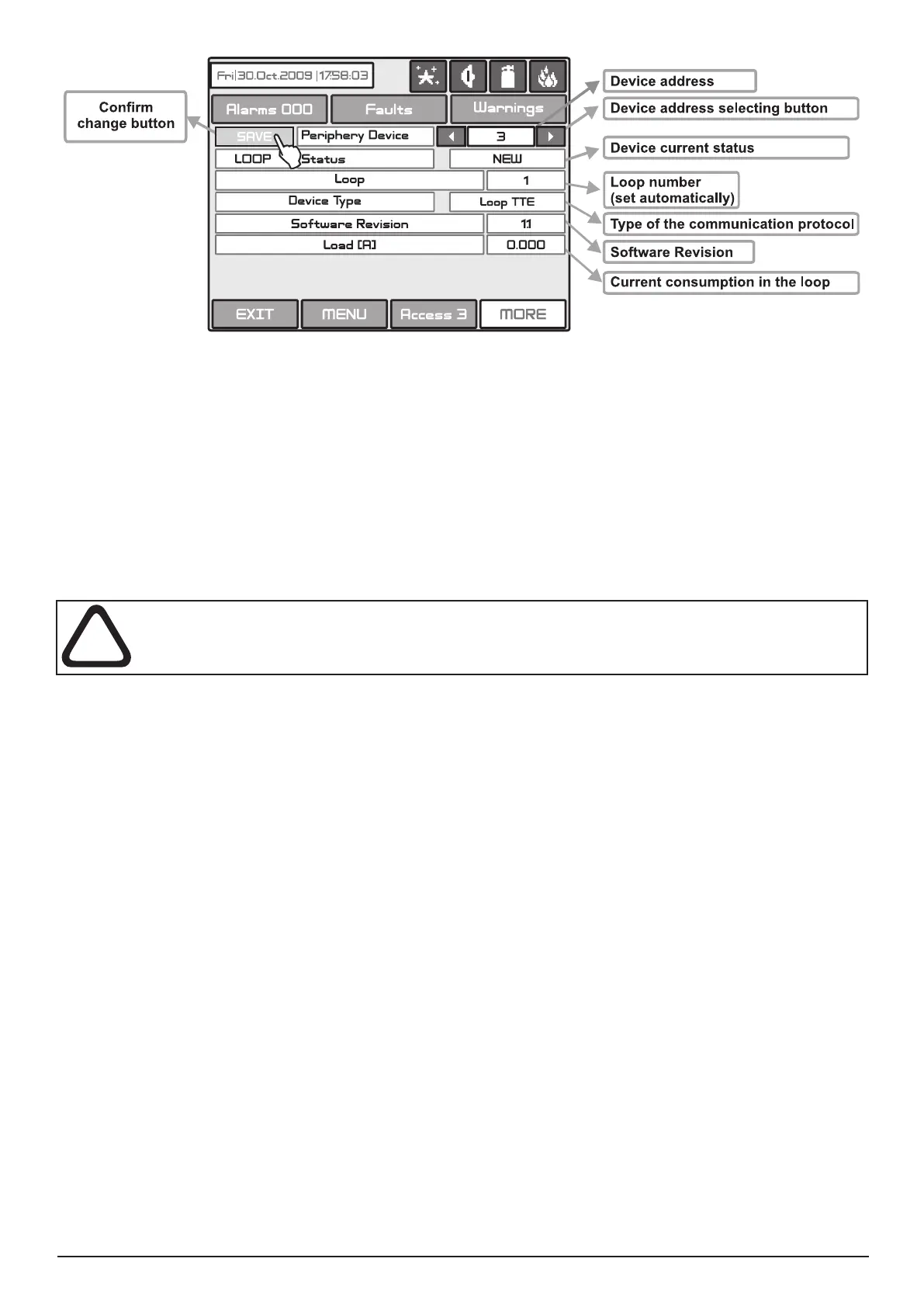
Fig. Screen 7 - LOOP (Loop controller) -
Example for adding/ removing of new periphery device in LOOP TTE
After choosing the button it disappears from the screen and the status of the device from
changes to .
To enter the submenu for programming of the loop devices parameters from “Device” menu choose button
“Loop Devices” - Fig. Screen 4.
Attention: The device searches for new loop devices only when the respective loop con-
troller has been added to the conguration.
When a new loop device is found (missing in the conguration) the message “NEW LOOP DEVICES FOUND”
will be generated, as well as the number of detected devices. The message is generated by loops. Adding a
new device to the conguration is accomplished with the APPLY command from the specic device menu or
with the help of the general SAVE command from the Programming menu. Any device, which has not been
added to the conguration, cannot generate messages. In case of removal of a loop device, the panel gener-
ates a ”LOOP DEVICE FAULT” message. When a newly detected device is removed, the panel reduces the
number of the new devices and if their number is 0 it shall extinguish the “NEW LOOP DEVICES FOUND”
message. Removing the device from the conguration is accomplished with the REMOVE command in the
menu for the specic device.
Where in abundance, it is possible for device addresses to double along the loops (see also item 2.2.7 Maxi-
mum permissible cable length). In such cases the message “DOUBLE ADDRESS” will be displayed along
with the problem address. Should a different device type appear at the address of a saved device, the panel
will generate “LOOP DEVICE TYPE ERROR”. In LOOP SS the new device can be saved by selecting the
correct type from the menu of types and the APPLY command in the menu for the specic device. For LOOP
TTE rst you need to remove wrong and then to save the new type of the device.
Loop Controller LOOP SS
The loop controller LOOP SS cannot distinguish the types of devices in one and the same area. This
requires each type of device to be further dened by the installer. For ease of introduction, the panel suggests
possible devices for selection. Information for correspondence of the device types is given in APPLICATION:
Maintained System Sensor Devices and Appendix B - Tables for correspondence of the System Sensor
device types.
The “SAVE” button can be used for fast conguration of the device. Following this command, the panel sets
up all detected loop and periphery devices by default. New devices only are congured under this command.
The “RESTORE DEFAULTS” command deletes all system parameters.
* It could be:
Loop SS - System Sensor;
Loop TTE - Teletek Electronics
*


 To Next Page