110
GPON ONT
5.6.8.4 Policy Routing
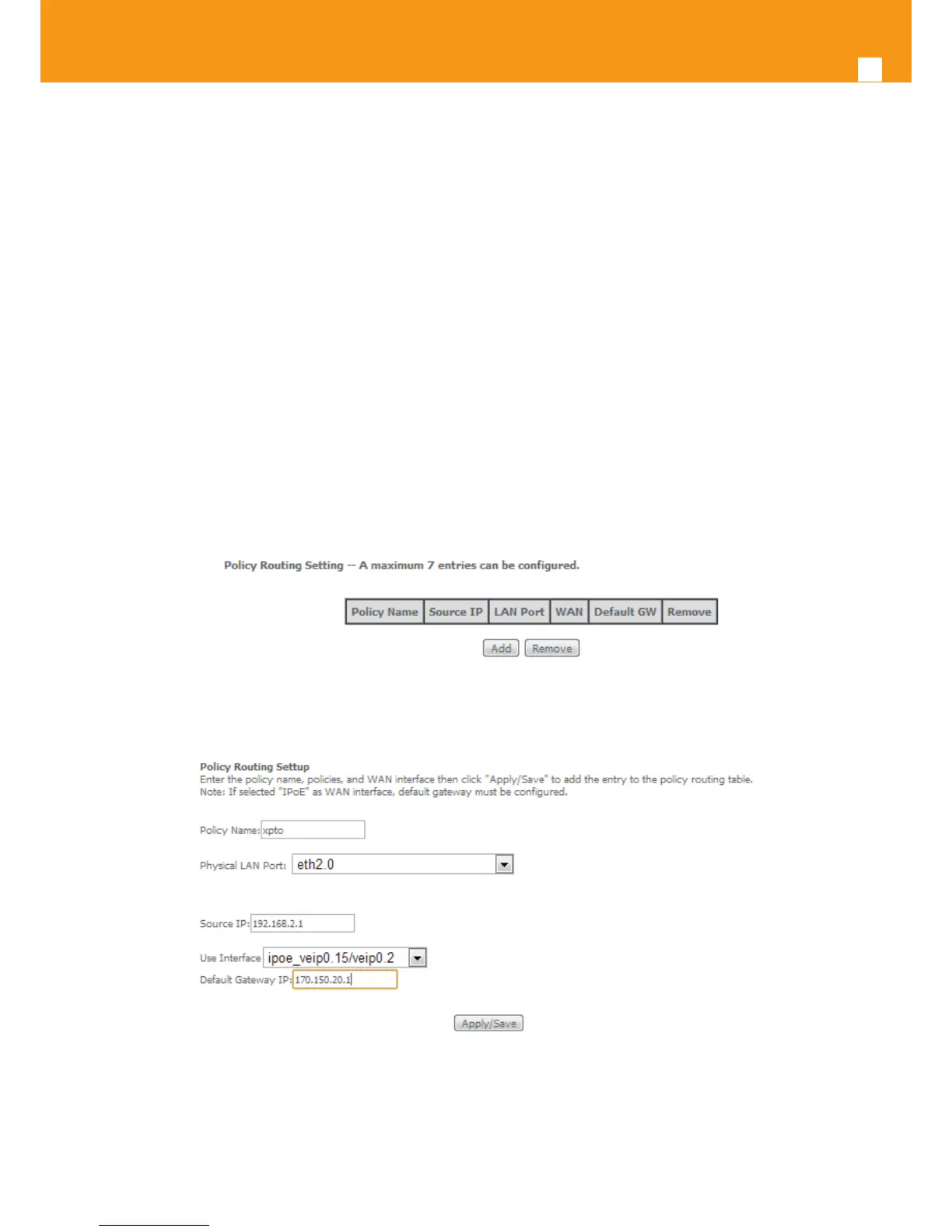
Selection of Advanced Setup submenu Routing, item Policy Routing will display a Policy Routing Setting window, Figure 5-126.
This window displays the current Policy routing conguration and allows the insertion/removal of new Policy routing rules.
A short on line help text is provided in the conguration window.
To insert and congure a new Policy routing rule use the Add Button, Figure 5-126; a new window is displayed, Figure 144. A short on line help
text is provided in the conguration window.
In order to congure the new Policy Routing rule, Figure 5-127:
STEP 1. Enter the policy name;
STEP 1. Select the Physical LAN port from the selection combo box;
STEP 1. Enter the Source IP address;
STEP 1. Select the Use Interface from the WAN selection combo box;
STEP 1. If the selected interface is “IPoE”, enter the default gateway IP.
To nalize the conguration use the Apply/Save button. The next displayed window is the initial window, showing the current Policy Routing
conguration, Figure 5-128.
Figure 5-126: Advanced Setup, Routing- Policy Routing Setting window
Figure 5-127: Advanced Setup, Routing- Policy Routing Setting – Add and congure Policy window


 To Next Page