EN
73
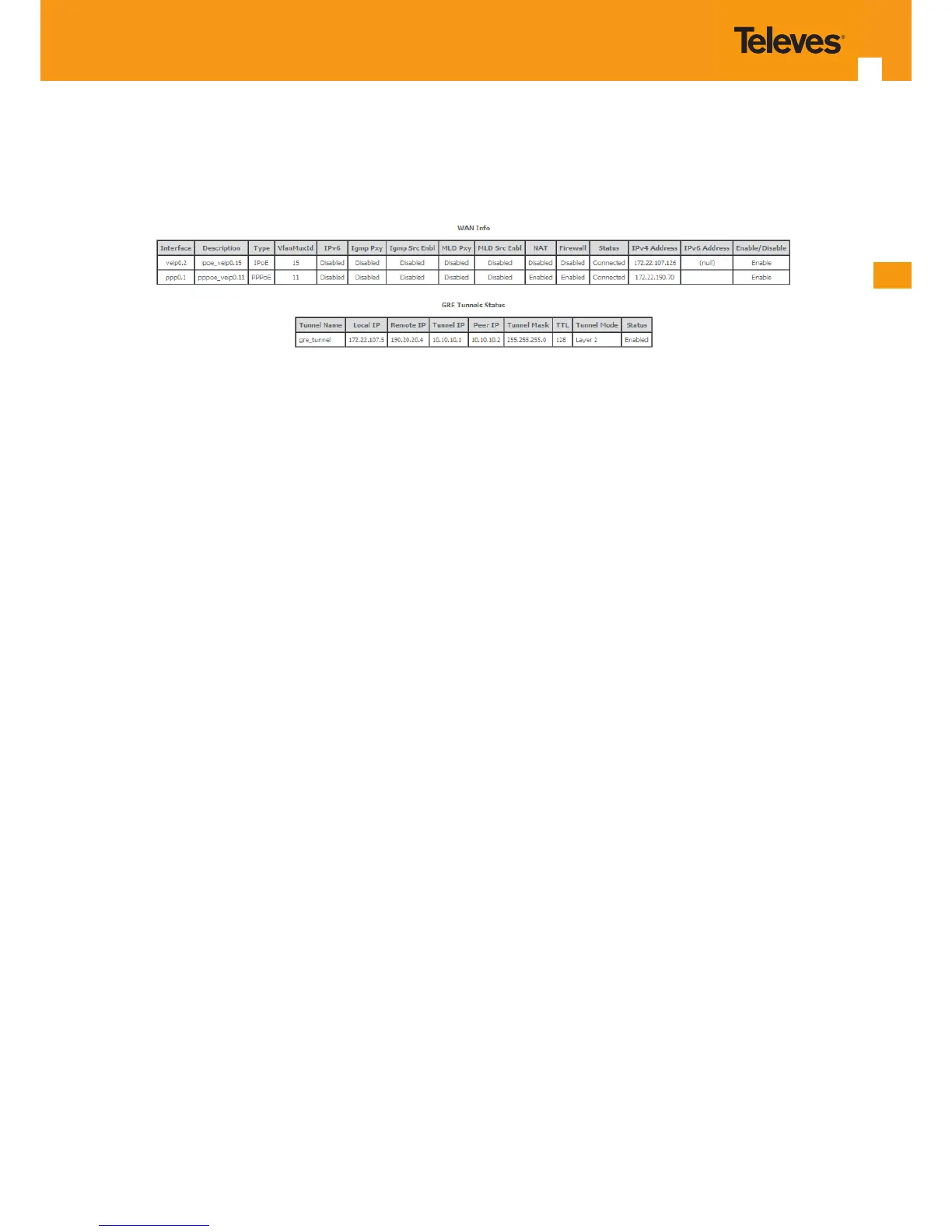
It is now possible to view the currently congured WAN services’ parameters as well as obtained IP addresses by Selecting the Device Info sub-
menu item WAN, Figure 5-63.
Figure 5-63:Device Info- WAN Service Current conguration
5.6.2.3.3 Interface Grouping for GRE
After the GRE tunnel creation, association between the WAN and the desired interfaces must be done.
At the Advanced Setup menu the item Interface Grouping must be selected. An Interface Grouping Conguration window will be displayed.
An on-line help on interface grouping is available at the conguration window:
STEP 1. Name the interfaces group, Figure 5-64, 1;
STEP 2. At the Wan interface used in the group selection combo box, select the wan interface for the grouping, in this case the GRE previ-
ously congured interfaces, Figure 5-64, 2 and Figure 5-67 To nalize the conguration use the Save/Apply button, Figure 5-65-6.
The next displayed window is initial window, the Advanced Setup- Interface grouping initial window where the newly congured
group, brgre in this example, Figure 5-67;
STEP 3. Figure 5-64; From the list of available WAN interfaces select the desired wan interface, in this example wlan0, Figure 5-66-3;
STEP 4. Click on the left pointing arrow, Figure 5-66-4, to move the selected interface (wlan0 in this example) from the Available LAN Inter-
faces List to the Grouped LAN Interfaces, Figure 5-65-5;
STEP 5. Wlan0, the selected interface for interface grouping is now show at the grouped LAN interfaces list, Figure 5-65-5;
STEP 6. To nalize the conguration use the Save/Apply button, Figure 5-65-6. The next displayed window is initial window, the Advanced
Setup- Interface grouping initial window where the newly congured group, brgre in this example, Figure 5-67.


 To Next Page