EN
91
5.6.5.1.2 Incoming
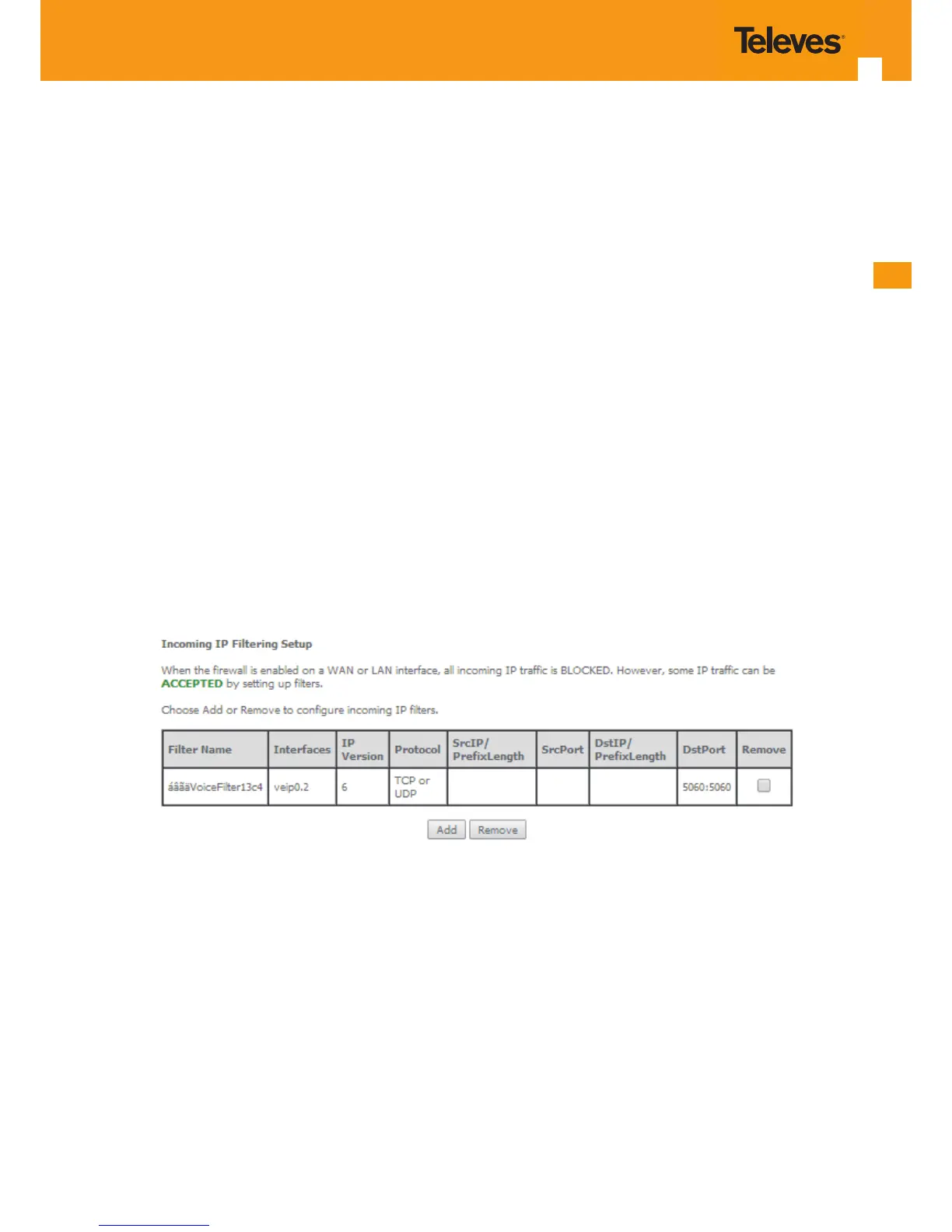
Selection of Advanced Setup submenu Security, submenu IP Filtering, item Incoming, will display an Incoming IP ltering Setup window, Figure
5-92, showing the current Incoming IP Filtering conguration. A short on line help text is provided in the conguration window.
To insert and congure a new Incoming IP Filter entry use the Add Button, Figure 110; a new window is displayed, Figure 5-93. A short on line help
text is provided in the conguration window.
This window allows the conguration of Incoming IP Filter. In order to congure the Incoming IP Filter, Figure 5-93:
STEP 1. Enter the Filter name;
STEP 2. Select the IP version to use from the IP version selection combo box, Figure 5-94;
STEP 3. Select the Protocol to use from the Protocol Selection combo box;
STEP 4. Enter the Source IP address;
STEP 5. Enter the Source Port;
STEP 6. Enter the Destination IP address;
STEP 7. Enter the Destination Port;
STEP 8. Select the WAN and/or LAN interfaces to apply this rule
Figure 5-95 provides an incoming lter conguration example
To nalize the conguration use the Apply/Save button. The next displayed window is the initial window, showing the current Incoming IP Filter-
ing conguration, Figure 5-96.
Figure 5-92: Advanced Setup, Security - Incoming IP ltering Setup window- Current Conguration


 To Next Page